Tuesday, April 11, 2017

List of Cheap Chinese Online Buying sites

https://www.ozbargain.com.au/wiki/list_of_buying_sites

Disclaimer

This list is not in any way a recommendation, sanction or endorsement by Ozbargain, its members or its affiliates. This list is provided for information purposes only. Sites on this list have not gone through verification. Also the quality of products bought from these sites is often hit-and-miss: You get what you pay for.

List Description

Here is a list of various Online sites for buying direct from Hong Kong/China.

The List

Price Comparison

These sites do price comparison for the Chinese buying sites:

Tips and Advice

  • As stated above, OzBargain, its members or its affiliates cannot be held responsible by for any shops listed here. If you do decide to use these sites, they are not sanctioned or recommended by Ozbargain.
  • Products bought from here are often much cheaper than a similar product at a retail store, but this often comes at the cost of quality.
  • The products are mostly advertised in USD and often include free shipping
  • Shipping varies widely between stores, but generally expect anything from 15-60 days.
  • Large numbers of products in a single order may cause your order to be delayed, as sellers tend to wait till all items are instock before shipping.
  • DHL/EMS are usually good options for faster postage at higher cost.
  • Try searching for coupons for a site before checking out; often you can save around 5% with a simple google search.
  • Most of the stores listed above have been used by ozbargain members – try searching the forums before trying a store.
  • Some of the above listings are marketplaces for sellers (like eBay), so you need to verify the quality of the seller as well as the quality of the marketplace.
  • Some sites may appear to be missing from this list – some have been banned on ozbargain for spam, sockpuppeting or other major issues, if you notice one missing, try searching the forum first or ask a mod.
  • Many sites have Affiliate Programs, where you can get a commission on sales. Do not abuse this on ozbargain, you will be banned. See Posting Referral Links for more info.

Prudent Warnings

  • Use your judgement – if its too good to be true, it probably is.
  • NEVER pay via credit card to avoid credit card fraud.
  • Pay with PayPal where possible to benefit from PayPal buyer protection.
  • It is YOUR responsibility to avoid importing illegal and dangerous products. Stay away from imitation weapons, lasers, fireworks, telecom/radio equipment that operates in illegal frequencies. Customs will pick it up and you will be fined $$$. Don't trust the sellers specs on lasers – if Customs tests it and it is mislabelled, YOU will be held responsible.
  • Consider your safety: cheap make-up products from china may contain very dangerous/toxic chemicals!!
  • You will get what you paid for – if its cheap, don't expect high quality or precise manufacturing, build quality or reliability.
  • It is common for popular products to be 'cloned' by a different manufacturer at a lower price, often at a cost of lower quality. It is even common for clone products to be cloned! (e.g. SJ4000 action camera) Often these stores can be a good way to buy high-quality products designed for the China market, but cloning is rampant so be careful.
  • Do not be fooled by the photos, do your own research.
  • Some are well-known stores others are not. Do your own research on google and search the ozbargain forums.
  • These are international stores. Don't expect them to honour price errors or Australian consumer laws.
  • If a product seems substantially cheaper than elsewhere ask – how yourself: could they have cut corners manufacturing this product? Will it perform to the same standard and am I happy to accept this if not?

Warranty and Faulty Products

  • Being polite and patient in communication is the best way to get help and support from these businesses.
  • Never threaten, or get abusive or rude – the person you are dealing for support with has nothing to do with the quality of the product.
  • Send a photo of the issue to the seller.
  • For lower value items, typically the seller will issue a refund or ship a replacement to you.
  • For higher-value items, you will be responsible for return postage costs – this can be costly so consider warranty costs before purchasing.
  • Generally warranty service can be difficult to obtain beyond 6 months after purchase, the policies vary from seller to seller.

Friday, April 7, 2017

How to buy handsets and other electronic devices from Chinese online stores

https://www.gogi.in/buy-handsets-chinese-online-stores.html

There are many new handsets being launched in India, unfortunately there are better ones with latest hardware available on Chinese websites. You can buy the handsets from Chinese online stores, and here is what you should know.
Now before you plan to go ahead with the purchase do note that there is a minor risk, it is with reference to the device you order. For example you might face issues with the phone you bought or it does not start at all, in such a case sending the device back / after sales support will not be that easy. But in most cases you will get a perfectly working phone, but yes keep in mind there is this small risk. You should also check the terms and conditions from the site you are buying.
There are two ways to order you can either go for the express shipping or ordinary registered post. The express shipping is costlier but in the end the shipping cost + custom duty comes up to the same as normal shipping, though better to use express shipping as it delivers faster.
Now avoid using gift / lower invoice value especially for mobile phones. It is better to be honest and if possible ask the seller to attach a screen shot of the product with the actual price.
I have used both ordinary post and express shipping and here are my experiences.
Buy handsets and other electronic devices from Chinese online stores

Ordinary registered Post

This is cheaper takes a lot of time and the custom duty is always higher, better to avoid it for high cost products (over Rs. 7000).

Express shipping

This will cost you extra, its faster and the custom duty is comparatively lower.
In general the extra charges i.e. shipping + customs will come to near about the same for both express / ordinary post.
Some users / sellers suggest to ship the handset with lower price tag like $30 or under so as to avoid the custom duty for such devices. However it will all depend on your luck if you are lucky you will not have to pay any duty, but if you are not, you will end up paying the actual duty + in some cases extra fine that will be much, much higher will cost you 2x or more the amount you spend on your phone.

How much custom duty you need to pay?

Well you can check it on dutycalculator.com but do note that every time the duty will be different, depending on the custom official inspecting your device. Just to give you an idea. I have paid Rs. 4,000 for a Rs. 7,000 device (using ordinary post), at times Rs. 900 for a Rs. 8,000 device (using DHL). And recently Rs. 6,200 for 2 smartphones totaling to $320 from China using DHL post. Also better to attach screen shot for device + price from the seller website as proof. And guess what I got the OnePlus One from USA (a long time back) – $349, that time I paid Rs. 3,420 for custom + shipping, Customs Duty was Rs. 1,573.
It is safe to assume that for a 160$ handset from China you will end up paying anywhere from Rs. 1000 to Rs. 3000 total custom duty.

Where do you pay the custom duty?

If you have ordered it from normal post you will need to pay it to the postman. And if you have used express shipping you will have to pay to the courier guy at the time of delivery.

Popular Websites

Pandawill, aliexpress, gearbest, coolcool, banggood.com, dx etc.

Which Shipping service to use for shipping into India

For high value products say 50$ and over better use DHL or Fedex. I know these shipping services cost extra, but they are far cheaper than the EMS Speed Post services.
If you use EMS shipping in case of custom verification you will have to visit personally or via your agent/authorized person, you will not only be wasting your time but also end up paying much higher amount, it is cheaper to leave the package there. Just avoid EMS at all cost, pathetic services, go with DHL or Fedex they are 1000 times better, cheaper and honest (as long you are honest).
Also note for EMS dutiable articles, intended for personal use, imported by post or air are restricted to Rs. 2000, anything above that and you will have to pay duty + fine on full amount, they will also calculate shipping, so avoid EMS, period.
Check the image below – it is the reason why most people fall into the trap, they think importing goods from EMS/normal post is free and most free shipping use this option. Instead of putting a board outside the custom office saying “do not pay bribe/ report bribe” it would be better if they put up rules and regulations and educate people regarding the rules of EMS/ import.
Indian EMS rule
If you get called you will need to pay almost the same cost that you spend. Problem is most people don’t really know how EMS works and it is not a good option for importing goods over 30$ for personal use. It looks cheaper but it is not, and also the primary reason for corruption.

Thursday, March 30, 2017

Two-factor authentication: How and why to use it


Find out how two-factor authentication works, why you should use it and how to set it up

You might not realize it, but you regularly use two-factor authentication. When you swipe your debit card and are asked to enter your PIN code or write a check and are asked to show your driver's license? Each is a form of two-factor authentication. The first example requires you to possess your card and know your PIN code. The second requires you to possess your checkbook and prove your face matches the mugshot on your ID.
Two-factor authentication requires two ways of proving your identity and can also be used to protect your various online accounts. It doesn't offer perfect security and requires an extra step when logging into your accounts, but it does make your data more secure online.

How does two-factor authentication work online?

Two-factor authentication (2FA) -- also known as two-step verification or multifactor authentication -- is widely used to add a layer of security to your online accounts. The most common form of two-factor authentication when logging into an account is the process of entering your password and then receiving a code via text on your phone that you then need to enter. The second layer in two-factor authentication means a hacker or other nefarious individual would need to steal your password along with your phone in order to access your account.
There are three types of authentication:
  • Something you know: a password, PIN, zip code or answer to a question (mother's maiden name, name of pet, and so on)
  • Something you have: a phone, credit card or fob
  • Something you are: a biometric such as a fingerprint, retina, face or voice

How does the second factor work?

After you enter your password -- the first authentication factor -- the second factor usually arrives by SMS. That is, you'll get a text with a numerical code that you'll then need to enter to log into your account. Unlike a PIN code for a debit card, a 2FA code is used only one time; each time you log into that account, you'll be sent a new code.
Alternatively, you can use a dedicated authentication app to receive codes instead of having them texted to you. Popular authentication apps are Google Authenticator, Authy and DuoMobile.

Should I use SMS or an app?

Many sites and services, including Amazon, Dropbox, Google and Microsoft, give you the option of using SMS or an authentication app. Twitter is the biggest example of a site that forces you to use SMS. If you have the choice, use an authentication app.
Receiving codes via SMS is less secure than using an authentication app. A hacker could intercept a text message or hijack your phone number by convincing your carrier to transfer it to another device. Or if you sync text messages with your computer, a hacker could gain access to SMS codes by stealing your computer.
An authentication app has the advantage of not needing to rely on your carrier; codes are sent to your phone based on this shared secret and the current time. Codes expire quickly, usually after 30 or 60 seconds. Since an authentication app doesn't need your carrier to transmit codes, they will stay with the app even if a hacker manages to move your number to a new phone. An authentication app also works when you don't have cell service, another bonus.
Using an authentication app requires a little extra setup but offers better protection than SMS. To set up an authentication app, you will need to install the app on your phone and then set up a shared secret between the app and your accounts. This is usually done by scanning a QR code with your phone's camera. Once set up, however, an authentication app saves you the step of needing to enter a code; you simply tap on the app's notifications to log into one of your accounts.

What if I don't have my phone on me?

Many online services such as Dropbox, Facebook, Google and Instagram let you create backup codes, which you can print out or screenshot. That way if you lose your phone or don't have a cell signal, you can use a backup code as a second authentication factor to log in. Just make sure you keep your printout of backup codes in a safe place.

Will 2FA make my accounts more secure?

No security product can claim to offer perfect, foolproof protection, but by combining two of the above three types of authentication, 2FA makes it harder to get into your account. You not only make your accounts more difficult to attack, but you also make your accounts less attractive targets.
Think of it in terms of home protection. If you have a home security system, you lower the odds of a burglary. If you have a loud, large dog, you also lower the odds of a burglary. If you combine a security system with a big dog, then your house becomes even more difficult to break into and a less attractive target. Most burglars will simply find an easier mark -- one without an alarm and the potential for a dog bite.
Similarly, two-factor authentication prevents a large portion of hackers from targeting your account; many will simply move on and find easier accounts to break into. And should they target you, they'll need more than just your password. In addition to your password, a hacker would need to also have your phone -- or gain access to the tokens placed on your phone by the authentication mechanism via a phishing attack, malware or activating account recovery where your password is reset and 2FA is then disabled. That's extra work.

Is 2FA a hassle to use?

I don't know if I would call it a hassle, but 2FA does require an extra step when logging into your accounts. You'll need to enter your password, wait for a code to arrive via SMS, and then enter that code. Or if you use an authentication app, you'll need to wait for notification to arrive that you can then tap to verify it's you.
I use 2FA authentication on many of my online accounts and find it less of a hassle to use than using a strong password or passphrase that combines upper and lowercase letters, numbers and symbols. And while I'm on the topic of strong passwords, let me state that using 2FA as an excuse to use weaker, easier-to-enter passwords is a bad idea. Don't weaken your first factor just because you have added a second factor.

How do I enable 2FA?

Many sites and services offer 2FA but call it by a variety of names. Below are quick primers for enabling two-factor authentication on some of the more popular online destinations.

Amazon

Sign in to your Amazon account, click Account & Lists at the top right and then go to Your Account > Login & Security Settings and click the Edit button for Advanced Security Settings. Click the yellow Get Started button and sign up to receive codes via SMS or an authenticator app. You'll also need to add a backup phone number to lessen the odds of getting locked out of your account. For more, see this Amazon help page.

Apple

From an iOS device, go to Settings > iCloud, sign in if you aren't already and then tap on your Apple ID. From your Apple ID page, tap Password & Security and then tap Turn On Two-Factor Authentication. On a Mac, you can enable it by going to System Preferences > iCloud > Account Details > Security and clicking Turn On Two-Factor Authentication. For more, see this Apple Support page.

Dropbox

Click your name at top right in your Dropbox account and go to Settings > Security and you'll see a status listed at the top of the page for Two-step verification. Next to the Disabled status, click the (click to enable) link and then click Get Started. You can then choose to get verification codes via text on your phone or an app like Google Authenticator. For more, see Dropbox's instructions.

Facebook

Click the triangle button at top right, go to Settings > Security and then click Edit to the right of Login Approvals. Next, click Enable next to where it says that Two-Factor Authentication is currently disabled. For more, see this Facebook help page.

Google

Head to Google's 2-Step Verification page, click the blue Get Started button and sign into your account. You can choose to receive codes via text or a voice call. You can also set up and print backup codes, add a backup phone number and set up Google's Authenticator app. You can also sign up to use Google prompt, which sends a notification to your phone that you can simply tap instead of having to enter a code.

Instagram

From the app, go to your profile page and tap the gear icon in the top-right to open the Options panel. Tap Two-Factor Authentication and then tap to toggle on Require Security Code. Instagram will then send you a six-digit code that you'll need to enter to enable the feature. (If your account doesn't have a confirmed phone number, then you'll be asked to enter your number.) Instagram will also send you five backup codes to screenshot. For more, see this Instagram help page for account and notification settings.

LinkedIn

Go to LinkedIn's Security Settings page and click Add a phone number if you haven't already done so for your account. With your phone number added, click Turn on next to where it says Two-step verification is turned off, enter your account password and then enter the verification code that LinkedIn sent to your phone.

Microsoft

Go to the Security settings page, sign in with your Microsoft account and click Set up two-step verification. You can choose to receive codes via email, text or via the Microsoft Authenticator app. You'll also need to create an app password to continue to use Microsoft devices and services that don't support 2FA such as the Xbox 360 and Outlook.com email on an iPhone or Android phone.

PayPal

Log in to your account and click the gear icon in the top right to enter Settings. Click the Security tab and then Update next to Security Key. Enter your mobile phone number and then enter the verification code that PayPal sends you.

Slack

Sign in to your team and go to your Account page at my.slack.com/account/settings. Click the Expand button to the right of Two-Factor Authentication and then click Setup Two-Factor Authentication. You can sign up to receive code via SMS or an authentication app. You can then get backup codes to print out.

Snapchat

Open the app, swipe down to access your account, tap the gear icon to open Settings and then tap Login Verification. You can sign up to receive code via SMS or an authentication app and create recovery codes. For more, see this Snapchat Support page.

Twitter

From the Twitter app, tap your profile icon and then tap the gear icon and tap Settings. Go to Account > Security and toggle on Login verification. You'll get codes via SMS. You can then request a backup code, which you can screenshot to keep handy. For more, see this Twitter support page.

Yahoo

In your Yahoo Account, go to Account security and toggle on Two-step Verification. If you have Yahoo's Account Key enabled, you'll need to disable it. Account Key looks and smells like two-factor authentication but it is really only one-factor; it lets you skip the first factor of entering your password and only enter a code sent to your phone. Yahoo's two-step verification is the more secure option of the two. You can also create app specific passwords for any apps that don't support 2FZ and use your Yahoo account.
If you use other website and services, check out the comprehensive Two-Factor Auth site for categorized lists of sites, services and apps to see which support 2FA and those that do not. Categories include banking, cloud computing, communication, email, health, social and many more.

10 BEST OPEN SOURCE SOFTWARE IN 2017

1. LibreOffice
2. FlatPak
3. Rocket.Chat
4. Mattermost
5. Odoo
6. iDempiere
7. SuiteCRM
8. Alfresco
9. Camunda BPM
10. Talend Open Studio

Google launches new open-source software site

Google is giving its open-source projects and initiatives a new place to live. The company announced a new site, https://opensource.google.com/, designed to provide information on how Google uses, releases, and supports open-source software.
Google believes that open source is good for everyone. By being open and freely available, it enables and encourages collaboration and the development of technology, solving real world problems.

2,000 Projects and Counting

At Google, we’ve always used open source to innovate. We want to give something back; we enjoy being a part of the community. We often release code to push the industry forward or share best practices we developed. But sometimes, it's just fun and interesting code. The list of projects we've released and contribute to is long and continues to grow.

Friday, March 24, 2017

Free Online Collage Maker | Graphic Design | Photo Editor - FotoJet

Turn Your Photos Into Works of Art

An all-in-one free online tool for graphic design,photo collage and photo editing.

https://www.fotojet.com/

FotoJet Online Photo Editor brings you access to perfect tools at anytime, anywhere as per your ease. This online photo editor brings you all the features of a conventional photo editor packed with some amazing other features such as filters, frames, overlay designs, etc.

Thursday, November 17, 2016

Alcatel Move Time track & Talk watch listed for Rs. 4799 (Kids watch phone with location)

http://www.gogi.in/news/alcatel-move-time-track-talk-watch-listed.html

A smart watch made especially for kids called the Alcatel Move Time Track & Talk watch is listed and available on Flipkart with a price tag of Rs. 4,799. Key highlight about the Alcatel Kids watch phone is that it can track the user location and also comes with call functionality. 
Alcatel Move Time smartwatch sports a 0.95 inch color OLED screen supporting 96 x 64 pixels resolution. This Bluetooth smart watch is compatible with Android and iOS platforms. Watch weight is 40 grams. You do need an active SIM card with data enabled. There is SIM slot, just insert the SIM and the watch is ready to use.
By default the smart watch will show the time, date, signal bar and battery level. This is tracking device you can use this to track your kids location using GPS locator. In case of emergency your kids will be able to make calls to any of the pre-registered numbers or reply to 10 preset contacts. Apart from this parents can make calls and also send voice messages when their kids leave a preset safe zone.
Alcatel Move Time track & Talk watch
Other features are Bluetooth 4.0, Built in GPS, WiFi, Call function and 2G.  This smart watch is also water and dust resistant (IP65 certified). There is 380 mAh battery that takes about 1 hours to charge and gives standby time of up to 96 hours.
Alcatel Kids Watch Phone with location tracking is available on Flipkart for Rs. 4,799.

Monday, September 26, 2016

ChatSim

ChatSim is the world's first SIM card that lets you connect your ChatApps wherever you are. For just ₹950 a year you can send unlimited text messages and emoji with WhatsApp, Facebook Messenger, WeChat, LINE, Telegram and many other Instant Messaging apps. Thanks to ChatSim you can keep in touch with family, friends and colleagues. Plus another 3 billion people around the world

https://www.chatsim.com/chatsim

Friday, August 26, 2016

8 Tips to Protect Your Phone and Money From Hacking

http://blogs.wsj.com/moneybeat/2016/08/25/8-tips-to-protect-your-phone-and-money-from-hacking/

A growing number of Americans use mobile phones to access their bank accounts, giving savvy criminals an opportunity to remotely hack into devices and steal banking credentials. The following are some tips that can help protect your device – and your money.
+ Even though your phone likely came with software that is on the lookout for bad guys, you may want to install an anti-malware program – particularly if you use the device for banking transactions.
+ Know what you are installing. Only download apps from official sites and only download what you really need.
+ Be careful about using open wifi connections in public places if you are conducting personal transactions, especially financial ones.
+Don’t mess with your phone’s operating system. There may be a good reason why it won’t let you download a particular app.
+ Use additional authentication features that are offered on the phone, such as a fingerprint. If you’re using a password, make sure that it is different from your non-banking passwords.
+ Don’t click on unusual text messages, particularly if you don’t recognize the sender.
+ Keep track of your bank accounts and keep an eye out for unauthorized transactions. Even a seemingly small withdrawal could be the work of a hacker who may be testing the credentials with the intent of doing more damage at another time.
+ Quickly report any unauthorized transaction to your bank. The sooner you do so, the more likely you are to get your money back without complications.

25 reasons to love Linux

https://opensource.com/life/16/8/25-things-love-about-linux

25. There is no autopilot. I am the king of my machine. —Anupam Datta
24. Nowadays stuff just works. No hunting for obscure firmware etc. Plug and play. Done in the open. That's truly, wow. —Jan Wildeboer
23. It is possible to customize Linux in multiple ways: via the kernel when compiling it and in user space. Plethora of free apps. —Eugene J. Markow
22. One thing I like about Linux is the fact that it's absolutely free. That includes price, ability to modify the code to your own specs, etc. No restrictive licensing, etc. —James Takac
21. Don't ask what Linux can do for you, it is already done, but what code you can apply for Linux! —Vladimir Cicovic 
20. Working in the terminal is awesome. Makes me look like a badass tech guy in front of the people around me when typing those commands. —Nilesh Sarkar 
19. When I ask "How do I send data via the serial port?" on a Linux forum, I get relevant answers and help. Other forums responses be like "Have you tried the parallel port? —Eric Lovejoy 
18. The freedom to edit my GUI however I see fit without worries about end user license agreements. —Jesse Woodside 
17. A huge selection of applications, tools, widgets, and other software. —Nathan Leach 
16. It gives you the feel of being a real programmer, or a hacker! —Sai Charan
15. There is no limit to what you can do. If you can imagine it, you can make it. —Jeroen Tuijn
14. It is less risky when it comes to virus attack... and of course its an open source! —Kefilwe Mosesanyane
13. The power to customize and create my own specific operating system to be used for any purpose. —Rasyid Sahputra
12. The main thing I like about Linux is there are no wizards. When installing software, it just does it and that includes all the dependencies. —Shaun Henderson
11. My machine loves it! The way I have total control over everything. It's a love story that is inexpressible. —Rhitik Bhatt
10. There's always something new to learn. —Alexander Golubets
9. Stability, resource friendly, safety. —Alwan Rosyidi
8. The freedom. —Maja Isaksson
7. Terminal <3 alizai="" hahrukh="" nbsp="" p="">
6. The commands :) file handling and big data analysis :) —Sum Aira
5. Light-weight, flexible, stabile, safe. —Tomasz MikoÅ‚ajko
4. There is more than one topic why I love Linux. But I think because it is available for everyone for free, makes the world a little more free. —Tux von Kybermann
3. The ability to freely download, run, change, and distribute the operating system to as many computers as I want. Not everyone can afford to purchase a copy of Windows every 3-4 years. Everyone can afford Linux! —Jonathan Niccolls
2. It's the Swiss Army knife of computing. —Gary Alexander
1. Everything. —Ayoub Arahmat

Thursday, July 28, 2016

Galera Cluster for MySQL

The World’s most advanced open source database cluster
Galera Cluster for MySQL is an easy-to-use high-availability solution with high system up-time, no data loss, and scalability for future growth

Thursday, June 2, 2016

Introducing WhatsApp's desktop app

https://blog.whatsapp.com/10000621/Introducing-WhatsApps-desktop-app

Today we're introducing a desktop app so you have a new way to stay in touch anytime and anywhere - whether on your phone or computer at home or work. Like WhatsApp Web, our desktop app is simply an extension of your phone: the app mirrors conversations and messages from your mobile device.

The new desktop app is available for Windows 8+ and Mac OS 10.9+ and is synced with WhatsApp on your mobile device. Because the app runs natively on your desktop, you'll have support for native desktop notifications, better keyboard shortcuts, and more.

To download the app, visithttps://www.whatsapp.com/download from your desktop browser. Then, open the app and scan the QR code using the WhatsApp app on your phone (look for WhatsApp Web menu under Settings).

Just like WhatsApp Web, the new desktop app lets you message with friends and family while your phone stays in your pocket.

Friday, April 29, 2016

How to Enable the Linux Bash Shell in Windows 10

http://www.laptopmag.com/articles/use-bash-shell-windows-10


Linux geeks rejoice. As of build number 14328, Windows 10 allows you to run a special flavor of the Bash shell (on Ubuntu) in a window. Using Bash, you can navigate around the file system, install and run Linux command line apps like the vi text editor or, with some unofficial tweaks, try to load windowed programs. However, before you can use Bash in Windows 10, you have to turn it on. Here's how.
1. Navigate to Settings. You can get there by clicking the gear icon on the Start menu.
Click gear icon for settings
2. Click Update & security.
Select update & security
3. Select For Developers in the left column.
For developers
4. Select Developer Mode under "Use developer features" if it's not already enabled.
Use developer features
5. Navigate to the Control Panel (the old Windows control panel). You can get there by hitting Windows Key + X and selecting Control panel from the pop-up menu that appears.
select control panel
6. Select Programs and Features. If it's not visible, make sure you select "Large icons" from the "View by" menu.
select programs and features
7. Click "Turn Windows features on or off."
Turn windows features on or off
8. Toggle "Windows Subsystem for Linux" to on and click Ok.
Toggle Windows Subsystem for Linux to On
9. Click the Restart Now button.
click restart now
10. Search for Bash in the Cortana / Search box and click its icon.
bash shell
11. Type "y" and hit Enter when promoted to install Ubuntu. The system will then take a few minutes to install Ubuntu in the command prompt window.
type y
12. Create a username and password.
Enter username and pwd
You can now use the Bash shell as if you were on a a computer with Ubuntu installed as its primary OS. There are a few command line apps built-in, including the vi and pico text editors, and you can add more by using the apt-get command. There's also a program which allows you to run windowed Ubuntu apps in Windows 10.

Friday, April 15, 2016

Microsoft is adding the Linux command line to Windows 10

http://www.theverge.com/2016/3/30/11331014/microsoft-windows-linux-ubuntu-bash?utm_campaign=theverge&utm_content=article&utm_medium=social&utm_source=facebook


https://channel9.msdn.com/Events/Build/2016/P488/player


Microsoft is reaching out to Linux developers in a way that the company never has before. "The Bash shell is coming to Windows. Yes, the real Bash is coming to Windows," said Microsoft's Kevin Gallo on stage at today's Build 2016 keynote. The announcement received an uproarious applause from the crowd. The new functionality will be enabled as part of this summer's Anniversary Update to Windows 10.
"This is not a VM. This is not cross-compiled tools. This is native," he said. "We've partnered with Canonical to offer this great experience, which you'll be able to download right from the Windows Store." Third-party tools have enabled this sort of thing for years, but a direct partnership between Microsoft and Canonical should offer even more flexibility and convenience for developers who prefer using these binaries and tools.
More importantly, it represents Microsoft's refreshing stance on open-source development. VP Terry Myerson teased "more coming soon" in regards to other possibilities signaling a modernized and extremely open Windows 10. This blog post by Microsoft's Scott Hanselman offers a deeper explanation of the move. "This is brilliant for developers that use a diverse set of tools like me," he said. "This is a genuine Ubuntu image on top of Windows with all the Linux tools I use."

Update: Microsoft has posted a very in-depth video covering Bash on Windows, which we've embedded at the top of this article. It should answer just about any question you might have.


Windows 10's Bash shell can run graphical Linux applications with this trick

http://www.pcworld.com/article/3055403/windows/windows-10s-bash-shell-can-run-graphical-linux-applications-with-this-trick.html


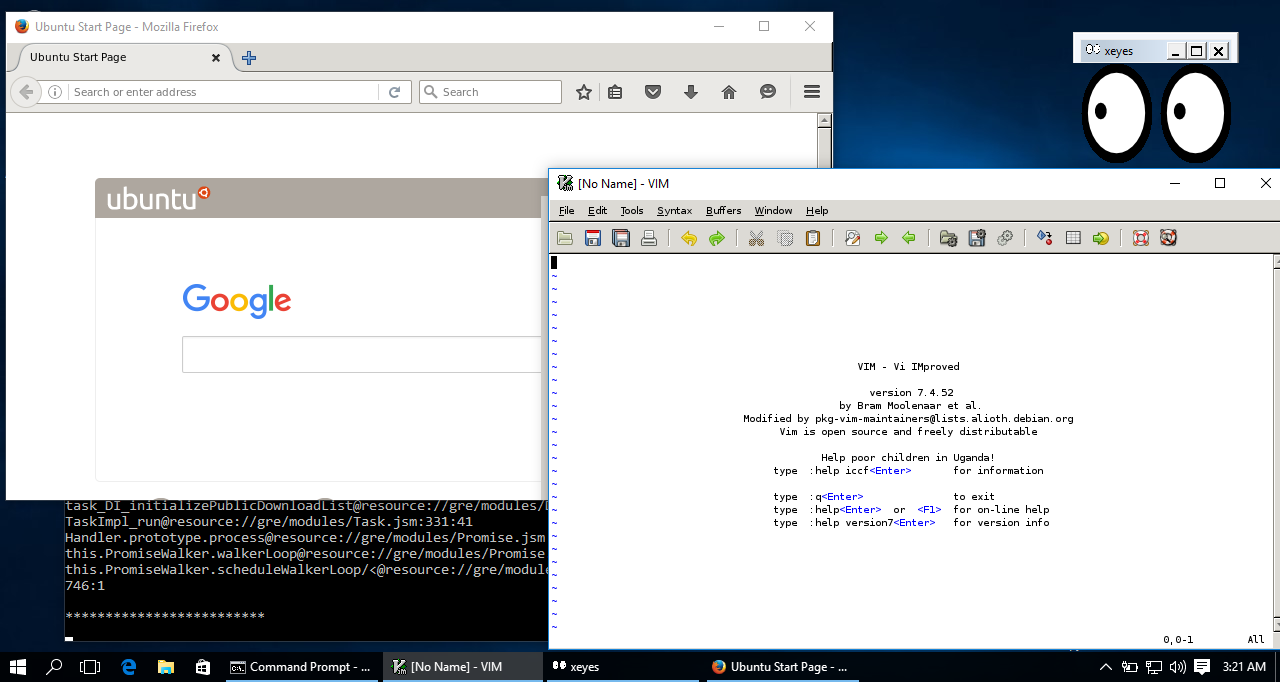
Microsoft said it wouldn’t support graphical applications in Bash on Windows. But enterprising geeks like w2qw on Reddit have already figured out how to run graphical applications with Bash on Windows 10. The underlying code is much more capable than Microsoft initially let on.

Install an X server

This is possible because the Bash shell for Windows is more than just a shell. Microsoft built an entire “Windows Subsystem for Linux” that allows Windows 10 to natively run Linux applications, even graphical ones. Install Bash for Windows 10 and you’ll actually have a complete operating system layer for running Linux applications and a full Ubuntu userspace environment—that is, everything above the Linux kernel.
The only missing piece is an X server that allows those graphical applications to appear on your Windows desktop. This is basically the same technique people would use to run graphical Linux desktop applications over a network.
The Xming X Server for Windows works well for this, although there are other X servers for Windows and they should also work. Download and install it on your Windows 10 PC to get started. You can just use the default settings and it’ll work fine. Launch Xming and it will appear in your system tray, running in the background and waiting for you to launch a graphical Linux program.
Windows 10 running Linux desktop applications. w2qw
This is Windows 10 running Linux desktop applications.

Launch applications from Ubuntu’s Bash shell

You’ll now need to install a graphical application, which you can do with the standard apt-get command in the Bash shell environment. The apt-get command has access to Ubuntu’s entire software repositories, so you can use it to install graphical applications without any additional tweaks.
For example, to install the Linux version of Firefox from Ubuntu’s repositories, you’d just run the following command:
apt-get install firefox
Once you’ve installed the program, you can specify the X server and then launch the application. For example, to launch Firefox, run the below commands. (To launch another graphical application, just specify its name instead of “firefox.)”
export DISPLAY=:0
firefox
Assuming you’re running an X server like Xming on your Windows PC, the graphical application should run. It may not run as speedily—applications can’t use direct rendering to run on your hardware directly.
This is currently a bit unstable. Many applications I tried were unable to run reliably. Some people report better success. But bugs are no surprise, as the Windows Subsystem for Linux is beta and this is its first release. As Microsoft improves the underlying code, applications—even these graphical applications—should work better and better over time.

Tuesday, April 12, 2016

Ttech Skills That Will Gives You Huge Salary

PaaS
Cassandra
MapReduce
Cloudera
Apache H Base
Pig
Advance Business Application Programming
Chef
Flume