Showing posts with label Monitoring. Show all posts

Friday, July 10, 2015

How to Add Host in Zabbix Server to Monitor

http://tecadmin.net/add-host-zabbix-server-monitor/

After installing Zabbix Server and Zabbix Agent, lets move to add your first host in Zabbix monitoring. There are Zabbix is template rich tools, It contains lots of pre defined templates which we can easily used with our hosts.
There are two ways to add hosts in Zabbix:
1. Zabbix has capability to scan your network and automatically add all the hosts in Zabbix server.
2. Second method is used for adding hosts manually.
Using this tutorial, we are going to add host manually. Follow the below steps to add your first host which is running with Linux operating system.

Adding New Host in Zabbix

Firstly we need to login to zabbix web interface using admin account.
After login follow the steps given below, You may also refer screenshot showing just after these steps.
  • Click on Configuration Menu
  • Click on Hosts submenu
  • Click on Create Host button at right side
add-zabbix-host-1
Now fill the following details of remote host and go to Templates tab.
  • Enter Hostname: Hostname of Remote system
  • Visible name: Name to be display in zabbix
  • Group: Select the desired group for you host
  • Agent interface: Fill the info of Zabbix agent running on host
  • Status: Select initial status
add-zabbix-host-2
  • Click on add link
  • Select desired Template : Please select carefully, Because it will enabled all checks for the host
  • Click on save button
add-zabbix-host-3
add-zabbix-host-4
Congratulation! You have added first host for zabbix monitoring. Repeat the same task for other hosts too.

How to View Graph in Zabbix

Graphs are always attracted the new users, Below screenshot will help you to how to view graphs in zabbix. If you have just added the host, you need to wait for few time, so that zabbix can collect some data from remote host to show on graph.
graph-network
Thank You for using this article, if this tutorial helps please do forgot to share it with your friends.
Use below link to read more about zabbix configurationhttps://www.zabbix.com/documentation/2.0/manual/config

How to Install Zabbix Agent on CentOS/RHEL 7/6/5

http://tecadmin.net/install-zabbix-agent-on-centos-rhel/
Zabbix Agent is required to install on all remote systems needs to be monitor through Zabbix server. The Zabbix Agent collects resource utilization data and applications data on client system and provide such information to Zabbix server on there requests.
There are two types of checks between Zabbix Server and Client.
  • Passive Check : Zabbix Agent sent data to server on there request.
  • Active Check : Zabbix Agent sends data periodically to Server.
After installing zabbix server on your server, Now we are moving to install agent on remote system’s. This article will help you to install zabbix agent on CentOS/RHEL 7/6/5 systems. After completing this step go to next article add Host in Zabbix Server.

Installing Zabbix Agent

Follow the below instructions to install Zabbix Agent on CentOS, RHEL 7/6/5 systems.

Step 1: Add Required Repository

Before installing Zabbix Agent first configure zabbix yum repository using following commands as per your required version and operating system.
CentOS/RHEL 7:
# rpm -Uvh http://repo.zabbix.com/zabbix/2.2/rhel/7/x86_64/zabbix-release-2.2-1.el7.noarch.rpm

CentOS/RHEL 6:
# rpm -Uvh http://repo.zabbix.com/zabbix/2.2/rhel/6/x86_64/zabbix-release-2.2-1.el6.noarch.rpm

CentOS/RHEL 5:
# rpm -Uvh http://repo.zabbix.com/zabbix/2.2/rhel/5/x86_64/zabbix-release-2.2-1.el5.noarch.rpm

Step 2: Install Zabbix Agent

After installing yum repository packages in our system. Now use following command to install Zabbix agent on your Linux sytem.
# yum install zabbix zabbix-agent

Step 3: Update Zabbix Agent Configuration

As zabbix agent has been successfully installed on our remote system. Now we just need to configure zabbix agent by adding zabbix server ip in its configuration file/etc/zabbix/zabbix_agentd.conf
#Server=[zabbix server ip]
#Hostname=[ Hostname of client system ]

Server=192.168.1.11
Hostname=Server1

Step 4: Restarting Zabbix Agent

After adding zabbix server ip in configuration file, now restart agent service using below command.
# /etc/init.d/zabbix-agent restart
To start and stop zabbix-agent service anytime use following commands.
# /etc/init.d/zabbix-agent start
# /etc/init.d/zabbix-agent sto

How to Install Zabbix 2.2 LTS (Network Monitoring Tool) on CentOS, RedHat and Fedora

http://tecadmin.net/install-zabbix-network-monitoring-on-centos-rhel-and-fedora/

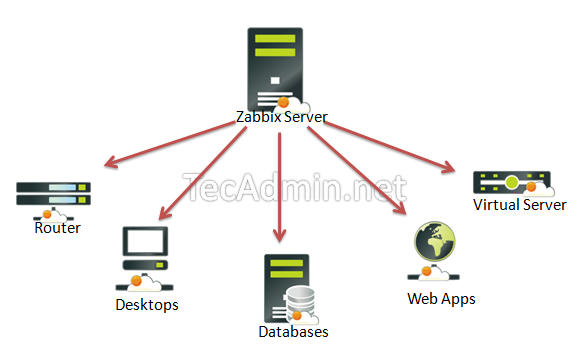
Zabbix is an open source software for networks and application monitoring. Zabbix provides agents to monitor remote hosts as well as Zabbix includes support for monitoring via SNMP, TCP and ICMP checks. Click here to know more about zabbix.
Zabbix-Monitoring
This article will help you to step by step install Zabbix 2.2 Server on CentOS/RHEL 7/6/5 and Fedora Systems. Before starting installation read below basic requirements to run Zabbix 2.2.
  • Apache: 1.3.12 or later.
  • PHP: 5.3.0 or later.
  • MySQL: 5.03 or later.
  • OpenIPMI: Required for IPMI support.
  • libssh2: Required for SSH support. Version 1.0 or higher.
  • fping: Required for ICMP ping items.
  • libcurl: Required for web monitoring.
  • libiksemel: Required for Jabber support.
  • net-snmp: Required for SNMP support.

Step 1: Set Up Apache, MySQL and PHP

In order to use Zabbix we required a Web Server, database server and PHP to work. In this steps we are going to set up these services, You many skip this step if you have already configured it.
Install All Services
# yum install httpd httpd-devel 
# yum install mysql mysql-server 
# yum install php php-cli php-common php-devel php-pear php-gd php-mbstring php-mysql php-xml
Start All Services
# service httpd start
# service mysqld start
MySQL Initial Setup
Run following command to setup mysql initially and secure it
# mysql_secure_installation

Step 2: Configure Yum Repository

Before installing Zabbix first configure zabbixzone rpm repository in our system using following commands.
CentOS/RHEL 7:
# rpm -Uvh http://repo.zabbix.com/zabbix/2.2/rhel/7/x86_64/zabbix-release-2.2-1.el7.noarch.rpm

CentOS/RHEL 6:
# rpm -Uvh http://repo.zabbix.com/zabbix/2.2/rhel/6/x86_64/zabbix-release-2.2-1.el6.noarch.rpm

CentOS/RHEL 5:
# rpm -Uvh http://repo.zabbix.com/zabbix/2.2/rhel/5/x86_64/zabbix-release-2.2-1.el5.noarch.rpm

Step 3: Install Zabbix Server with MySQL

Use following command to install Zabbix using mysql database support packages on your system.
# yum install zabbix-server-mysql zabbix-web-mysql zabbix-agent zabbix-java-gateway

Step 4: Setup Zabbix Apache Configuration

Zabbix creates its own apache configuration file /etc/httpd/conf.d/zabbix.conf. Edit this file and just update timezone. More timezone’s
  php_value date.timezone Asia/Kolkata
After changing value restart Apache service.
# service httpd restart

Step 4: Create Zabbix MySQL Database

This installation is using mysql as backend of zabbix, So we need to create MySQL database and User for zabbix installation.
# mysql -u root -p

mysql> CREATE DATABASE zabbix CHARACTER SET UTF8;
mysql> GRANT ALL PRIVILEGES on zabbix.* to 'zabbix'@'localhost' IDENTIFIED BY 'SECRET_PASSWORD';
mysql> FLUSH PRIVILEGES;
mysql> quit
After creating database restore the default mysql database provided by zabbix. These files can be found at /usr/share/doc/zabbix-server-mysql-/create/ directory.
# mysql -u zabbix -p zabbix < /usr/share/doc/zabbix-server-mysql-2.2.8/create/schema.sql
# mysql -u zabbix -p zabbix < /usr/share/doc/zabbix-server-mysql-2.2.8/create/images.sql
# mysql -u zabbix -p zabbix < /usr/share/doc/zabbix-server-mysql-2.2.8/create/data.sql

Step 5: Start Zabbix Server

After completing above setup, let’s start Zabbix server using following command.
# service zabbix-server start
After starting zabbix service, let’s go to Zabbix web installer and finish the installation.

Step 5: Start Zabbix Web Installer

Zabbix web installer can be access using following url, Change FQDN as per you setup.
  http://svr1.tecadmin.net/zabbix/
and follow the steps as per given screen shots below.
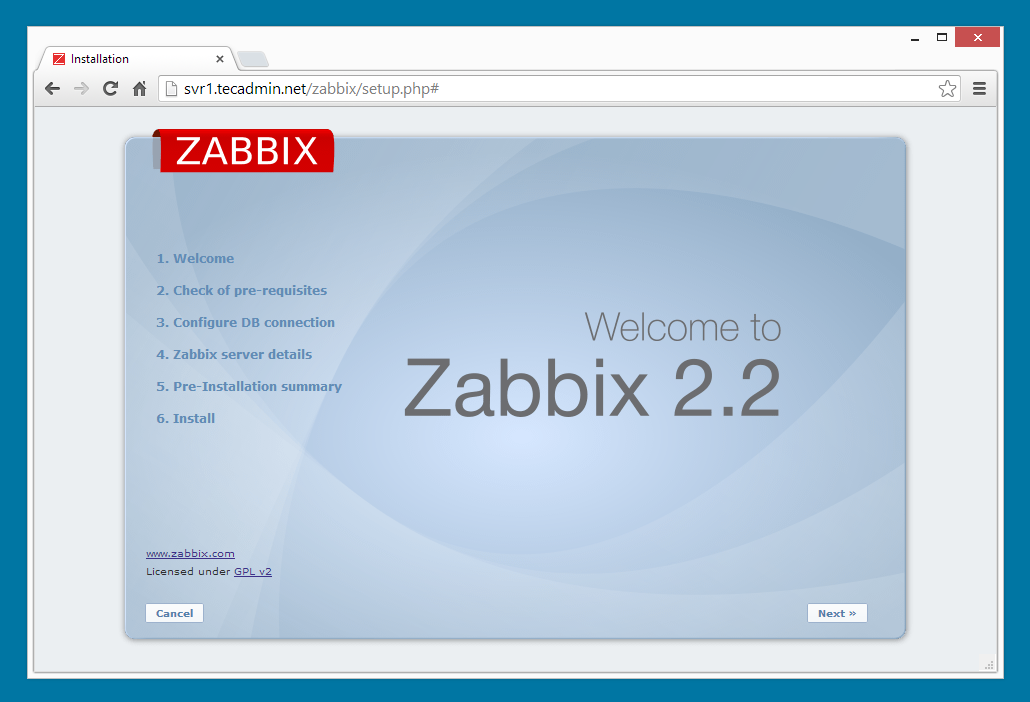
Zabbix Setup Welcome Screen
This is welcome screen of zabbix web installer. Go forward by click on next button.
Zabbix installation step 1
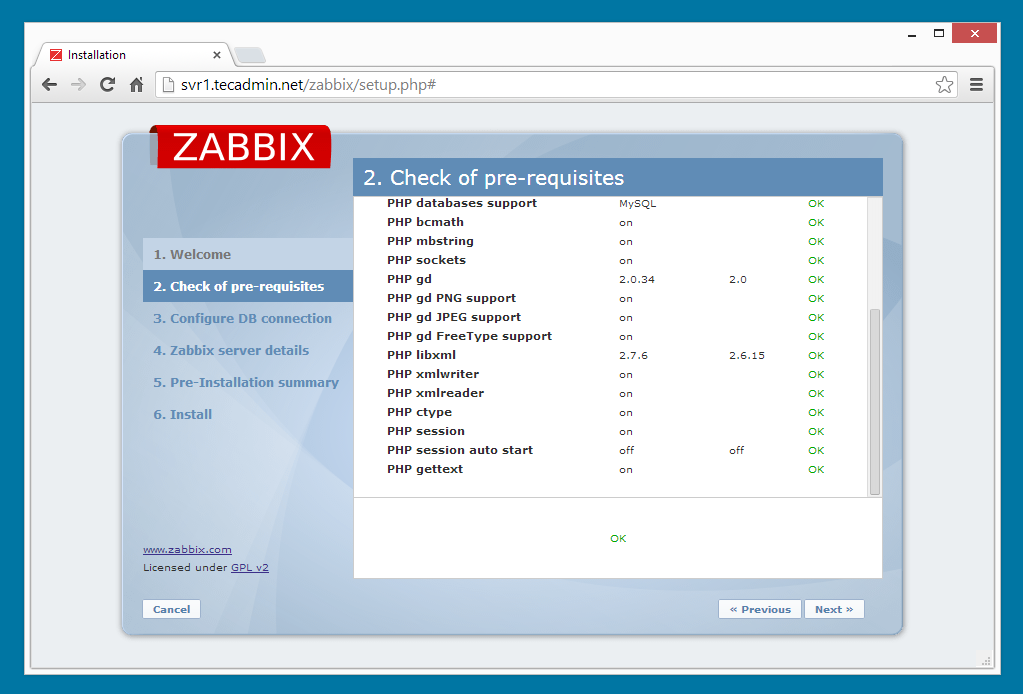
Check for pre-requisities
Check if your system have all required packages, if everything is ok click next.
Zabbix installation step 2
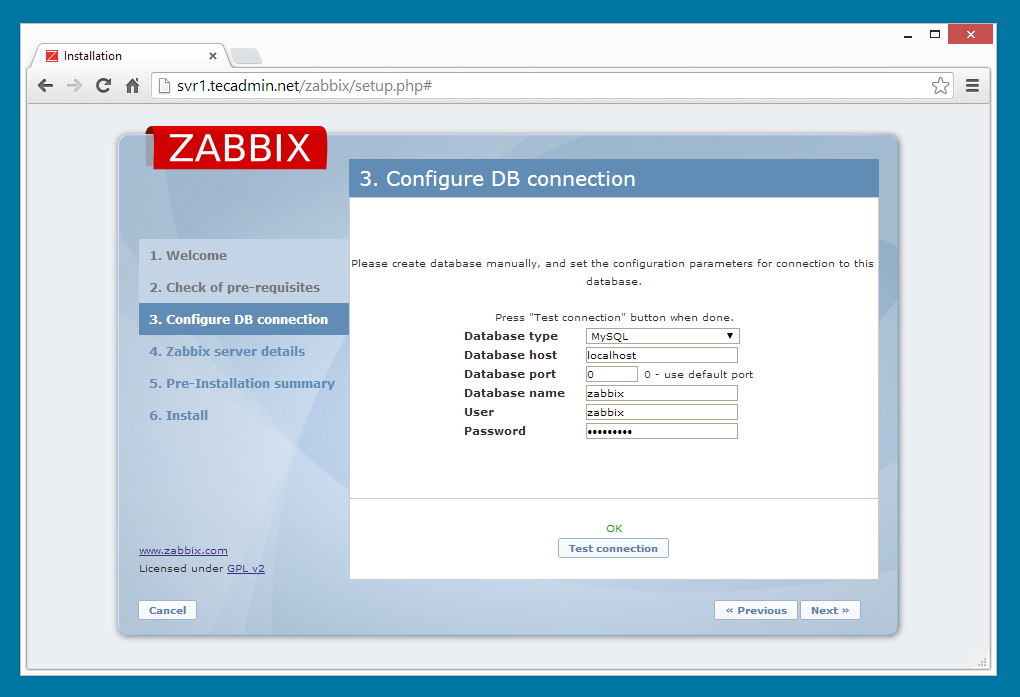
Configure DB Connection
Enter database details created in Step #4 and click Test Connection. If database connection is correct, it will show ok message. After that click next.
Zabbix installation step 3
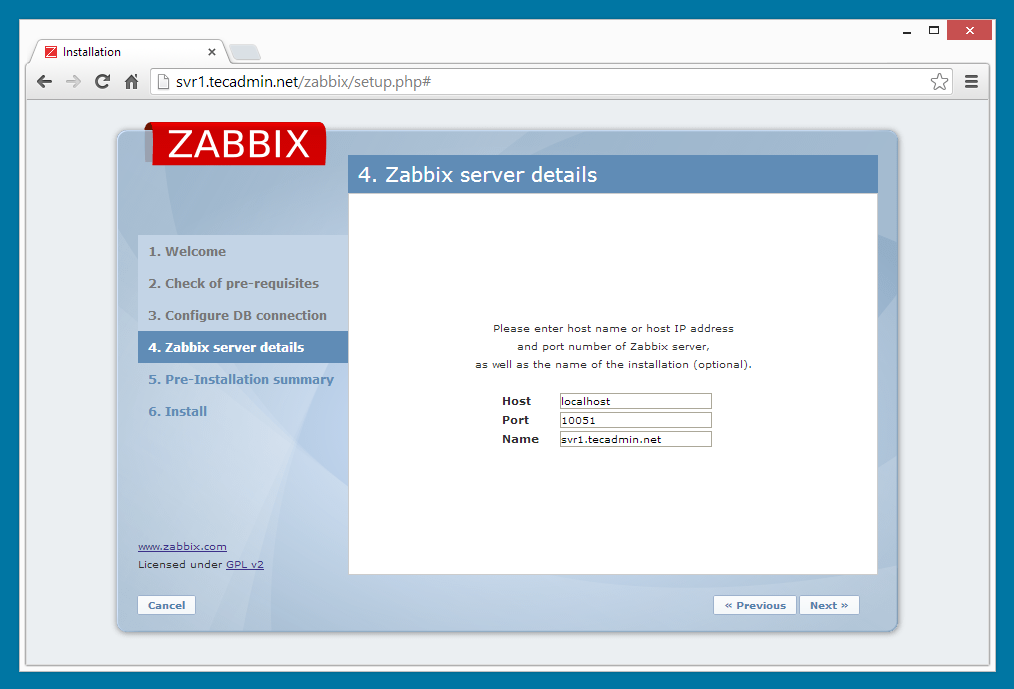
Zabbix Server Details
Zabbix installation step 4
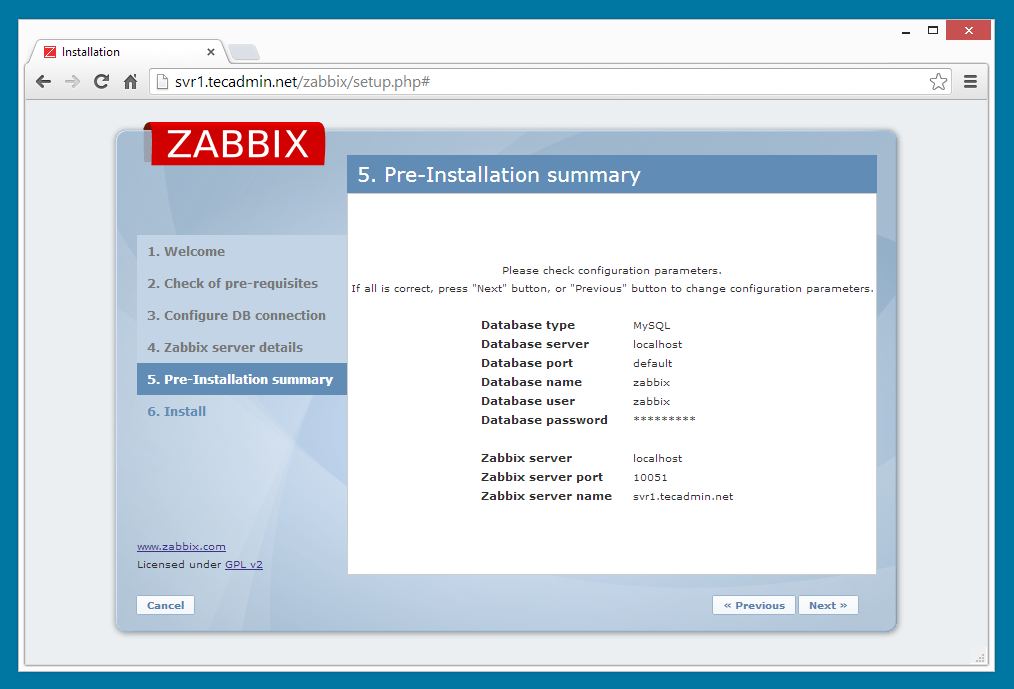
Pre-Installation Summary
This step will show the summary you have entered previous steps, so simply click next.
Zabbix installation step 5
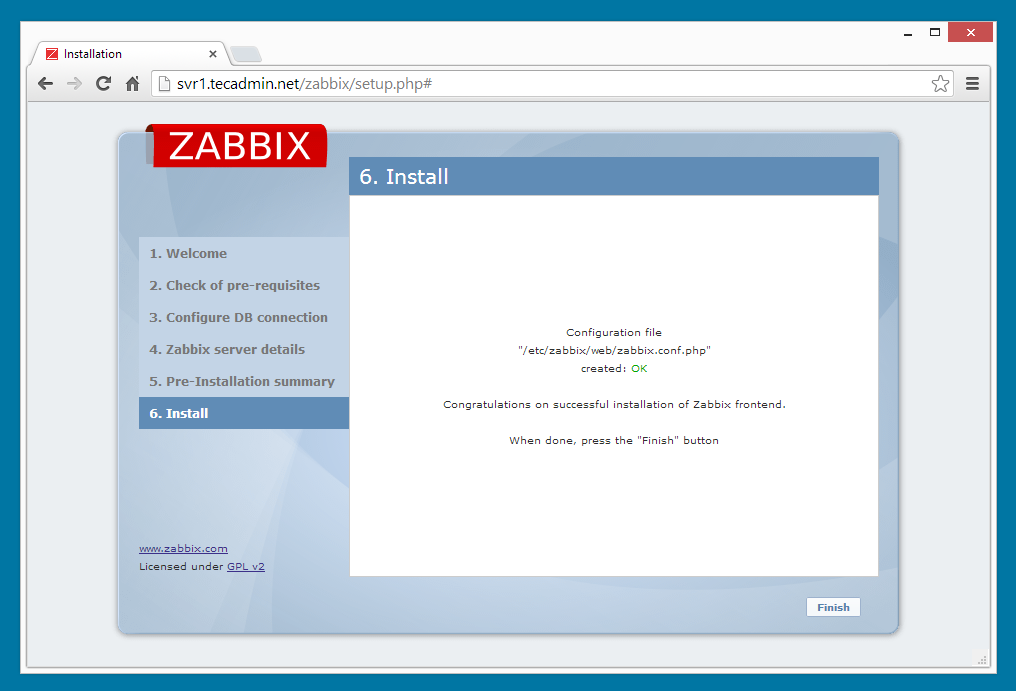
Install Zabbix
Zabbix installation step 6
Zabbix Login Screen
Login to Zabbix using below default credentials.
   Username:  admin
   Password:  zabbix
Zabbix installation step 7


Saturday, June 27, 2015

Monitor Server Resources with Collectd-web and Apache CGI in Linux

http://www.tecmint.com/monitor-linux-server-resources-with-collectd-web-and-apache-cgi/?utm_source=feedburner&utm_medium=email&utm_campaign=Feed%3A+tecmint+%28Tecmint%3A+Linux+Howto%27s+Guide%29


This tutorial will discuss how you can install and run Collectd-web interface, which is a front-end web monitoring tool for Collectd daemon, in conjunction with Apache CGI interface in order to produce graphical html outputs in order to monitor Linux boxes.
Monitor Linux Server Resources
At the end of the article we will, also, present how you can protect Collectd-web interface using .hpasswdApache Authentication mechanism.

Requirements

The requirement of this article is, you must have Collectd and Collectd-Web installed on your Linux system. To install these packages, you must follow Steps #1 and #2 from the previous article of this series at:
  1. Install Collectd and Collectd-Web in Linux
Only Follow following two steps from the above link:
Step 1: Install Collectd Service 
Step 2: Install Collectd-Web and Dependencies 
Once these two required things completed successfully, you can continue further instructions in this article to configure Collectd-web with Apache CGI.

Step 1: Installing Apache Web Server

1. Assuming that you already have installed Apache web server on your system, if not you can install using following command according to your Linux distribution.
# apt-get install apache2 [On Debian based Systems]
# yum install httpd  [On RedHat based Systems]
2. After Apache installed, change the directory to your default web server document root (which is located under/var/www/html/ or /var/www system path and clone the Collectd-web Github project by issuing the below commands:
# cd /var/www/html
# git clone https://github.com/httpdss/collectd-web.git
Also, make the following Collectd-web script executable by issuing the following command:
# chmod +x /var/www/html/collectd-web/cgi-bin/graphdefs.cgi

Step 2: Enable Apache CGI (.cgi scripts) for Default Host

3. In order for Apache to run the CGI scripts located under the default host HTML Collectd-web cgi-bin directory, you need to explicitly enable Apache CGI interface for Bash scripts (with .cgi extension) by altering the sites-available default host and adding the below statements block.

On Debian Systems

First open Apache default host configuration file for editing with nano editor:
# nano /etc/apache2/sites-available/000-default.conf
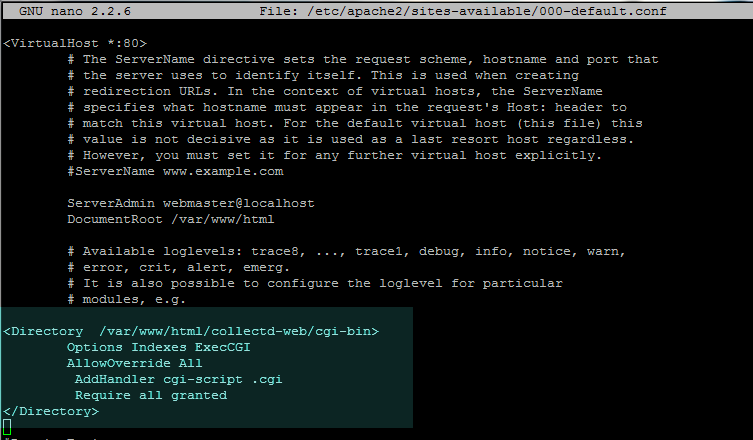
While the file is opened for editing add the following directive block below the Document Root directive as illustrated on the below image:

                Options Indexes ExecCGI
                AllowOverride All
                AddHandler cgi-script .cgi
                Require all granted

Enable CGI in Debian
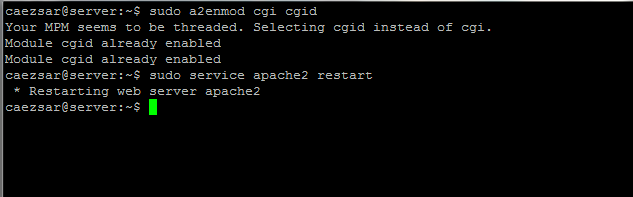
After you’re done editing the file, close it with CTRL + o and exit nano editor (CTRL+x), then enable Apache CGI module and restart the server in order to apply all the changes made so far by issuing the below commands:
# a2enmod cgi cgid
# service apache2 restart
OR
# systemctl restart apache2.service     [For systemd init scripts]
Enable Apache CGI
Enable Apache CGI

On RedHat Systems

4. To enable Apache CGI interface for CentOS/RHEL, open httpd.conf Apache configuration file and add the following lines at the bottom of the file:
# nano /etc/httpd/conf/httpd.conf
Add following excerpt to httpd.conf file.
ScriptAlias /cgi-bin/ “/var/www/html/collectd-web/cgi-bin"
Options FollowSymLinks ExecCGI
AddHandler cgi-script .cgi .pl
In order to apply changes, restart httpd daemon by issuing the following command:
# service httpd restart
OR
# systemctl restart httpd        [For systemd init scripts]

Step 3: Browse Collectd-web Interface

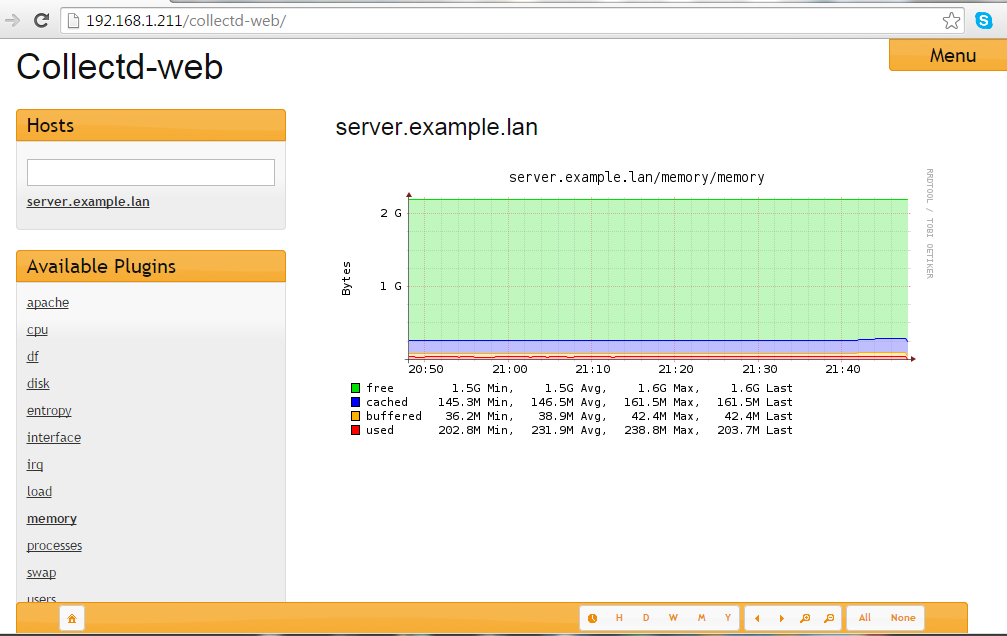
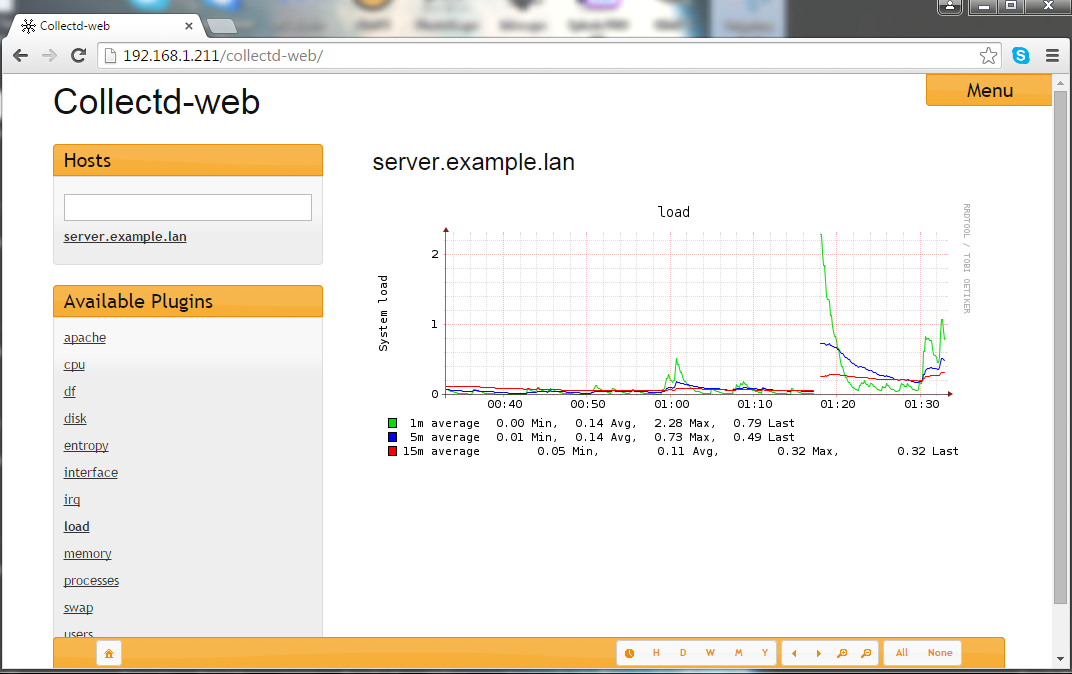
5. In order to visit Collectd-web interface and visualize statistics about your machine collected so far, open a browser and navigate to your machine IP Address/collectd-web/ URI location using the HTTP protocol.
http://192.168.1.211/collect-web/
Collectd-Web Dashboard

Step 4: Password Protect Collectd-web URL using Apache Authentication

6. In case you want to limit access to Collectd-web interface by protecting it using Apache Authentication mechanism (.htpasswd), which requires visitors to enter a username and a password in order to access a web resource.
To do so, you need to install apache2-utils package and create a set of credentials for local authentication. To achieve this goal, first issue the following command to install apache2-utils package:
# apt-get install apache2-utils         [On Debian based Systems]
# yum install httpd-tools  [On RedHat based Systems]
7. Next, generate a username and a password which will be stored on a hidden local .htpass file located under Apache default host Collectd-web path by issuing the below command:
# htpasswd -c /var/www/html/collectd-web/.htpass  your_username
Try to protect this file by assigning the following permissions:
# chmod 700 /var/www/html/collectd-web/.htpass
# chown www-data /var/www/html/collectd-web/.htpass
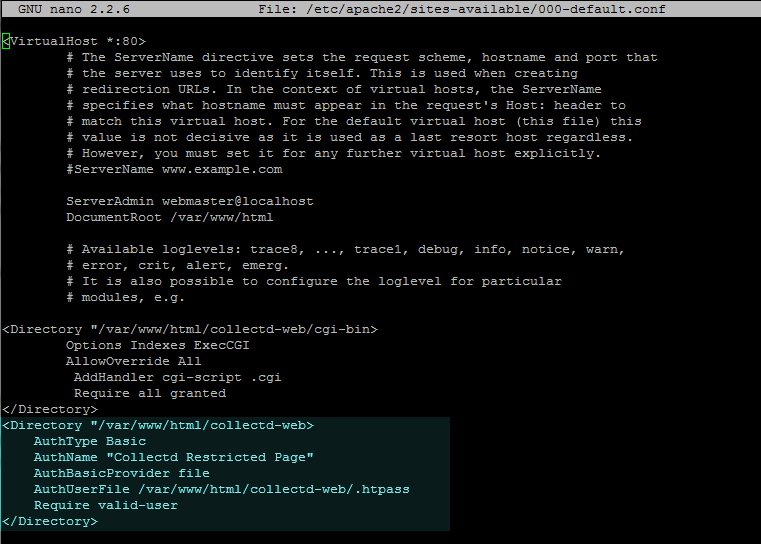
8. On the next step, after you have generated .htpass file, open Apache default host for editing and instruct the server to use htpasswd basic server-side authentication by adding the following directive block as illustrated on the below screenshot:

                AuthType Basic
                AuthName "Collectd Restricted Page"
                AuthBasicProvider file
                AuthUserFile /var/www/html/collectd-web/.htpass 
                Require valid-user

Apache Password Protect Directory
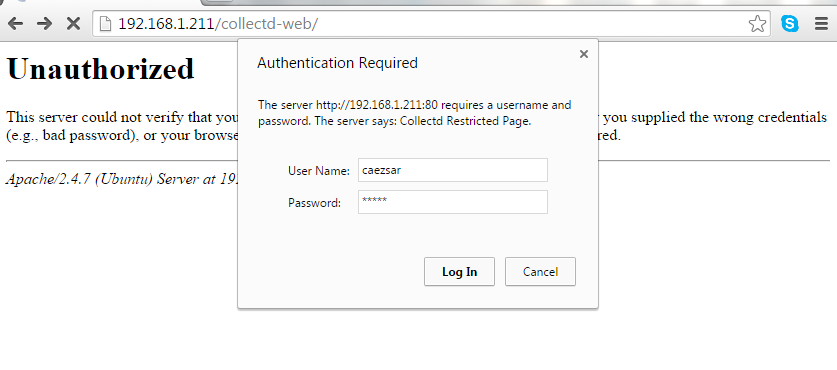
9. The last step in order to reflect changes is to restart Apache server by issuing the below command and visit the Coollectd-web URL page as described above.
A pop-up should appear on the web page requesting for your authentication credentials. Use the username and password created earlier to access Collectd web interface.
# service apache2 restart  [On Debian based Systems]
# service httpd restart   [On RedHat based Systems]

OR
---------------- For systemd init scripts ----------------
# systemctl restart apache2.service  
# systemctl restart http.service  
Apache Password Authentication
Collectd-Web Panel

Saturday, May 10, 2014

The Best Book "Learning Nagios 4"

"The Best Book to Learn Nagios 4"


This book will introduce Nagios to readers who are interested in monitoring their systems. All the concepts in the book are explained in a simplified manner, presented in an easy-to-understand language with lots of tips, tricks, and illustrations.

This book is great for system administrators interested in using Nagios to monitor their systems. It will also help professionals who have already worked with earlier versions of Nagios to understand the new features of Nagios 4 and provides usable solutions to real-life problems related to Nagios administration. To effectively use this book, system administration knowledge is required. If you want to create your own plug-ins, knowledge of scripting languages like Perl, shell and Python is expected.

The following topics covered in this Book

·  Install and configure Nagios to administer your network and system
·  Deploy agents and plug-ins, and monitor assets with advanced features of Nagios
·  Notify users of current and future incidents to protect the availability, performance, and security of monitored assets
·  Configure and work your way around the Nagios web interface
·  Pass service and host check results over the network using NSCA
·  Set up a working and usable distributed monitoring system using NSClient++
·  Develop custom plug-ins responsible for performing checks and analyzing results
·  Use the web interface to manage scheduled downtimes for hosts and services
·  Implement adaptive monitoring to modify various check-related parameters
·  Make use of SSH and NRPE to perform remote checks
·  Use SNMP to retrieve information from a device, set options, and also cover means for a device to notify other machines about a failure.