Showing posts with label Cisco. Show all posts

Monday, September 19, 2011

How to monitor traffic at Cisco router using Linux (Netflow)


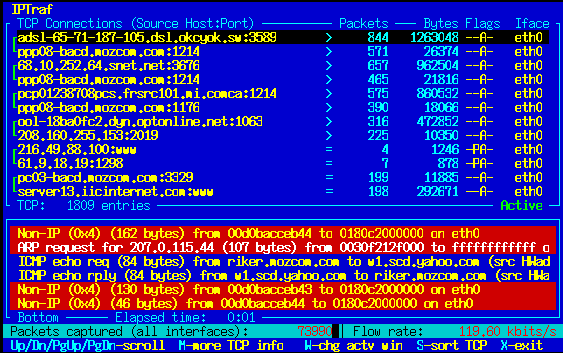
By default Cisco IOS doesn’t provide any traffic monitoring tools like iftop or iptraff available in Linux. While there are lots of proprietary solutions for this purpose including Cisco Netflow Collection, you are free to choose nfdump and nfsen open source software to monitor traffic of one or many Cisco routers and get detailed monitoring data through your Linux command line or as graphs at absolutely no cost.
Below is beginner’s guide that helps to quickly deploy netflow collector and visualizer under Linux and impress everybody by cute and descriptive graphs like these:

nfsen screen

It is highly recommended to look through Netflow basics to get brief understanding of how it works before configuring anything. For example, here is Cisco’s document that gives complete information about Netflow. In a few words to get started you should enable netflow exporting on Cisco router and point it to netflow collector running under Linux. Exported data will contain complete information about all packets the router has received/sent so nfdump and nfsen working under Linux will collect it and visualize to present you the graph like above example.
Cisco Router Setup
1. Enable flow export on ALL Cisco router’s interfaces that send and receive some traffic, here is an example:
Router1# configure terminal
Router1(config)#interface FastEthernet 0/0
Router1(config-if)#ip route-cache flow input
Router1(config-if)#interface FastEthernet 0/1
Router1(config-if)#ip route-cache flow input
...
2. Setup netflow export:
Router1# configure terminal
Router1(config)#ip flow-export source FastEthernet0/0
Router1(config)#ip flow-export source FastEthernet0/1
Router1(config)#ip flow-export version 5
Router1(config)#ip flow-export destination 1.1.1.1 23456
Where 1.1.1.1 is IP address of Linux host where you plan to collect and analyze netflow data. 23456 is port number of netflow collector running on Linux.
Linux Setup
1. Download and install nfdump.
cd /usr/src/
wget http://sourceforge.net/projects/nfdump/files/stable/nfdump-1.6.2/nfdump-1.6.2.tar.gz/download
tar -xvzf nfdump-1.6.2.tar.gz
cd nfdump-1.6.2
./configure --prefix=/ --enable-nfprofile
make
make install
2. Download and install nfsen.
It requires web server with php module and RRD so make sure you have the corresponding packages installed. I hope you’re running httpd with php already so below are rrd/perl related packages installation hints only.
Fedora/Centos/Redhat users should type this:
yum install rrdtool rrdtool-devel rrdutils perl-rrdtool
Ubuntu/Debian:
aptitude install rrdtool librrd2-dev librrd-dev librrd4 librrds-perl librrdp-perl
If you run some exotic Linux distribution just install everything that is related to rrd + perl.
At last, nfsen installation:
cd /usr/src/
wget http://sourceforge.net/projects/nfsen/files/stable/nfsen-1.3.5/nfsen-1.3.5.tar.gz/download
tar -xvzf nfsen-1.3.5.tar.gz
cd nfsen-1.3.5
cp etc/nfsen-dist.conf etc/nfsen.conf
In order to continue you should edit file etc/nfsen.conf to specify where to install nfsen, web server’s username, its document root directory etc. That file is commented so there shouldn’t be serious problems with it.
One of the major sections of nfsen.conf is ‘Netflow sources’, it should contain exactly the same port number(s) you’ve configured Cisco with — recall ‘ip flow-export …’ line where we’ve specified port 23456. E.g.
%sources = (
    'Router1'    => { 'port' => '23456', 'col' => '#0000ff', 'type' => 'netflow' },
);
Now it’s time to finish the installation:
./install.pl etc/nfsen.conf
In case of success you’ll see corresponding notification after which you will have to start nfsen daemon to get the ball rolling:
/path/to/nfsen/bin/nfsen start
From this point nfdump started collecting netflow data exported by Cisco router and nfsen is hardly working to visualize it — just open web browser and go to http://linux_web_server/nfsen/nfsen.php to make sure. If you see empty graphs just wait for a while to let nfsen to collect enough data to visualize it.

Cisco Load Balancing with Failover setup example


There is Cisco router of 7200 series with 4 FastEthernet interfaces (FE) and 2 serial ports. It should act as load balancer and failover for LAN connected to it via one FE 1/0 interface while two identical Internet connections are going to FE 0/0 and FE 0/1 (let’s name these connections as ISP_1 and ISP_2).
No dynamic routing protocols are used by ISPs but only static routing. The primary task is to ensure quick failover between two Internet connections so LAN users are automatically switched to ISP_2 if ISP_1 fails and vice versa. When both ISP_1 and ISP_2 are online the traffic of LAN users should be shared between two links to double available bandwidth on uplink (Tx) and downlink (Rx), in other words the router should be configured for load balancing between the links. You can see a network diagram below:


Load balancing setup description
There are two basic options available: per-destination or per-packet load balancing. Since ISP_1 and ISP_2 connections have almost the same link characteristics including delay, jitter and bandwidth, it is reasonable idea to pick per-packet option. In comparison to per-destination load balancing approach per-packet uses more router’s hardware resources but makes it possible to share traffic between connections more evenly. For better forwarding performance the router will be configured for Cisco Express Forwarding or simply CEF per-packet load balancing.
Failover description
Every 30 seconds the router will ping two IP addresses through ISP_1 and two other IP addresses via ISP_2. If both IPs via ISP_1 becomes unreachable (we assume that ISP_1 connection fails in this case) the router will delete ISP_1’s route from its routing table so ISP_2 becomes the only Internet connection for LAN users. Meantime the router still continues pinging two ISP_1’s IP addresses and once they become reachable back ISP_1 is added to ISP_2 as an active Internet connection link. Such failover scenario works in absolutely the same way for ISP_2. Usually this is reasonable idea to ping IP addresses of each provider’s DNS servers when monitoring availability of each ISP.
Miscellaneous details
Notice that CEF per-packet load balancing requires IOS version of 12.0+ while failover setup described above needs 12.4+ IOS version so you have to make sure your Cisco router runs at least 12.4 version of operating system. E.g. c7200-ik9o3s-mz.124-12c.bin would be ok.
Cisco router’s configuration with comments
! This line enables Cisco Express Forwarding (CEF)
ip cef
!
ip sla monitor 1
 type echo protocol ipIcmpEcho 10.0.0.100 source-interface FastEthernet0/0
 ! IP address 10.0.0.100 is primary DNS of ISP_1
 timeout 1000
 threshold 250
 frequency 30
ip sla monitor schedule 1 life forever start-time now
ip sla monitor 2
 type echo protocol ipIcmpEcho 10.0.0.101 source-interface FastEthernet0/0
 ! IP address 10.0.0.101 is secondary DNS of ISP_1
 timeout 1000
 threshold 250
 frequency 30
ip sla monitor schedule 2 life forever start-time now
!
!
ip sla monitor 3
 type echo protocol ipIcmpEcho 20.0.0.100 source-interface FastEthernet0/1
 ! IP address 20.0.0.100 is primary DNS of ISP_2
 timeout 1000
 threshold 250
 frequency 30
ip sla monitor schedule 3 life forever start-time now
ip sla monitor 4
 type echo protocol ipIcmpEcho 20.0.0.101 source-interface FastEthernet0/1
 ! IP address 20.0.0.101 is primary DNS of ISP_2
 timeout 1000
 threshold 250
 frequency 30
ip sla monitor schedule 4 life forever start-time now
!
!
track 1 rtr 1 reachability
track 2 rtr 2 reachability
track 3 rtr 3 reachability
track 4 rtr 4 reachability
!
! Tracker for ISP_1
track 10 list boolean or
 object 1
 object 2
!
! Tracker for ISP_2
track 20 list boolean or
 object 3
 object 4
!
! Interface connected to ISP_1
interface FastEthernet0/0
 ip address 10.0.0.2 255.255.255.0
 ip load-sharing per-packet
 duplex auto
 speed auto
!
! Interface connected to ISP_2
interface FastEthernet0/1
 ip address 20.0.0.2 255.255.255.0
 ip load-sharing per-packet
 duplex auto
 speed auto
!
! Interface connected to LAN
interface FastEthernet1/0
 ip address 192.168.100.2 255.255.255.0
 ip load-sharing per-packet
 duplex auto
 speed auto
!
! Two equal cost static routes to ISP_1 and ISP_2
ip route 0.0.0.0 0.0.0.0 10.0.0.1 track 10
ip route 0.0.0.0 0.0.0.0 20.0.0.1 track 20
!

Monday, September 12, 2011

How to configure a new Cisco router or switch


Environment: Cisco 2960G switch 48ports
Objective: Configuring it as a managable switch and use port 48 as monitoring port for SNORT server use.

Steps:

1. Use Putty to specify COM1 to connect to switch console, then power on the switch.
2. waiting  for the switch startup, it takes some time.
3. follow the default configuration wizard
4. specify vlan1 as management port, to specify IP address etc
5. specify ssh username and password

username root secret yourpassword

6. configuring the rest
no enable password
no ip domain-lookup

ip domain-name yourdomain.com
crypto key generate rsa (then give 1024)
note: above 2 lines are for enabling ssh server function

clock timezone SGT 8 (not in conf t prompt)
service password-encryption

no ip http server
no ip http secure-server
snmp-server community public RO
line con 0
line vty 0 4
  login local
  transport input ssh
line vty 5 15
  login local  (using local authentication, not remote authentication server)
  transport input ssh  (only accept ssh incoming connection)

7. configuring monitoring information
monitor session source vlan 1
monitor session 1 destination interface GigabitEthernet0/48

8. configuring ntp servers
ntp server 1.2.3.4

note: if you don't set the ntp server, after router's power is off and power it on again, it will lose clock information. If there's ntp server available, it will get the correct time from NTP server immediately after power on

9. setting clock
clock set 14:28:00 20 OCT 2009 (in conf t prompt)

10. save
wr

11. disable logging message
no logging console
no logging monitor  (This command disables logging for terminal lines other than the system console)
logging buffered 16384
logging trap notifications  (This command provides notification (level 5) messaging to the specified syslog server. The default logging level for all devices (console, monitor, buffer, and traps) is debugging (level 7). Leaving the trap logging level at 7 produces many extraneous messages that are of little or no concern to the health of the network. It is recommended that the default logging level for traps be set to 5. )

note:
You can synchronise the logging messages with your command prompt as follows:

Router(config)# line con 0
Router(config-line)# logging synchronous
Router(config)# line aux 0
Router(config-line)# logging synchronous
Router(config)# line vty 0 4
Router(config-line)# logging synchronous


12. some other useful commands
show clock
show monitor
show ssh
show line

hostname 48PortCiscoSwitch
ip name-server 1.1.1.1

13. the example of configuration
-----------------------------
version 12.2
no service pad
service timestamps debug datetime msec
service timestamps log datetime msec

service password-encryption
!
hostname 48PortCiscoSwitch
!
boot-start-marker
boot-end-marker
!
enable secret 5 $1$7zZ5$91N7FPR68YbLyRO4NE3jr/
!
username root secret 5 $1$2IEN$wmDzCnXsatjHtaPMrss4e.
no aaa new-model
clock timezone SGT 8
system mtu routing 1500
ip subnet-zero
!
no ip domain-lookup
ip domain-name jephe.com
!
spanning-tree mode pvst
spanning-tree extend system-id
!
vlan internal allocation policy ascending

interface GigabitEthernet0/1
!
interface GigabitEthernet0/2
.......
interface GigabitEthernet0/48
!
interface Vlan1
 ip address 10.0.0.100 255.255.255.0
 no ip route-cache
!
ip default-gateway 10.0.0.1
no ip http server
no ip http secure-server
snmp-server community public RO
!
control-plane
!
!
line con 0
 logging synchronous
line vty 0 4
 logging synchronous
 login local
 transport input ssh
line vty 5 15
 logging synchronous
 login local
 transport input ssh
!
!
monitor session 1 source vlan 1
monitor session 1 destination interface Gi0/48
ntp server 10.0.0.1

end
----------------------------

Appendix:
 Cisco routers/Switches have two privilege levels:
  • User EXEC mode—privilege level 1
  • Privileged EXEC mode—privilege level 15
When you log in to a Cisco router under the default configuration, you're in user EXEC mode (level 1). From this mode, you have access to some information about the router, such as the status of interfaces, and you can view routes in the routing table. However, you can't make any changes or view the running configuration file.
Because of these limitations, most Cisco router users immediately type enable to get out of user EXEC mode. By default, typing enable takes you to level 15, privileged EXEC mode. In the Cisco IOS, this level is equivalent to having root privileges in UNIX or administrator privileges in Windows. In other words, you have full access to the router.
For networks maintained by just a few people, everyone typically has the password to get to privileged mode

Cisco IOS provides for 16 different privilege levels ranging from 0 to 15.

The Cisco IOS comes with 2 predefined user levels.
User EXEC mode runs at privilege level 1 and “enabled” mode (privileged EXEC mode)runs at level 15.
 

Friday, September 2, 2011

Adding a VLAN in CISCO 2900

Creating a Virtual Lan is an advanced job in the case of networking. This needs experience in networking,Switching etc. But here i am stating how to add a new VLAN in the CISCO 2900 XL.

Assumptions
1.You have a basic knowledge in networking
2.You have the administrator access to switch
3.You should be aware on what you are doing !!!

CISCO2900>switchport mod access

CISCO2900>switchport mod access vlan5

CISCO2900>conf t

CISCO2900>int Fast 0/31

CISCO2900>description To Marketing LAN

CISCO2900>write