http://www.laptopmag.com/articles/use-bash-shell-windows-10
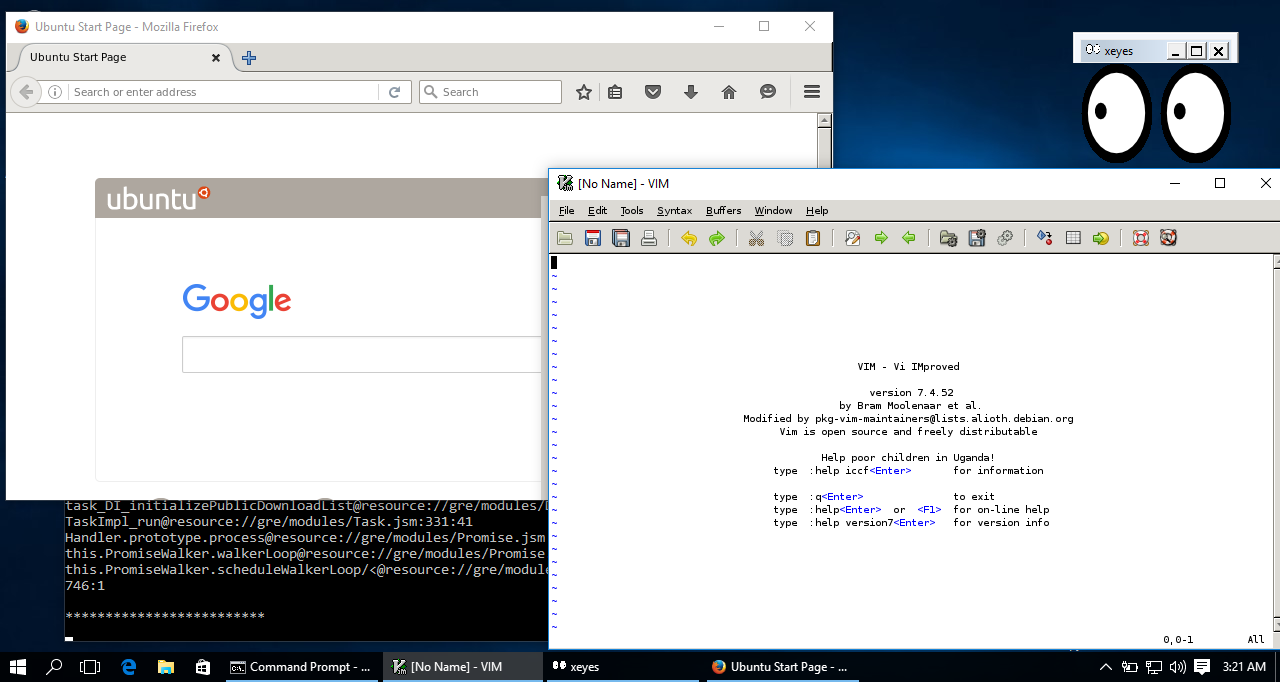
Linux geeks rejoice. As of build number 14328, Windows 10 allows you to run a special flavor of the Bash shell (on Ubuntu) in a window. Using Bash, you can navigate around the file system, install and run Linux command line apps like the vi text editor or, with some unofficial tweaks, try to load windowed programs. However, before you can use Bash in Windows 10, you have to turn it on. Here's how.
1. Navigate to Settings. You can get there by clicking the gear icon on the Start menu.

2. Click Update & security.

3. Select For Developers in the left column.

4. Select Developer Mode under "Use developer features" if it's not already enabled.

5. Navigate to the Control Panel (the old Windows control panel). You can get there by hitting Windows Key + X and selecting Control panel from the pop-up menu that appears.

6. Select Programs and Features. If it's not visible, make sure you select "Large icons" from the "View by" menu.

7. Click "Turn Windows features on or off."

8. Toggle "Windows Subsystem for Linux" to on and click Ok.

9. Click the Restart Now button.

10. Search for Bash in the Cortana / Search box and click its icon.

11. Type "y" and hit Enter when promoted to install Ubuntu. The system will then take a few minutes to install Ubuntu in the command prompt window.

12. Create a username and password.

You can now use the Bash shell as if you were on a a computer with Ubuntu installed as its primary OS. There are a few command line apps built-in, including the vi and pico text editors, and you can add more by using the apt-get command. There's also a program which allows you to run windowed Ubuntu apps in Windows 10.
Linux geeks rejoice. As of build number 14328, Windows 10 allows you to run a special flavor of the Bash shell (on Ubuntu) in a window. Using Bash, you can navigate around the file system, install and run Linux command line apps like the vi text editor or, with some unofficial tweaks, try to load windowed programs. However, before you can use Bash in Windows 10, you have to turn it on. Here's how.
1. Navigate to Settings. You can get there by clicking the gear icon on the Start menu.
2. Click Update & security.
3. Select For Developers in the left column.
4. Select Developer Mode under "Use developer features" if it's not already enabled.
5. Navigate to the Control Panel (the old Windows control panel). You can get there by hitting Windows Key + X and selecting Control panel from the pop-up menu that appears.
6. Select Programs and Features. If it's not visible, make sure you select "Large icons" from the "View by" menu.
7. Click "Turn Windows features on or off."
8. Toggle "Windows Subsystem for Linux" to on and click Ok.
9. Click the Restart Now button.
10. Search for Bash in the Cortana / Search box and click its icon.
11. Type "y" and hit Enter when promoted to install Ubuntu. The system will then take a few minutes to install Ubuntu in the command prompt window.
12. Create a username and password.
You can now use the Bash shell as if you were on a a computer with Ubuntu installed as its primary OS. There are a few command line apps built-in, including the vi and pico text editors, and you can add more by using the apt-get command. There's also a program which allows you to run windowed Ubuntu apps in Windows 10.


/cdn0.vox-cdn.com/uploads/chorus_asset/file/6264457/microsoft-build-2016-event-verge_205.0.0.jpg)