Thursday, November 12, 2015

12 Open Source Cloud Storage Software to Store and Sync Your Data Quickly and Safely

Cloud by name indicates something which is very huge and present over a large area. Going by the name, in technical field, Cloud is something which is virtual and provides services to end users in form of storage, hosting of apps or virtualizing any physical space. Now a days, Cloud computing is used by small as well as large organizations for data storage or providing customers with its advantages which are listed above.
Free Open Source Cloud Storage Softwares for Linux                                    12 Free Open Source Cloud Storage Software’s
Mainly, three types of Services come associated with Cloud which are: SaaS (Software as a Service) for allowing users to access other publically available clouds of large organizations for storing their data like: gmail, PaaS (Platform as a Service) for hosting of apps or software on Others public cloud ex: Google App Engine which hosts apps of users, IaaS (Infrastructure as a Service) for virtualizing any physical machine and availing it to customers to make them get feel of a real machine.
Cloud Storage
Cloud Storage means storage of data away from users local system and across the span of dedicated servers which are meant for this. At its earliest, CompuServe in 1983 offered its customers 128k of disk space which could be used to store files. Whereas this field is under active development and will be because of potential threats including: loss of data or information, data hacking or masquerading and other attacks, many organizations have come forward with their own solutions to Cloud Storage and Data Privacy which is strengthening and stabilizing its future.
In this article, we will present some of selected contributions for this concern which are open source and successfully being accepted by huge masses and big organizations.
1. OwnCloud
A Dropbox replacement for Linux users, giving many functionalities which are similar to that of DropBox, ownCloud is a self-hosted file sync and share server.
Its open source functionality provides users with access to unlimited amount of storage space. Project started in January 2010 with aim to provide open source replacement for proprietary cloud storage service providers. It is written in PHP, JavaScript and available for Windows, Linux, OS X desktops and even successfully provides mobile clients for Android and iOS.
OwnCloud employs WebDav server for remote access and can integrate with large number of Databases including: SQLite, MariaDB, MySQL, Oracle Database, PostgreSQL.
Provides large number of features countable of which include: File storage and encryption, Music Streaming, content sharing across URL’s, Mozilla sync hosting and RSS/Atom feed reader, one-click app installation, Video and PDF viewer and many more.
The latest version of ownCloud i.e. 8.2 adds on other new features including: improved design, allows admin to notify users and set retention limits on files in the trash.
OwnCloud                                                                             OwnCloud
2. Seafile
Another file hosting software system which exploits open source property to avail its users with all advantages they expect from a good cloud storage software system. It is written in C, Python with latest stable release being 4.4.3 released on 15th October 2015.
Seafile provides desktop client for Windows, Linux, and OS X and mobile clients for Android, iOS and Windows Phone. Along with a community edition released under General Public License, it also has a professional edition released under commercial license which provides extra features not supported in community edition i.e. user logging and text search.
Since it got open sourced in July 2012, it started gaining international attention. Its main features are syncing and sharing with main focus on data safety. Other features of Seafile which have made it common in many universities like: University Mainz, University HU Berlin and University Strasbourg and also among other thousands of people worldwide are: online file editing, differential sync to minimize the bandwidth required, client-side encryption to secure client data.
Seafile Cloud Storage                                                                Seafile Cloud Storage
3. Pydio
Earlier known by the name AjaXplorer, Pydio is a freeware aiming to provide file hosting, sharing and syncing. As a project it was initiated in 2009 by Charles du jeu and since 2010, it is on all NAS equipment’s supplied by LaCie.
Pydio is written in PHP and JavaScript and available for Windows, Mac OS and Linux and additionally for iOS and Android also. With nearly 500,000 downloads on Sourceforge, and acceptance by companies like Red Hat and Oracle, Pydio is one of the very popular Cloud Storage Software in the market.
In itself, Pydio is just a core which runs on a web server and can be accessed through any browser. Its integrated WebDAV interface makes it ideal for online file management and SSL/TLS encryption makes transmission channels encrypted securing the data and ensuring its privacy. Other features which come with this software are: text editor with syntax highlighting, audio and video playback, integration of Amazon, S3, FTP or MySQL Databases, image editor, file or folder sharing even through public URL’s.

Pydio Cloud Storage                                                                  Pydio Cloud Storage

4. Ceph
Ceph was initially started by Sage Well for his doctoral dissertation, and in fall 2007 he continued on this project full time and expanded the development team. In April 2014 Red Hat brought its development in-house. Till now 8 releases of Ceph have been released latest being Hammer in April 7, 2015. Ceph is a distributed cluster written in C++ and Perl and highly scalable and freely available.
Data can be populated in Ceph as block device, a file or in form Object through RADOS gateway which can present support for Amazon S3 and Openstack Swift API’s. Apart from being secure in terms of data, Scalable and reliable, other features provided by Ceph are:
  1. network file system which aims for high performance and large data storage.
  2. compatibility to VM clients.
  3. allowance of partial/complete reads/ writes.
  4. object level mappings.
Ceph Storage                                                                    Ceph Storage
5. Syncany
Released in about an year ago in near March 2014, Syncany is one of the lightest and open source cloud storage and file sharing application. It is currently being actively developed by Philipp C. Heckel and as of today, is available as a command line tool for all supported platforms, but GUI version is under active development.
One of the most important feature about Syncany is that it is a tool and requires you to bring in your own storage, which can be FTP or SFTP storage, WebDAV or Samba Shares, Amazon S3 buckets etc.
Other features which make it an awesome tool to have are: 128-bit AES+Twofish/GCM encryption for all the data leaving the local machine, file sharing support with which you can share your files with your friends, offsite storage as chosen by user instead of provider-based storage, interval-based or on-demand backups, binary compatible file versioning, local deduplication of files. It can be more advantageous for companies who want to use their own storage space rather trusting some providers provided storage.
Syncany Cloud Storage                                                                    Syncany Cloud Storage
6. Cozy
Not just a file sharing or synchronization tool or software, Cozy is bundled as a complete package of functions that can help you build your complete App Engine.
Like Syncany, Cozy provides flexibility to user in terms of storage space. You can either use your own personal storage or trust Cozy team’s servers. It relies on some open source software’s for its complete functioning which are: CouchDB for Database storage and Whoosh for indexing. It is available for all platforms including smartphones.
Main features which make it a must to have Cloud storage software are: ability to store all the Contacts, Files, Calendar, etc in the Cloud and sync them between laptop and smartphone, provides ability to user to create his own apps and share them with other users by just sharing Git URL of the repository, hosting static websites or HTML5 video game consoles.
As a step further to provide its availability even for cheap hardware’s, Cozy team has introduced Cozy Light which performs well even on cheap hardware’s like: Rasberry Pi, small Digital Ocean VPS etc.
Cozy Cloud Storage                                                                 Cozy Cloud Storage

7. GlusterFS
GlusterFS is a network attached file storage system. Initially, started by Gluster Inc., this project is now under Red Hat Inc. After their purchase of Gluster Inc in 2011. Red Hat integrated Gluster FS with their Red Hat Storage Server changing its name to Red Hat Gluster Storage. It is available for platforms including Linux, OS X, NetBSd and OpenSolaris with some of its parts licensed under GPLv3 while others dual licensed under GPLv2. It has been used as a foundation for academic research.
GlusterFs uses a client-server model with servers being deployed as storage bricks. Client can connect to server with custom protocol over TCP/IP, Infiband or SDP and store files to the GlusterFs server. Various functionalities being employed by it over the files are: file-based mirroring and replication, file-based stripping, load balancing, scheduling and disk caching to name a few.
Other very useful feature of it is that it is flexible i.e. data here is stored on native file systems like: xfs, ext4 etc.
GlusterFS Storage                                                          GlusterFS Storage
8. StackSync
StackSync is a Dropbox like tool running on top of OpenStack swift which is specially designed to tackle the needs of organizations to sync their data at one place. It us written in Java and released under GNU General public license v3.
Its framework is composed of three main components: a synchronization server, Openstack swift, desktop & mobile clients. While the server processes metadata and logic, Openstack is focused on storing the metadata while desktop and mobile clients help users sync their data to their personal cloud.
StackSync employs various data optimizations that allow it to scale to cater the needs of thousands of people with efficient use of cloud resources. Its other features are: provision of RESTful API as a Swift module which allows mobile apps and other third party applications to use it to sync data, separation between data and metadata which makes it flexible for deployment based on different configurations, provides both Public configuration which is useful for Public Cloud providers and Private configuration which solves the problems of big organizations aiming for a better cloud storage solution.
StackSync Cloud Storage                                                           StackSync Cloud Storage
9. Git-annex
Git-annex is another file synchronization service developed by Joey Hess, released in October 2010 which also aims to solve file sharing and synchronization problems but independent of any commercial service or central server. It is written in Haskell and available for Linux, Android, OS X and Windows.
Git-annex manages the git repository of the user without storing the session into git again. But instead it stores only the linking to the file in the git repository and manages the files associated to the link at a separate place. It ensures the duplicacy of file which is needed in case recovery of lost information is required.
Further, it ensures availability of file data instantly as and when required which prevents files to present on each system. This reduces a lot of memory overhead. Notably, git-annex is available on various Linux distributions including: Fedora, Ubuntu, Debian etc.
Git-Annex                                                                       Git-Annex

10. Yandex.Disk
Yandex.Disk is a cloud storage and synchronization service released in April 2012 and available on all major platforms including: Linux, Windows, OS X, Android, iOS and Windows Phone. It allows users to synchronize data between different devices and share it with others online.
Various features provided by Yandex.Disk to its users are: built-in flash player that lets people preview songs, sharing of files with others by sharing download links, synchronization of files between different devices of same user, unlimited storage, WebDAV support allowing easy management of files by any application supporting WebDAV protocol.
Yandex-Disk                                                                    Yandex-Disk
11. Bitcasa
Developed by Bitcasa Inc. Which is a California Based company, Bitcasa is yet another solution for open source Cloud Storage and synchronization available for Windows, OS X, Android and Linux. Not directly an open source software, but it is still a part of Open Source community as it uses those software’s of which many are open sourced like: gcc/clang, libCurl, OpenSSL, APR, Rapid JSON etc.
With main features being file storage, access and sharing other features which make it popular among customers across more than 140 countries worldwide are: its convergent encryption protocol which is mostly safe but with less risks associated with it as reported by an article, provision of secure API’s and white label storage applications for OEM’s, network operators and software developers.
Bitcasa Storage                                                                     Bitcasa Storage
12. NAS4Free
NAS is acronym for ‘Network Attached Storage‘ and ‘4Free‘ indicates its free and open source nature. NAS4Free released under this name in March 2012. It is a network attached storage server software with a user interface written in PHP and released under Simplified BSD License. It supports platforms including i386/IA-32 and x86-64.
NAS4Free supports sharing across multiple Operating Systems. It also includes ZFS, disk encryption etc with protocols such as: Samba, CARP, Bridge, FTP, RSYNC, TFTP, NFS. Unlike other software’s, NAS4Free can be installed and operated from USB/ SSD Key, Hard Disk or can even be booted from LiveCD, LiveUSB with small USB key for config storage. NAS4Free has won awards including Project of month (August 2015) and Project of the week (May 2015).
NAS4Free Network Storage                                                            NAS4Free Network Storage
Conclusion
These are some known Open Source Cloud storage and synchronization software’s which have either gained a lot of popularity over the years or have just been able to enter and make their mark in this industry with a long way to go. You can share any software that you or your organization might be using and we will be listing that with this list.


OwnCloud 8 Released – Create Personal/Private Cloud Storage in Linux

http://www.tecmint.com/install-owncloud-to-create-personal-storage-in-linux/

Cloud storage stands for virtualised pool of network storage most commonly hosted by third parties. Cloud storage is a network-based service which physically do not exist but remains somewhere in the cloud. To be more clear, cloud storage means sharing data over network, rather than having local servers or personal device.
Cloud storage is all around us in our smart phones, on desktops and servers etc. The Dropbox application which is now available on smart phone is nothing but cloud storage application. Google Drive is another cloud storage application which lets you store and access your stored data from anywhere and anytime.
This article aims at – Building your personal cloud storage using ownCloud application. But what is the need of building personal cloud when there are third party hosting. Well all the third party hosting limits you to work with the given configuration and storage limit. With the ever expanding list of photos, videos, mp3’s of storage is not sufficient, moreover cloud storage is a relatively new concept and there are not many third party cloud storage host and the available one is too much costly.
ownCloud community has recently released their special release ownCloud 8. They have come up with incredible changes in terms of quality, performance and innovations to provide excellent cloud experience with “ownCloud“. If you are already working with its older version, you’ll definitely experience significant improvements in Document handling.

What is ownCloud

ownCloud is a free, open-source and powerful web application for data synchronization, file sharing, and remote storage of files. ownCloud is written in PHP/JavaScript languages. It is designed to work with several database management systems, including MySQL, MariaDB, SQLite, Oracle Database, and PostgreSQL. Moreover owncloud can be deployed on all known platforms viz., Linux, Macintosh, Windows and Android. In short it’s a robust, platform Independent, flexible in terms of configuration and usability, easy-to-use open source Application.

Features of owncloud

  1. Store files, folders, contacts, photo galleries, calendar, etc on the server of your choice, Later you can access it from mobile, desktop, or web browser.
  2. In the world of gadgets, a normal person have tablet, smart phone, laptop, etc. Own cloud lets you sync all your files, contacts, photo, calendar, etc synced among the devices.
  3. In the era of sharing aka Facebook, Twitter, Google+, etc, owncloud lets you share your data with others and share them publicly or privately as per your needs.
  4. Easy user interface lets you manage, upload, create user, etc in a very easy fashion.
  5. A special feature is that, even user can undelete the accidentally deleted data from Trash, is not it easy to handle and maintain.
  6. The search feature in owncloud is very responsive which is done in background and lets user search by name as well as file type.
  7. Contacts are organised in categories/group hence easy to access contacts on the basis of friends, co-worker, Family, etc.
  8. You can now access external storage be it Dropbox, FTP or anything else by mounting.
  9. Easy to migrate to/from other owncloud server.

What’s New in ownCloud 8

  1. Accessibility Improvement for app’s management page, updater app and search.
  2. Additional notification and direct download supported.
  3. Storage configuration file can be tuned to a higher level in this release.
  4. Apps management is now intelligent enough to store App’s dependency in XML file from where Apps container can solve the dependencies automatically.
  5. Documentation improved to next level, PDF viewer improved with the implementation of new version of PDF.js.
  6. Improved user management and structured settings and admin page improved.
  7. Link sharing has now gone better by shortening.
  8. Overall performance improved as compared to previous version.
  9. Contacts importing improved.
  10. Federated (United) cloud sharing which means setting up of shared folder across server is a cake walk. This feature makes it possible to collaborate organizations with the control at local owncloud deployment server.
  11. Apps now features rating and are category based.
  12. Set favorite icon to files and folder so that it is easy to sort and edit.
  13. Add files to favorites so that it is easy to find them later.
  14. Admin can edit email address of users, sort and select user as well as rename group.
  15. Basic feature includes – connecting to owncloud over HTTP(s), browse for files/folder in explorer, automatic sync, sharing files with other users, sync folders from PC, Pause and resume downloads and uploads and configure proxy.

Step 1: Install ownCloud Storage in Linux

In order to setup your own personal cloud storage (ownCloud), you must have LAMP (Linux, Apache, MySQL, PHP) stack installed. Other than LAMP stack you might need Perl and Python based upon your use.
On Debian/Ubuntu/Linux Mint
# apt-get install apache2 apache2-doc apache2-utils mysql-server mysql-client php5 php5-mysql php5-curl
On RedHat/CentOS/Fedora
# yum install httpd mysql-server mysql-client php php-mysql php-curl

Step 2: Create Cloud Database

Once you setup LAMP stack on your personal box, just login to your database (MySQL, here).
# mysql -u root -p
Enter mysql root password. Now we will be creating a database (say cloud).
mysql> create database cloud ; 
Query OK, 1 row affected (0.00 sec)
It is not a good idea to access your database from root, hence grant all the permission to a normal user (say tecmint).
mysql> grant all on cloud.* to tecmint@localhost identified by 'my_password'; 
Query OK, 0 rows affected (0.00 sec)

Step 3: Download and Install ownCloud Application

Now its time to Download latest ownCloud (i.e version 8.0.0) application using below link.
  1. http://owncloud.org/install/
Alternatively, you may use wget command to download the source tar-ball package.
# wget https://download.owncloud.org/community/owncloud-8.0.0.tar.bz2
You may alternatively install from source package using APT or YUM. The installation instruction can be found at:
  1. Install ownCloud using APT or YUM
However we choose the TAR package which is universally accepted and works on most of the known system.
After Downloading the owncloud package, move it to your Apache working directory, which is /var/www (for Debian) and /var/www/html (for RedHat).
# cp owncloud-8.0.0.tar.bz2 /var/www/  [For Debian based Systems]
# cp owncloud-8.0.0.tar.bz2 /var/www/html/ [For RedHat based Systems]
Next, extract the package using tar command as shown below.
# tar -jxvf owncloud-8.0.0.tar.bz2
Since the TAR Archive is extracted you may remove the Archive.
# rm -rf owncloud-8.0.0.tar.bz2
We might need to change the file permission of owncloud, in our Apache working directory.
# chmod -R 777 owncloud/
Note: Remember we are giving read, write and execute permission to all, which is although risky but this time needed since several configuration file would be written automatically. We later need to change permission to 755, once the setup is finished.

Step 4: Configuring Apache for ownCloud

For security purpose ownCloud uses Apache‘s .htaccess files, in order to use them. We need to enable two Apache modules mod_rewrite and mod_headers for ownCloud to function properly. Type the following command to enable these modules under Debian based systems only, for RedHat systems they are enabled by default.
# a2enmod rewrite
# a2enmod headers
Additionally, we need to enable mod_rewrite rules to work properly under Apache‘s main configuration file. Open the Apache global configuation file.
# nano /etc/apache2/sites-available/default [For Debian based Systems]
# vi /etc/httpd/conf/httpd.conf   [For RedHat based Systems]
There, find “AllowOverride None” and change this to “AllowOverride All” as shown.
AllowOverride None
Change this to:
AllowOverride All
Now we need to restart Apache to reload new changes.
# service apache2 restart   [For Debian based Systems]
# service httpd restart    [For RedHat based Systems]

Step 5: Access ownCloud Application

Now you can acess your very personal cloud storage at:
http://localhost/owncloud
OR
http://your-ip-address/owncloud
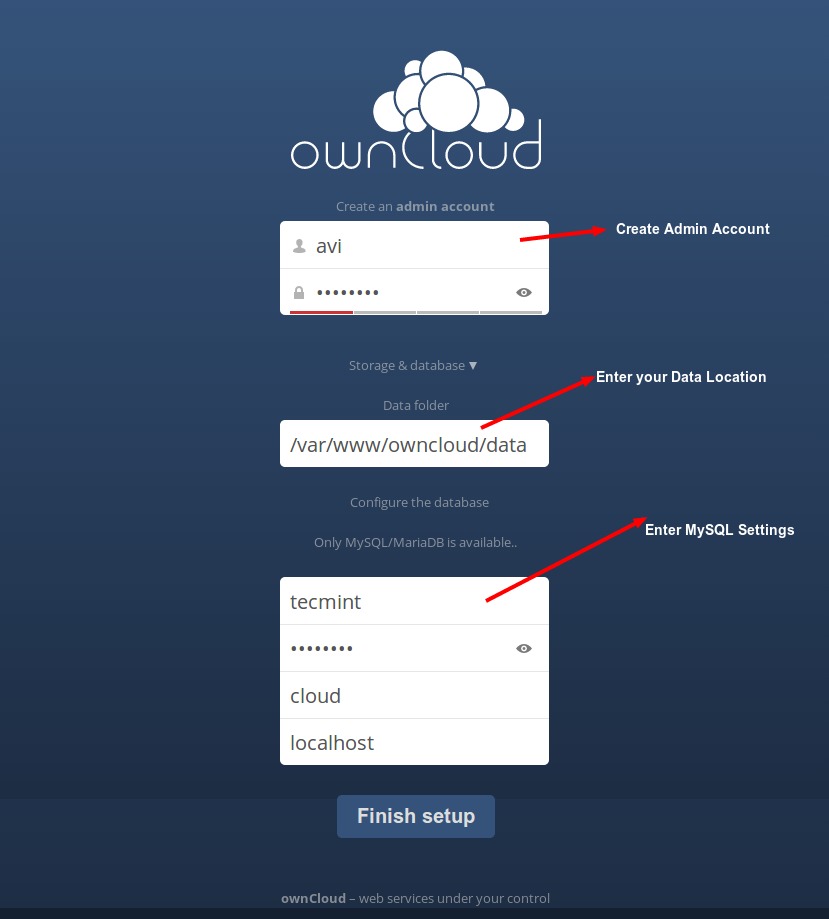
Once you get the Owncloud page, you need to create an admin account and a Data folder location, where all files/folders will be stored (or leave default location i.e. /var/www/owncloud/data or /var/www/html/owncloud/data). Next, you need to enter mysql database username, password and database name, refer the screenshot below.
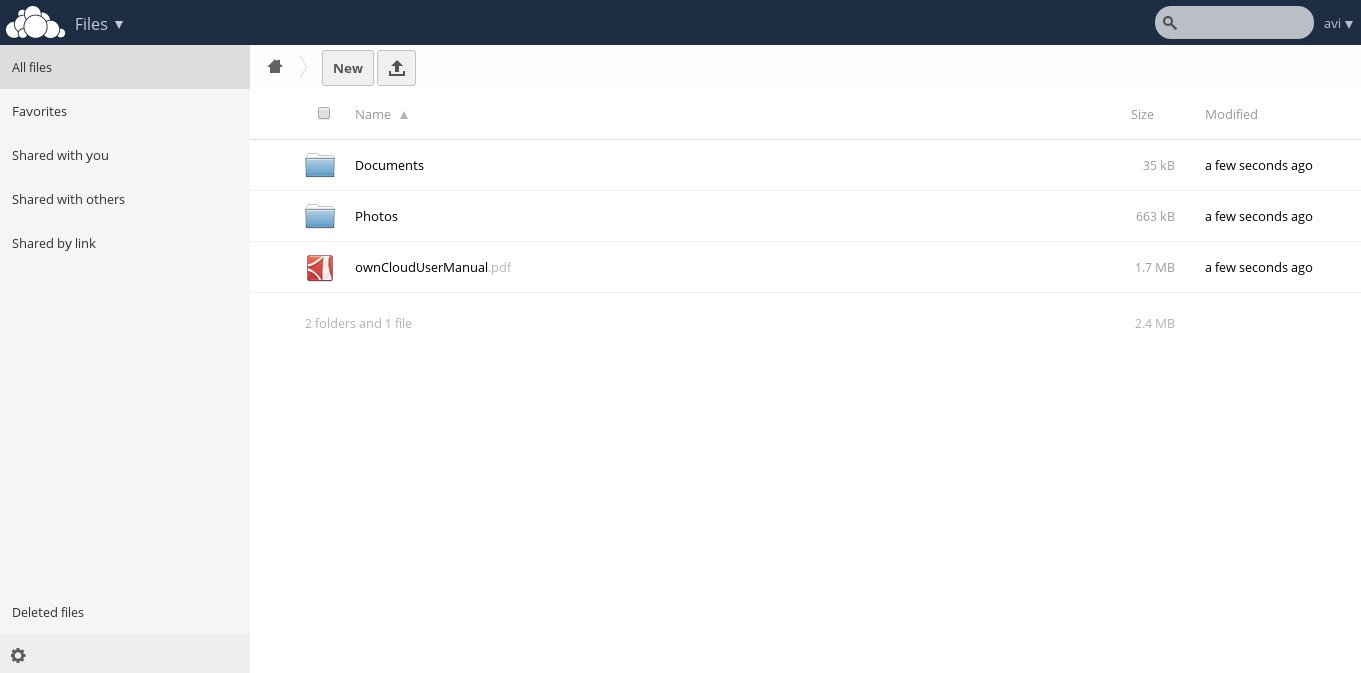
Once all the correct values are entered, click Finish and your private cloud storage is ready, you are greeted with the working interface:
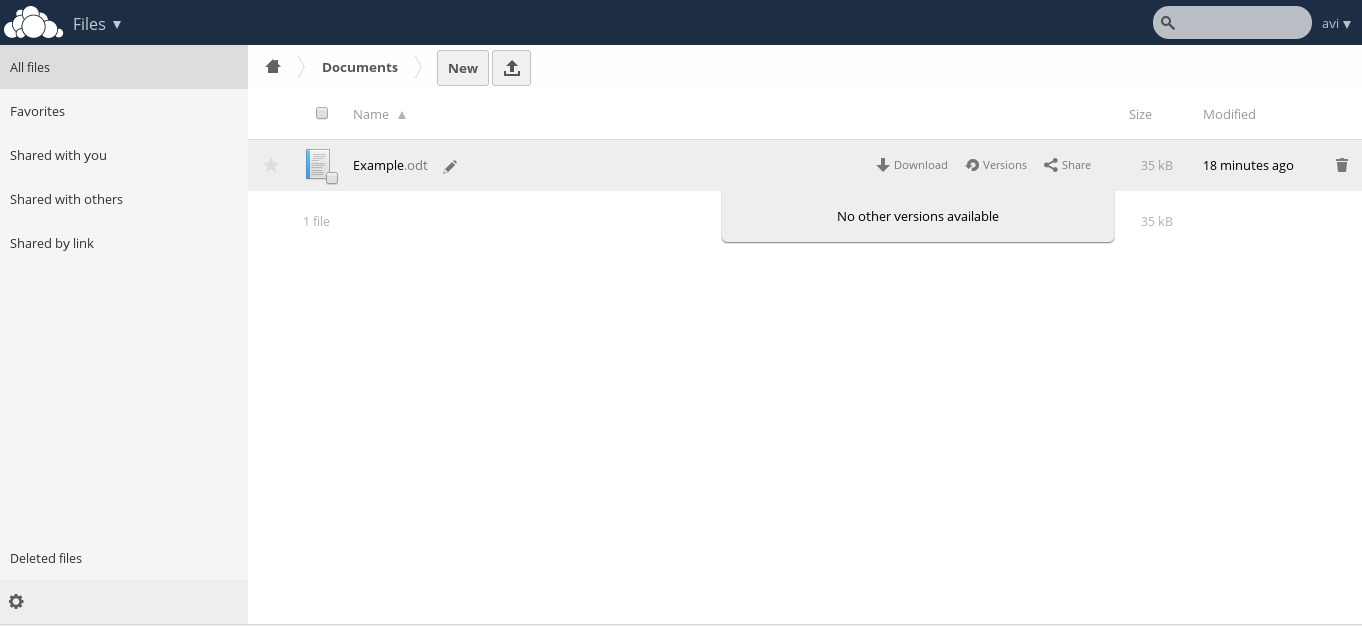
Notice the Favorites, edit, share, download, upload and new file options available for a file.
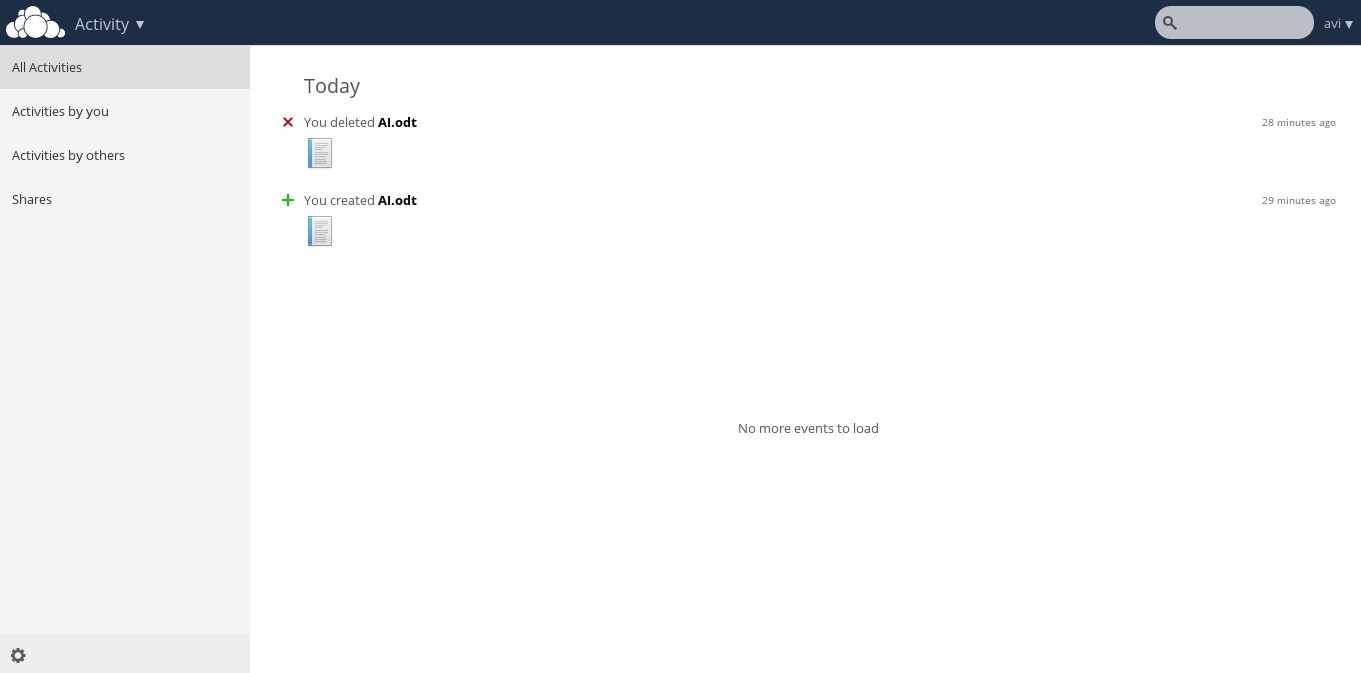
Activities log of oneself and others.
Pictures library.
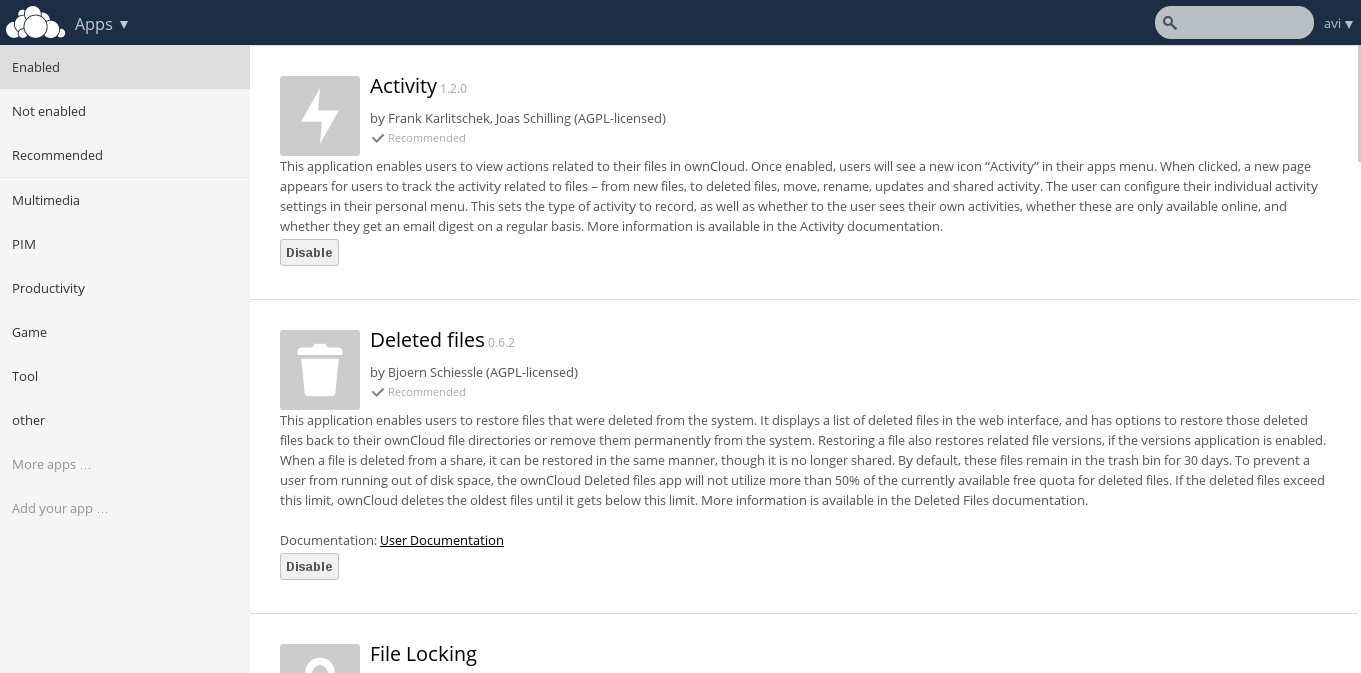
Apps enable and disable interface as well as recommendation with brief introduction.
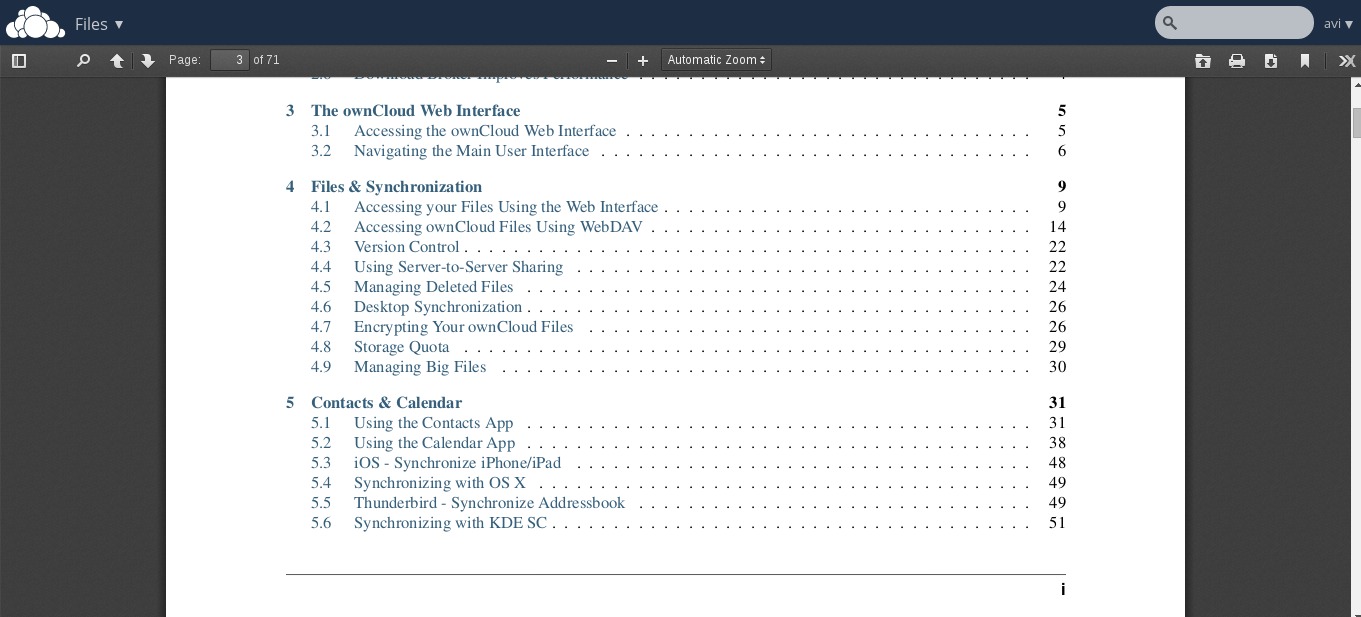
Inbuilt PDF reader.
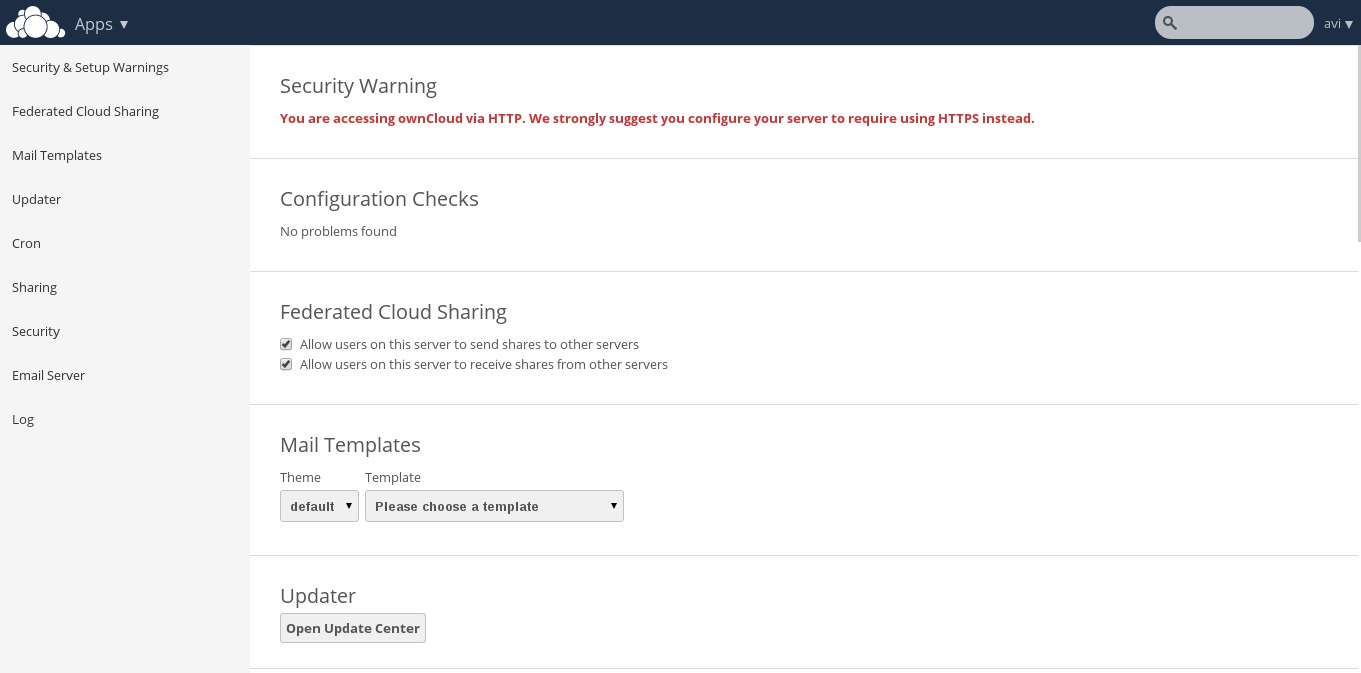
From this admin panel you can view security and setup warnings, Fedrated cloud sharing, Mail Templates,
Updater, Cron, sharing, Security, Email Server, Log, etc.
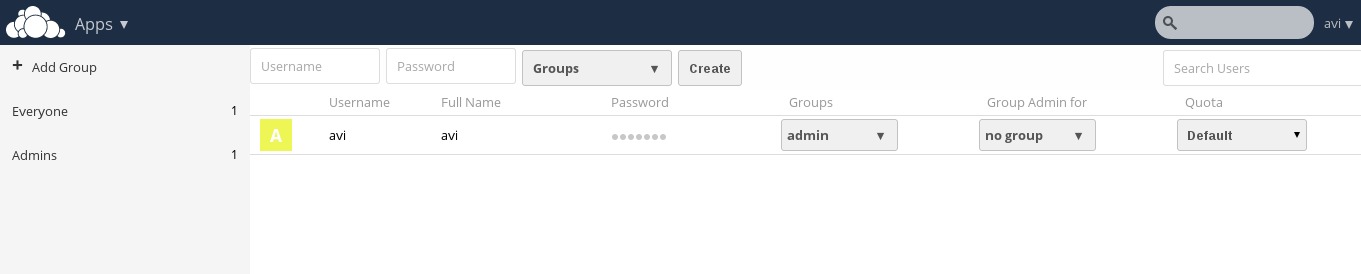
User and Group information with quota.
Note: You can add users or imports user account, change password, assign user role and allocate space by clicking the Gear icon on left bottom of the page.
You may now add folder, sync media files be it pictures, images and videos from the mobile application. Owncloud lets you add new user, and sync calendar, contacts, Media files, etc.
It also has a built in MP3 Player, PDF Viewer, Document Viewer, and a lot many which is worth a try and explore. So what are you waiting for? Become a proud owner of private cloud storage, give it a try!

Upgrading to Owncloud 8 from Older Versions

To update earlier version of your owncloud to 8, you need to first update the old owncloud to latest point release of the same version.
For example, if you’re using owncloud 6.0.xy (where ‘xy‘ is the version number), you need to first update to 6.0.x of the same series, and then you able to upgrade to owncloud 7 using the following instructions.

Update Owncloud 6.0.xx to 6.0.2

1. Making proper backup of everything is always suggested.
2. Enable the updater plugin (if it is disabled).
3. Go to Admin Panel and fire update.
4. Refresh page using ‘Ctrl+F5‘, you’re done.
If above procedure doesn’t worked, you can do a full upgrade to update to the newest point release (see ‘Upgrade‘ instructions below).
Else, if you’re already using Owncloud 7 and want to update to Owncloud 8, you can follow the below same ‘Upgrade’ instructions to get the latest version of Owncloud.

Upgrading OwnCloud to Latest Release

1. Update your owncloud version to latest point release of your version.
2. Not to Mention, Make a full backup before upgrading.
3. Download the latest tarball using wget command.
# wget http://download.owncloud.org/community/owncloud-latest.tar.bz2
4. Deactivate all native and third party Applications and plugins.
5. Delete Everything from the owncloud Directory except DATA and CONFIG directory.
NOTE: Don’t touch DATA and CONFIG directory.
6. Untar the tar-ball and copy everything to the root of your owncloud directory within your working directory.
7. Grant required permissions and run Upgrade from the Next page and its done!.
8. Don’t forget to install and enable Third party Application and plug-ins only after checking the compatibility with the current version.
So what are you waiting for? Install the latest owncloud project or upgrade your last version to latest and start using it.

Reference Links

  1. ownCloud Homepage

Monday, October 26, 2015

10 outstanding open source server tools

http://www.techrepublic.com/blog/10-things/10-outstanding-open-source-server-tools/

1: phpMyAdmin

If you're looking for a tool to make the management of your MySQL database as easy as possible, phpMyAdmin is what you want. It's easy to install and use and it takes up little room on your server. With phpMyAdmin you can manage databases, tables, columns, relations, indexes, users, permissions, and much more. phpMyAdmin is a web-based interface, which makes managing your databases as simple as point and click.

2: Capistrano

Capistrano is a remote server automation and deployment tool that supports scripting and task automation. You can easily deploy web applications to multiple machines simultaneously or in sequence, perform data migrations, run automatic audits, script arbitrary workflows over SSH, and execute any number of other tasks. Capistrano can also be integrated with any Ruby software.

3: MySQL Tuner

MySQL Tuner is a Perl script designed to assist you with the configuration and performance tuning of a MySQL database server. The only caveat to using MySQL Tuner is that it is a read-only script. You don't run the script and then watch it tune your DB server. This script will examine your MySQL server and then report its findings. You can then make suggested changes to your server to increase performance. With that in mind, you'll want to have a solid understanding of MySQL before you dive into using the tuner.

4: ConfigServer Security & Firewall

ConfigServer Security & Firewall is a "Stateful Packet Inspection (SPI) firewall, Login/Intrusion Detection and Security application for Linux servers." It's made up of a suite of scripts that offer a ton of features: SPI IPTables firewall, login failure checking, POP3/IMAP login failure detection, excessive connection blocking, SU login notification, SSH port auto-configuration, traffic blocking on unused server IP addresses, and much more. ConfigServer also integrates with cPanel, Webmin, and DirectAdmin.

5: Webmin

Webmin has been around for a long time—with good reason. As an easy-to-install and simple-to-use GUI tool for server admin, Webmin has proved itself year after year. You can use it to administer every aspect of your server—including Apache, MySQL, DNS, file sharing, users, and firewalls. Webmin is so powerful and flexible, you'll be hard-pressed to find a GUI better suited to help administer your Linux server (outside of the likes of the Red Hat and SUSE solutions—which require licenses as well as their respective platforms).

6: VNC

VNC is what you need if you want to enable users to log into the server and enjoy a GUI. But this tool isn't just for allowing users to work with a remote instance of LibreOffice. If you'd rather not work with the likes of Webmin and want to manage your server from a more standard desktop GUI, you can work with VNC. The only issue with adding VNC to your server is deciding which one to choose. I've worked with a number of VNC servers and have found tightvnc to be the best of the bunch. Not only is its installation and usage better documented, it offers better compression for enhanced performance.

7: Apache Cloudstack

Apache Cloudstack is designed specifically for the purpose of deploying and managing a large number of virtual machines. This is a turnkey solution that includes all the features you'd require (such as compute orchestration, network-as-a-service, user and account management, a full and open native API, resource accounting, and a first-class User Interface). Cloudstack currently supports the most common hypervisors (VMware, KVM, XenServer, Xen Cloud Platform (XCP), and Hyper-V), and users can manage their clouds with a simple web interface.

8: OpenLDAP

OpenLDAP is the open source iteration of LDAP (lightweight directory access protocol). Although it's powerful and flexible, the biggest issue facing the system is its complexity. This isn't a point-and-click tool as you'll find with Windows Active Directory. OpenLDAP is complex. And even though there are GUI tools designed to make the management of OpenLDAP easier, the installation and setup is not for the faint of heart.

9: MONIT

MONIT is not just a server-monitoring tool. It will also attempt to resolve problems (when/if they arise) by taking predefined actions for certain situations. Say, for instance, MONIT discovers that Apache is using too many resources. Should this happen, MONIT will attempt to restart the http daemon to resolve the issue. MONIT is easy to deploy. (The site says you can have it up and running in 15 minutes—a claim that is very much true.) And MONIT doesn't just monitor services; you can also set it up to monitor files, directories, and file systems.

10: Ganglia

Ganglia is another server monitoring tool, only it's geared toward high-performance systems, such as clusters and grids. Ganglia uses XML for data representation, XDR for compact and portable data transport, and RRDtool for data storage and visualization. There is no other open source tool better suited for presenting data and information of a cluster in a useable, simplified manner. If you happen to administer such high-performance systems, you'd be remiss if you didn't at least take a look at Ganglia as your go-to cluster monitor.

10 open source storage solutions that might be perfect for your company

http://www.techrepublic.com/blog/10-things/10-open-source-storage-solutions-that-might-be-perfect-for-your-company/

1: Samba

Samba provides secure, stable, and fast storage (as well as print services) for all clients using the SMB/CIFS protocol (all versions of DOS and Windows, OS/2, Linux, and many others). If you plan to host storage for a variety of platforms, you will not get by without Samba. It's the glue that holds heterogeneous platforms together. In fact, many storage appliances depend upon Samba to get the job done. And now that Samba has nearly seamless integration with Microsoft Active Directory, the solution is all the more flexible.

2: NFS

NFS—the Network File System—was created in 1984 to allow computers to access file systems on remote machines as if they were mounted locally. What's nice about NFS is that it allows you to create a set-it-and-forget-it distributed file system. One caveat: The setup can get a bit complex and you must set up both server and client. NFS is available for every Linux distribution on the planet and can be installed from either the command line or the distribution's package manager.

3: File Server

File Server is a dedicated Linux storage distribution that uses Samba, Webmin, Pydio, SSL, and much more to create an outstanding storage solution without having to piece it all together yourself. One of the best features of File Server is that you can set it up as both a standard Windows-compatible storage solution and as a web-based file solution. With the help of Pydio, you can enjoy an incredibly easy -to-use web interface to store your files.

4: Ceph

Ceph is a distributed object store and file system "designed for excellent performance, reliability, and scalability." In other words, this is storage for the big boys; small shops need not apply. Ceph is the solution you want when you're looking for massive data storage. It also works seamlessly with block storage—so you can use it on a storage cluster for scalability.

5: FreeNAS

FreeNAS is another storage-based Linux distribution that can be installed on nearly any platform to create an outstanding storage solution. It features replication, encryption, data protection, snapshots, file sharing, an easy-to-use web-based interface, and a powerful plug-in system. FreeNAS provides a versatile solution that any platform can connect to and any business can enjoy.

6: Openfiler

Openfiler makes it easy for you to deploy both storage area networking (SAN) and network attached storage (NAS) with all the bells and whistles your company needs. Openfiler offers a community edition and a commercial edition. The commercial edition is ideal for iSCSI Target and Fibre Channel Target stacks and features high availability cluster/failover as well as block-level replication for disaster recovery.

7: ZFS file system

ZFS file system is one of the better file systems to use when considering a storage solution. It offers excellent scalability and data integrity. When you're installing most Linux distributions, you can choose the file system you want to use. If setting up a Linux storage solution, ZFS will go further to ensure data integrity than any other file system. If you do decide to dive into ZFS, make sure you do plenty of research and understand what it does and how it works.

8: OpenMediaVault

OpenMediaVault is an open NAS solution built on Debian that features services like SSH, (S)FTP, SMB/CIFS, DAAP media server, RSync, and BitTorrent client. OpenMediaVault offers a massive plug-in system—so if it doesn't have what you need, you can add it with ease. This might well be one of the best out-of-the-box storage solution experiences you'll ever have. It's that easy to use. OpenMediaVault also enjoys full-on UPS support.

9: Lustre

Lustre is a "scale-out architecture distributed parallel filesystem." It's lightning fast and can handle petabytes of data and tens of thousands of nodes. The description alone should indicate that Lustre is designed to address large-scale storage needs. Since 2005 Lustre has been consistently used by half of the top 10 supercomputers on the planet. Ideal industries for Lustre include meteorology, simulation, oil and gas, life science, rich media, and finance.

10: Linux

I cannot, in good conscience, list the best open source storage solutions without including Linux itself. Why? Because most Linux distributions can easily serve as an effective storage solution. Of course, depending upon your size, you may need to tweak various aspects or turn to an enterprise distribution (such as Red Hat or SUSE). But for network storage, Linux has you covered.

10 Linux GUI tools for sysadmins


http://www.techrepublic.com/blog/10-things/10-linux-gui-tools-for-sysadmins/

What are some good GUI tools that can simplify your Linux sysadmin tasks? Let's take a look at 10 of them.

1: MySQL Workbench

MySQL Workbench is one of my favorite tools for working with MySQL databases. You can work locally or remotely with this well designed GUI tool. But MySQL Workbench isn't just for managing previously created databases. It also helps you design, develop, and administer MySQL databases. A newer addition to the MySQL Workbench set of tools is the ability to easily migrate Microsoft SQL Server, Microsoft Access, Sybase ASE, PostgreSQL, and other RDBMS tables, objects, and data to MySQL. That alone makes MySQL Workbench worth using.

2: phpMyAdmin

phpMyAdmin is another MySQL administration tool... only web based. Although it doesn't offer the bells and whistles of MySQL Workbench, it's a much more user-friendly tool. With phpMyAdmin you can create and manage MySQL databases via a standard web browser. This means you can install phpMyAdmin on a headless Linux server and connect to it through any browser that has access to the machine.

3: Webmin

Webmin is a web-based one-stop-shop tool for administering Linux servers. With Webmin you can manage nearly every single aspect of a server—user accounts, Apache, DNS, file sharing, security, databases, and much more. And if what you need isn't included with the default installation, a massive number of third-party modules are available to take up the slack.

4: YaST

YaST stands for Yet Another Setup Tool. It enables system configuration for enterprise-grade SUSE and openSUSE and serves as both the installation and configuration tool for the platform. With YaST you can configure hardware, network, and services and tune system security, all with an easy-to-use, attractive GUI. YaST is installed by default in all SUSE and openSUSE platforms.

5: Shorewall

Shorewall is a GUI for configuring iptables. Yes, there are other GUIs for tuning the security of your system, but many of them don't go nearly as deep as Shorewall. Where an app like UFW is one of the best security tuners for the desktop, Shorewall is tops for the server. With this particular security GUI, you can configure gateways, VPNs, traffic controlling, blacklisting, and much more. If you're serious about your firewall, and you want a GUI for the job, Shorewall is what you want.

6: Apache Directory

Apache Directory is about the only solid GUI tool for managing any LDAP server (though it is designed particularly for ApacheDS). It's an Eclipse RCP application and can serve as your LDAP browser, schema editor, ApacheDS configuration editor, LDIF editor, ACI editor, and more. The app also contains the latest ApacheDS, which means you can use it to create a DS server in no time.

7: CUPS

CUPS is the Linux printer service that also happens to have a web-based GUI tool for the management of printers, printer classes, and print queues. It is also possible to enable Kerberos authentication and remote administration. One really nice thing about this GUI is its built-in help system. You can learn nearly everything you need to manage your print server.

8: cPanel

cPanel is one of the finest web-based administration tools you'll use. It lets you configure sites, customers' sites and services, and quite a bit more. With this tool you can configure/manage mail, security, domains, apps, apps, files, databases, logs—the list goes on and on. The only drawback to using cPanel is that it's not free. Check out the pricing matrix to see if there's a plan to fit your needs.

9: Zenmap

Zenmap is the official front end for the Nmap network scanner. With this tool, both beginners and advanced users can quickly and easily scan their network to troubleshoot issues. After scanning, you can even save the results to comb through them later. Although you won't use this tool to directly administer your system, it will become invaluable in the quest for discovering network-related issues.

10: Cockpit

Cockpit was created by Red Hat to make server administration easier. With this web-based GUI you can tackle tasks like storage administration, journal inspection, starting/stopping services, and multiple server monitoring. Cockpit will run on Fedora Server, Arch Linux, CentOS Atomic, Fedora Atomic, and Red Hat Enterprise Linux.

Friday, October 23, 2015

Hardening RHEL 7.1 Services

http://www.aclnz.com/interests/blogs/hardening-rhel-7-1-maipo-part-1-services

Services
Linux servers run network services. Each services has an application (daemon) listening for connections on one or many network ports.
Each service and port could potentially receive a network attack.
Here is a list of potential risks on having ports open to provide services:
  • Denial of Service Attacks (DoS)— By flooding a service with requests, a denial of service attack can render a system unusable as it tries to log and answer each request.
  • Distributed Denial of Service Attack (DDoS) — A type of DoS attack which uses multiple compromised machines (often numbering in the thousands or more) to direct a coordinated attack on a service, flooding it with requests and making it unusable.
  • Script Vulnerability Attacks — If a server is using scripts to execute server-side actions as Web servers commonly do, an attacker can target improperly written scripts. These script vulnerability attacks can lead to a buffer overflow condition or allow the attacker to alter files on the system.
  • Buffer Overflow Attacks — Services that connect to ports numbered 0 through 1023 must run as an administrative user. If the application has an exploitable buffer overflow, an attacker could gain access to the system as the user running the daemon. Because exploitable buffer overflows exist, crackers use automated tools to identify systems with vulnerabilities, and once they have gained access, they use automated root kits to maintain their access to the system.
Before we start you might want to check what services are running on your system with the netstat command.Here is an example of a server with few services running.
hardening rhel 10
I’m going to go through the most common services that require attention.
rpcbind  is a service daemon that dynamically assigns ports to services line RPC, NIS and NFS.
This service has a week authentication mechanism and can assign a wide range of ports and needs to be protected by the .
If this service is needed and you are going to protect it with the firewall you will first need to make a case study to understand which networks should reach rpcbind and which not. Once you know this run this command to enable each network.
To limit TCP:
  • # firewall-cmd --add-rich-rule='rule family="ipv4" port port="111" protocol="tcp" source  address="192.168.0.0/24" invert="True" drop' --permanent
  • # firewall-cmd --add-rich-rule='rule family="ipv4" port port="111" protocol="tcp" source address="127.0.0.1" accept' --permanent
To limit UDP:
  • firewall-cmd --add-rich-rule='rule family="ipv4" port port="111" protocol="udp" source address="192.168.0.0/24" invert="True" drop' –permanent
Repeat the last three steps for each subnet that will need access.
NIS  is well known for authenticating users across the network. This service is outdated because it sends unencrypted information through the network, including passwords. Unless needed for specific reasons it’s better to not use it at all.
If your network has NIS authentication or you are planning on setting one make sure you have rpcbind behind a firewall as specified above and then go through this steps.

  1. Generate a random host name for the DNS master server such as o7hfawtgmhwg.domain.com and configure it.
  2. Generate a random like NIS domain name for your NIS server, different from the DNS server host name and configure the new name by editing the NISDOMAIN entry on the /etc/sysconfig/network file:
    hardening rhel 11
  3. Edit the /var/yp/securenets file to add each netmask/network that requires NIS authentication. If the file doesn’t exist create it. After adding a few lines the file should look like this:
    hardening rhel 12
  4. Assign static ports to ypxfrd and ypserv daemons by adding the following lines to the /etc/sysconfig/network file:
    YPSERV_ARGS="-p 834"

    YPXFRD_ARGS="-p 835"


    Then run the next two firewall commands for each network needing NIS to limit the networks that can use this ports.
    TCP
    # firewall-cmd --add-rich-rule='rule family="ipv4" source address="192.168.0.0/24" invert="True" port port="834-835" protocol="tcp" drop' --permanent
    UDP
    # firewall-cmd --add-rich-rule='rule family="ipv4" source address="192.168.0.0/24" invert="True" port port="834-835" protocol="udp" drop' --permanent
NFS exports could also generate security risks such as symlink attacks. For this reason use NFSv4.0 when possible which can require authentication and can operate behind a firewall.
Here are some considerations you should follow:

  • Always export complete filesystems rather than just subdirectories.
  • Use ro option to export filesystems whenever possible.
  • Always use the ug sections to assign permissions and never o. Consequently limiting NFS access to specific users and groups on your /etc/group and /etc/passwd files.
  • Take special attention to syntax on the /etc/exports file, a syntax error can lead to unwanted share configurations.
    To overcome this always check your exports with the showmount –e command.
  • Uncomment this entries on the /etc/sysconfig/nfs file:
    # TCP port rpc.lockd should listen on.
    LOCKD_TCPPORT=32803
    # UDP port rpc.lockd should listen on.
    LOCKD_UDPPORT=32769
  • Restart the nfs service “service nfs restart” and check what ports are being used by nfs to complete the needed firewall rules to limit the network access to those ports.
    hardening rhel 13
    For this eample the following firewall rules for each network needing access should be added:
    TCP
    # firewall-cmd --add-rich-rule='rule family="ipv4" source address="192.168.0.0/24" invert="True" port port="20048" protocol="tcp" drop' --permanent
    UDP
    # firewall-cmd --add-rich-rule='rule family="ipv4" source address="192.168.0.0/24" invert="True" port port="20048" protocol="udp" drop' –permanent
    TCP
    # firewall-cmd --add-rich-rule='rule family="ipv4" source address="192.168.0.0/24" invert="True" port port="2049" protocol="tcp" drop' --permanent
    UDP
    # firewall-cmd --add-rich-rule='rule family="ipv4" source address="192.168.0.0/24" invert="True" port port="2049" protocol="udp" drop' --permanent
References
+ This article is based on the Red Hat Enterprise Linux 7 Security Guide that can be downloaded from the RedHat network here.

Hardening RHEL 7.1 User access

http://www.aclnz.com/interests/blogs/hardening-rhel-7-1-maipo-part-1-user-access

On this document I will go through a series of steps to configure the most relevant settings to harden a RHEL server.
This document is based on the Red Hat Enterprise Linux 7 Security Guide that can be downloaded from the RedHat network here.
Secure passwords
Passwords are the primary method that Red Hat Enterprise Linux 7 uses to verify a user's
identity. This is why password security is so important for protection of the user, the
workstation, and the network.
By default RHEL uses shadow passwords which eliminate this type of attack by storing the password hashes in the file /etc/shadow, which is readable only by the root user.
Strong passwords
Since the storing of passwords has already been taken care of the next step is to force the creation of strong passwords.
When users are asked to create or change passwords, they can use the passwd
command-line utility, which is PAM-aware (Pluggable Authentication Modules) and checks to
see if the password is too short or otherwise easy to crack. This checking is performed by
the pam_pwquality.so PAM module.
PAM reads its configuration from the /etc/pam.d/passwd file, but the file we want to edit for tuning password policies is /etc/security/pwquality.conf
Have a look at the configuration options:
hardening rhel 01
Here are the details of what each entry means:
  • difok - Number of characters in the new password that must not be present in the old password.
  • minlen - Minimum acceptable size for the new password
  • dcredit - Credit for having digits in the new password
  • ucredit - Credit for having uppercase characters in the new password
  • lcredit - Credit for having lowercase characters in the new password
  • ocredit - Credit for having other characters in the new password
  • maxrepeat - maximum number of allowed consecutive same characters in the new password.
  • minclass - minimum number of required classes of characters for the new password (digits, uppercase, lowercase, others).
  • maxclassrepeat - maximum number of allowed consecutive characters of the same class in the new password.
  • gecoscheck - Whether to check for the words from the passwd entry GECOS string of the user (0=check).
  • dictpath - Path to the cracklib dictionaries. Blank is to use the cracklib default.
NOTE: Credit works like money, if you have a plus number like three you have spare and don't have to worry, but if you have a negative number (debts) you have to pay for them. For instance "ucredit = 2" means the user will have to give at least two upper case characters as part of the password for creating a password.
Something practical to do is to set a "minlen = 8" value and "minclass = 4" value. Whith this two settings you would ensure that the password has to be at least 8 characters long and that it will need to have letters Upper case, Lower case, numbers and symbols. That is what you will normally find on production servers.
Some like to uncomment dictpath and let GECOS use the default dictionary. You could go much further with this, but it is not recommended because passwords would need to be too complex and users wouldn't be able to remember them and the SA would have to be resetting passwords too often.
This is the result of a strong password file:
hardening rhel 02
NOTE: As the root user is the one who enforces the rules for password creation, he can set any password for himself or for a regular user, despite the warning messages.
Password aging
This technique is used to limit the time of cracked passwords. The downside is that if you set this value too low (password change required very often) the users will tend to write their passwords down generating a weak spot.
A common practice is to specify the maximum number of days for which the password is valid.
Password aging is performed with the command "chage".
This command is normally used when hardening a system to expire old unsecure password immediately.
I will show three examples on how to use this command on a console.
  1. Set a 90 day period for the password of user fpalacios to expire.
  2. Expire the password for fpalacios to have the user change it on the next log on.
  3. Expire the password of every user on group developers.
hardening rhel 03
Account Locking
In Red Hat Enterprise Linux 7, the pam_faillock PAM module allows system administrators to lock out user accounts after a specified number of failed attempts.
Limiting user login attempts serves mainly as a security measure that aims to prevent
possible brute force attacks targeted to obtain a user's account password.
Follow these steps to configure account locking:
  1. To lock out any non-root user after three unsuccessful attempts and unlock that user after 10 minutes, add the following lines to the auth section of the /etc/pam.d/system-auth and /etc/pam.d/password-auth files:
    auth required pam_faillock.so preauth silent audit
    auth sufficient pam_unix.so nullok try_first_pass
    auth [default=die] pam_faillock.so authfail audit deny=3
    unlock_time=600
    deny=3 unlock_time=600
    hardening rhel 05

    hardening rhel 06
  2. Add the following line to the account section of both files specified in the previous files:

    account required pam_faillock.so
    I will show you the end result of one of the files:

    hardening rhel 07
 

How to find out files updated in last N minutes

Issue
How to find out files updated in last N minutes?

Resolution
It is simple. Use the following command:
Syntax:
find -cmin -N
where N is the number of minutes
Example:
find /suresh/home/songs/ -cmin -10
Tip:
If you would like to see path of the file's directory then use the ls command along with the above command:
find /suresh/home/songs/ -cmin -10 ls

Wednesday, October 14, 2015

How To Change Default Data File (.OST) Location in Office 2013


To set the default location of an outlook data file you have to make a registry change.  Once you make the change, anytime you create a new data file, Outlook will put the data file in that new location. 
These instructions will work in prior versions of office as well but the path to the office key will be slightly different.

Change Default Data File Location in Outlook

1) Start - Regedit - Double-Click Regedit - Accept the Elevation Prompt - Drill Down / Navigate To: Computer\HKEY_CURRENT_USER\Software\Microsoft\Office\15.0\Outlook
image
2) Right-Click Outlook Select New then String Value
3) Type “ForceOSTPath” without the quotes for the variable name and press Enter then Double-Click ForceOSTPath to Edit the string
4) Type the location you want your data files to use.  In my case it was D:\_Profile\Mail
5) Click OK {You can close Registry Editor now}   You will need to close Outlook in order for Outlook to use this new setting.  Now when you create a new OST data file Outlook will put it in the new location. Close Outlook and move any .PST files to the new location if you like.  

Move your OST to the new location…

Unfortunately to use the new location for your existing accounts, you will need to create a new profile.  When a profile is created, it saves the default location :(  To utilize the new location for the OST’s you need to let outlook recreate them.
6) Start - Control Panel - View By small Icons/ - Mail  (on Windows 8 you can also get there by just clicking Start - Type Mail - Click Settings - Click Mail)
image
This screenshot is Windows 8 but Windows 7 will be very similar  Now we will create a new profile and let the OST be rebuilt.
7) Click Add, Type in the Name you would like to give the profile (in my case I used “Dan Stolts”) then click OK
image
This will start the Auto account Setup wizard
8) Setup your first email account (Exchange or ActiveSync) by filling out your name, email address and password.
SNAGHTML1eb57704
The account setup should be fully automated.
SNAGHTML1eb6f94d
Notice if you like you can change the account settings or add another account from the wizard.  just click Finish to complete this account setup.
9) We need to set the new profile to be the default.   Do this by clicking the dropdown for “Always use this profile” and select the one we just created.
10) Cleanup - you can now delete the old profile if you like.  Deleting the profile will not remove the data files.  You will have to go back and do that manually.  By default the old data files were at %USERPROFILE%\Local Settings\Application Data\Microsoft\Outlook (in my case that was: C:\Users\dstolts\Local Settings\Application Data\Microsoft\Outlook)
If you want to see the change you can drill down to the outlook data file settings from the mail control panel app Profile - Properties - Data files - Settings - Outlook Data File Settings
image
You can also get the information from the Account settings screen.  Profile - Properties - Email Accounts- E-Mail Tab- Click the account and the location of the data file will be listed.
image
You can now go ahead and create additional accounts if needed.
If you want to copy the old OST file you can copy it to the new location as long as it is not in use.  If it is in use, try closing any apps that might have it open.  If that fails try restarting your computer and not running outlook until after you create the new profile.  I have not personally tried this so let me know if you have success. This may save you some time downloading a large mailbox.
Tip: If you find the OST is still put in the %USERPROFILE%\Local Settings\Application Data\Microsoft\Outlook folder it is likely because there is already an .OST file of the same name in the destination folder. Try moving it somewhere else.  You can try copying it back once the account is successfully setup.