Saturday, October 4, 2014

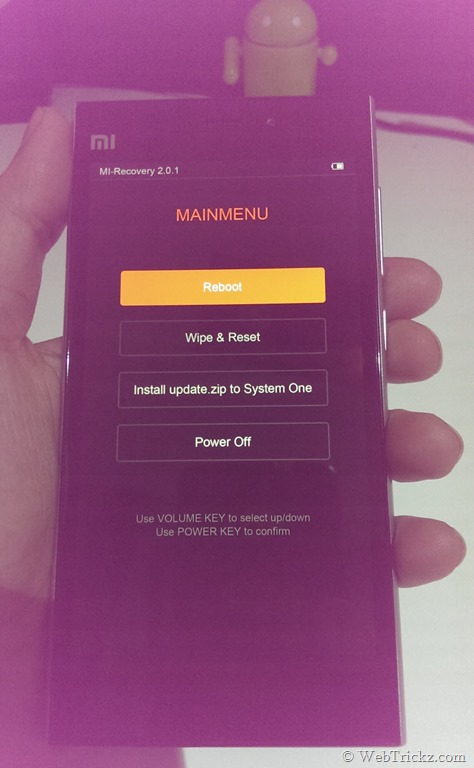
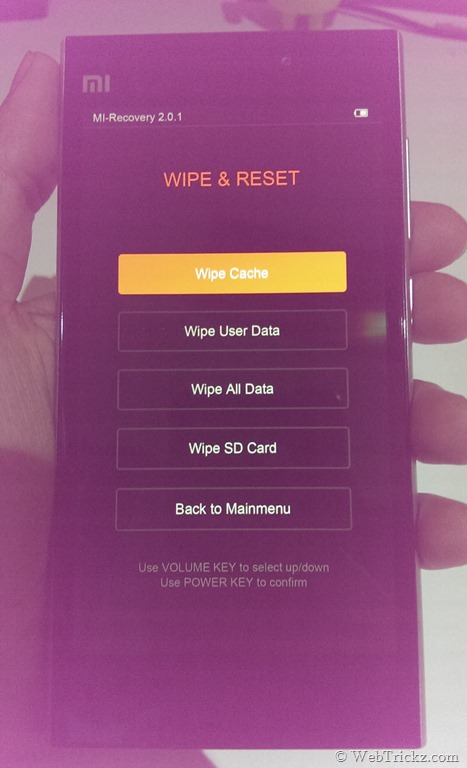
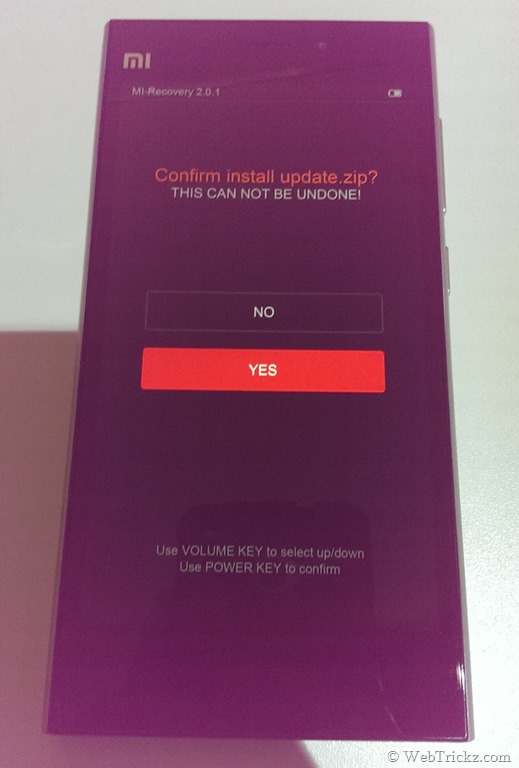
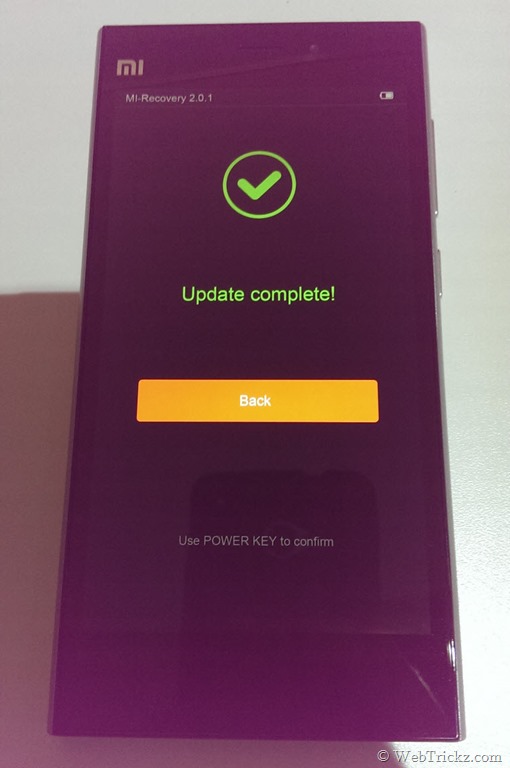
How to Install Stock Mi-Recovery 2.0.1 on Redmi 1S

http://webtrickz.com/how-to-install-stock-mi-recovery-2-0-1-on-redmi-1s/

Recently, we shared a guide on “How to install CyanogenMod 11 (Android 4.4.4 KitKat) ROM on Redmi 1S”. The procedure required the installation of ClockworkMod Recovery (CWM) to flash custom CM11 ROM. Apparently, several Redmi 1S users have flashed CWM recovery on their phone in order to install a custom ROM for improved performance or for other reasons. Perhaps, if you’ve switched back to MIUI ROM on Redmi 1S but are still running the CWM recovery, then you won’t be able to install the official MIUI OTA updates. That’s because, OTA updates are installed through MIUI Updater app that uses stock Mi-Recovery to update the device to latest version. Also, you might not be able to install the OTA update via CWM too.
2014-09-29 19.30.51
Although, the OTA updates such as the latest one (JHCMIBH41.1 Stable) for Redmi 1S will be downloaded to downloaded_rom folder on internal storage but its installation will fail due to the absence of stock recovery. To overcome this problem, you can simply revert back to stock recovery on Redmi 1S by installing it through CWM recovery. Steps below:
Requirements: Xiaomi Redmi 1S WCDMA with a SD card inserted.
1. Download the file signed_stock_recovery_update.zip. (9.75 MB) – [File source]
2. Transfer the downloaded .zip file to the root directory of your SD card.
3. Reboot into CWM recovery – To do so, go to Updater app, press menu button and then click “Reboot to recovery mode”. Alternatively, power off the phone and then press “Power + volume up” button simultaneously to boot into recovery mode.
4. Select ‘Install zip’ > ‘choose zip from sdcard’ and then choose ‘signed_stock_recovery_update.zip’ file and install it.
2014-09-29 19.28.15
Now go back and Reboot your phone by selecting ‘reboot system now’. That’s it!
~ Next time you reboot into recovery, you will find the Stock Mi-Recovery 2.0.1. You’ll now be able to install OTA updates normally. Hope you found this post useful. :)
Update – Apparently, OTA updates can be installed even if you’ve CWM recovery installed on Redmi 1S. You can choose ‘Yes – Disable recovery flash’ option in CWM during OTA update installation, to prevent the update from flashing stock recovery on boot.

How to Downgrade Mi 3 from Developer ROM to Stable MIUI ROM

http://webtrickz.com/how-to-downgrade-mi-3-to-stable-miui-rom/

Want to downgrade your Mi 3 from Developer ROM to Stable ROM? MIUI Developer ROMs are officially provided by MIUI to let interested users test the beta version of upcoming MIUI OS, which helps them resolve any reported bugs and obtain user feedback prior to the final release. The Developer ROMs are updated every week with bug fixes and new features as compared to Stable ROMs that don’t have a regular update frequency. Perhaps, if you’veinstalled a developer ROM on your Xiaomi smartphone (Mi 3/ Mi 4) and are encountering serious bugs and app crashes, then you might want to revert back to Stable ROM.
In the below guide, we’ve covered the easiest and safest way to downgrade Mi 3 MIUI ROM to Stable version by flashing the Full ROM pack. A Full ROM includes all the apps and services in a ROM, even those haven’t changed in an update. You can also fix some problems in your device by flashing the full ROM pack. This method neither requires using the Mi Flash tool (involves booting into fastboot mode) nor using a custom recovery like CWM. You can easily perform the entire process without requiring a computer and technical knowledge.
Guide to Install Stable MIUI 5 ROM (v23) on Xiaomi Mi 3 -
Note: In this process, the user installed applications and media such as files, photos, music, etc. wont be deleted. Only the user data will be deleted which includes device settings, added accounts, and the settings & data for installed apps. You can take a backup if required.
1. Download Stable Full ROM pack for Mi 3 (WCDMA India) – Version: KXDMIBF23.0 (V5)
2. Copy the file to the root directory of the phone.
>> Rename the file miui_MI3WGlobal_KXDMIBF23.0_69adb845f8_4.4.zip to update.zip.
3. Boot into recovery mode – To do so, either (go to Tools > Updater > press Menu key and select ‘Reboot to Recovery mode’) or Power off your Mi3 and turn it on again by pressing Volume Up + Power button simultaneously and hold them until Mi-Recovery mode appears.
4. In recovery mode, use volume keys to navigate and power key to confirm. Choose English, then select ‘Wipe & Reset’ from Main menu. Navigate to ‘Wipe User Data’ and select Yes.Note: When wiping data is at 98%, wait for a while as it takes few minutes to complete.
IMAG0003      IMAG0004
5. Now go back to main menu, and select ‘Install update.zip to System One’. Select Yes to confirm and the update will begin installing.
IMAG0010      IMAG0011
6. When Update is installed, go back and select Reboot. Select the option ‘Reboot to System One (latest)’. Be patient after reboot as Mi 3 will take around 5 minutes to boot up.
IMAG0012
That’s it! Your Mi 3 should now be running the latest MIUI v5 Stable ROM.
Hope you found this tutorial helpful. :)
P.S. We’ve tried this procedure on Mi 3W (Indian version) running MIUI v6 Developer ROM.

How to Easily Install MIUI v6 Developer ROM on Mi 3 Indian version

http://webtrickz.com/how-to-easily-install-miui-v6-developer-rom-on-mi-3-indian-version/

MIUI 6 ROM has now been released under the Developer channel for Xiaomi Mi 3 and Mi 4. Users running the developer version of MIUI v5 (v4.8.22) can now update directly to MIUI v6 (v4.8.29) by updating their Mi 3/ Mi 4 software OTA. MIUI 6 packs an entirely revamped UI much similar to iOS 7 and its final stable version will reportedly be released in October. Those who are interested in trying out the stunning MIUI v6 on Mi 3 in India, can do so by installing the MIUI v5 developer ROM and then update it to MIUI v6 OTA. However, MIUI v5 DEV ROM isn’t available for Indian Mi 3 WCDMA version yet but you can install the China ROM instead.
29-08-2014 17-30-37
NOTE: Installing the Developer ROM on Mi 3 won’t void the device warranty. We updated Indian Mi 3W from Stable MIUI v5 (Build 23) to official MIUI v4.8.29 (MIUI 6) Developer ROM. Surprisingly, none of the data was wiped including the photos, apps, apps data and other settings. However, it’s highly recommended to backup your important data. To easily backup Mi3 settings, contacts, messages, apps (along with their data), just go to Settings > Backup & reset > Local backups > Back up. Make sure to copy the backup file from phone to your computer, the backup file is stored in MIUI > Backup > AllBackup folder on phone storage.
Screenshot_2014-08-29-16-07-30     Screenshot_2014-08-29-16-16-25
Guide to Update Mi 3 from MIUI 5 (v23) to MIUI 6 Developer ROM (v4.8.29) –
This is a really easy way to install Developer ROM on Mi 3 Indian variant as you neither need to root your Mi 3 nor use a computer to do the task. (It’s advisable to backup the data first). After upgrading to MIUI 6, please consider using the default MIUI theme.
Note: Flashing a newer version of MIUI ROM doesn’t requires to wipe data, but flashing an older one does. So, as you’re updating to a newer version wiping is not needed.
Method 1 – Installing the MIUI Developer ROM update package directly
1. Download the MIUI v6 Developer ROM v4.8.29. (This ROM is for China but works with Indian Mi 3 as well.)
2. Place the downloaded ROM file in the downloaded_rom folder on internal storage.
3. Open Updater app, press the Menu button. Then tap on ‘Select update package’ option and choose the downloaded ROM (miui_MI3W_4.8.29_38e9f67ff1_4.4.zip). Click on the ‘Update’ option, wait for the update to complete and then click on Reboot to finish.
Screenshot_2014-08-22-14-46-09     Screenshot_2014-08-29-15-59-02
Voila! After rebooting your Mi 3 should load up with MIUI 6’s entirely new flat user interface.
Method 2 – Installing MIUI v6 on Mi 3 via Stock Recovery Mode
If you’re experiencing errors and application force close (FCs) issues using the first method then it’s recommended to use this alternative method instead.
Note: In this process, only the user data will be deleted which includes device settings, added accounts, messages, call logs, and the settings & data for installed apps. But all the user installed applications and media such as files, photos, music, etc. wont be deleted.
1. Download Developer Full ROM pack for Mi 3 (WCDMA/CDMA China) – Version: 4.8.29
2. Copy the file to the root directory of the phone.
>> Rename the file miui_MI3W_4.8.29_38e9f67ff1_4.4.zip to update.zip.
3. Boot into recovery mode – To do so, either (go to Tools > Updater > press Menu key and select ‘Reboot to Recovery mode’) or Power off your Mi3 and turn it on again by pressing Volume Up + Power button simultaneously and hold them until Mi-Recovery mode appears.
4. In recovery mode, use volume keys to navigate and power key to confirm. Choose English, then select ‘Wipe & Reset’ from Main menu. Navigate to ‘Wipe User Data’ and select Yes.Note: When wiping data is at 98%, wait for a while as it takes few minutes to complete.
IMAG0003      IMAG0004
5. Now go back to main menu, and select ‘Install update.zip to System One’. Select Yes to confirm and the update will begin installing.
IMAG0010      IMAG0011
6. When Update is installed, go back and select Reboot. Select the option ‘Reboot to System One (latest)’. Be patient after reboot as Mi 3 will take around 5 minutes to boot up.
IMAG0012
That’s it! Your Mi 3 should now be running the latest MIUI v6 Developer ROM.
Some tips to consider:
  • Make sure to update Google Play Services to the latest version.
  • If Google Chrome shows an error, then update it via Google Play.
  • If Google Search widget doesn’t works then remove and add the widget again.
  • To update SwiftKey keyboard to the latest version, delete the pre-installed SwiftKey app from Settings > Installed apps. Then download Swiftkey again from Play Store.
To check for OTA updates in MIUI 6, open the Updater app and check for updates.
Screenshot_2014-08-29-16-18-19
Do share your views with us and let us know if you face any difficulty. :)

Sunday, September 28, 2014

MySQLTuner

http://mysqltuner.com/

MySQLTuner is a script written in Perl that will assist you with your MySQL configuration and make recommendations for increased performance and stability.

MySQLTuner is a script written in Perl that allows you to review a MySQL installation quickly and make adjustments to increase performance and stability. The current configuration variables and status data is retrieved and presented in a brief format along with some basic performance suggestions.

Tuesday, September 23, 2014

TOP Operating Systems

Rank
OS *
1.
Windows
2.
Redhat
3.
Solaris
4.
AIX
5.
Android
6.
CentOS
7.
Ubuntu
8.
Suse
9.
Debian
10.
HP-UX
11.
BSD
12.
OEL
13.
Fedora
14.
Gentoo
15.
Mandriva

TOP 10 Certifications on Demand

Rank
Skill
1.
Cisco
2.
CISSP
3.
Microsoft
4.
Redhat
5.
CompTIA
6.
ITIL
7.
Oracle
8.
GIAC
9.
LPI
10.
Novell

TOP 20 Development Skills

Rank
Skill
1.
Java
2.
C/C++/C#
3.
Python
4.
PHP
5.
Perl
6.
Javascript
7.
Embedded
8.
Ruby/Rails
9.
HTML
10.
DevOps
11.
J2EE
12.
CSS
13.
Bash
14.
Spring
15.
.Net
16.
AJAX
17.
SOAP
18.
ASP
19.
Powershell
20.
Django