This Blog is intended to collect information of my various Intrests,pen my opinion on the information gathered and not intended to educate any one of the information posted,but are most welcome to share there view on them
Microsoft said it wouldn’t support graphical applications in Bash on Windows. But enterprising geeks like w2qw on Reddit have already figured out how to run graphical applications with Bash on Windows 10. The underlying code is much more capable than Microsoft initially let on.
Install an X server
This is possible because the Bash shell for Windows is more than just a shell. Microsoft built an entire “Windows Subsystem for Linux” that allows Windows 10 to natively run Linux applications, even graphical ones. Install Bash for Windows 10 and you’ll actually have a complete operating system layer for running Linux applications and a full Ubuntu userspace environment—that is, everything above the Linux kernel.
The only missing piece is an X server that allows those graphical applications to appear on your Windows desktop. This is basically the same technique people would use to run graphical Linux desktop applications over a network.
The Xming X Server for Windows works well for this, although there are other X servers for Windows and they should also work. Download and install it on your Windows 10 PC to get started. You can just use the default settings and it’ll work fine. Launch Xming and it will appear in your system tray, running in the background and waiting for you to launch a graphical Linux program. w2qwThis is Windows 10 running Linux desktop applications.
Launch applications from Ubuntu’s Bash shell
You’ll now need to install a graphical application, which you can do with the standard apt-get command in the Bash shell environment. The apt-get command has access to Ubuntu’s entire software repositories, so you can use it to install graphical applications without any additional tweaks.
For example, to install the Linux version of Firefox from Ubuntu’s repositories, you’d just run the following command: apt-get install firefox
Once you’ve installed the program, you can specify the X server and then launch the application. For example, to launch Firefox, run the below commands. (To launch another graphical application, just specify its name instead of “firefox.)” export DISPLAY=:0 firefox
Assuming you’re running an X server like Xming on your Windows PC, the graphical application should run. It may not run as speedily—applications can’t use direct rendering to run on your hardware directly.
This is currently a bit unstable. Many applications I tried were unable to run reliably. Some people report better success. But bugs are no surprise, as the Windows Subsystem for Linux is beta and this is its first release. As Microsoft improves the underlying code, applications—even these graphical applications—should work better and better over time.
Last night, millions of users worldwide were greeted with a message in the chat section stating “Messages you send to this chat and calls are now secured with end-to-end encryption.” and with that we are pretty sure that many government organisations may have panicked. But to the casual WhatsApp user, there was a panic of a different type.
Clearly, WhatsApp could have put out a slightly longer explanation instead of the one above, that lead to mass panic with everyone trying to get on board the encryption bandwagon by trying to verify themselves on their chats.
WhatsApp did provide one on its blog (it’s lengthy and detailed) but here are few simple pointers that you need to keep in mind: WhatsApp’s encryption is turned on by default for all users.
Users so far have no choice to opt out of the encryption for now (considering the number of encryption cases popping up worldwide, we are pretty sure nobody would want to opt out). As long as you have an updated version of the WhatsApp app on your supported mobile platform, you and your friends can now enjoy the perks of secure and end-to-end encrypted conversations turned on by default without any extra taps. How do I know that encryption is switched on?
Well you simply tap on the profile or the info page(tap on the name in the header) of your contact, where you will find a section describing the status of the encryption of your chats and calls.
WhatsApp Encryption on Android.
WhatsApp Encryption on iOS.
The latest version of Whatsapp app
No matter which platform you are on, you may have noticed a slew of updates (like on iOS) that claimed “Bug fixes” coming in the past few days. Indeed, this was the WhatsApp team making a couple of tweaks, with most of it coming from the server side and some for a user’s smartphone. With that said, you and your friends will need update their respective WhatsApp apps on their respective smartphones that run different mobile operating systems (Android, iOS etc.). If your friend has not updated their app to the latest version you will be notified about the same in the info page under encryption. The verification mess
Upon accessing the info page, you will be able to check on the status of your encryption. The point to be noted here is that it is turned on by default, meaning you do not need to go any further.
To Verify, click on Encryption in Info page and then hit the Scan Code button.
Only those who updated their app later or changed their smartphone after the time the encryption was rolled out who will need to access this area to verify (or check) whether their encryption is working or not (in all probability it will be, but more on that in our next pointer). So for the most of us, we will not need to tap on the Encryption section.
It is still a bit of a mess
Even though most will not need to access the Encryption section on the info page, users may have noticed that some of their friends even with their updated versions of the app still show that their messages are not encrypted. While the WhatsApp states that their apps may not be updated to the latest one, we think that this is a bug. We tested out the same in our office and with one iOS user connecting to an Android user, things worked fine.
With another Android user however, it kept showing encryption turned off even though the iOS user was greeted with a chat encryption turned on message. This could either be a bug, or its just that the feature is gradually rolling out server side, so there is absolutely no indeed no need to panic. End-to-end encryption
End-to-end encryption on WhatsApp applies to everything or every feature that is available on WhatsApp. Whether it’s calls, messages, photos, videos, files, and even voice messages, all of them will be encrypted. So technically nobody apart from you or your friend will be able to understand them. In transit from one device to another the data will only appear to be garbled text without the keys to put that text together, which resides on devices being used to communicate. Moreover, there are separate keys for each conversation or chat so WhatsApp has provided something really secure indeed.
On home loans worth upto Rs. 35 lacs, you can claim additional deduction of Rs. 50,000 if you are a first time home buyer.
Professionals like doctors, freelancers, etc. can now file an ITR-4S if your income is less than 50 lakhs. Tax filing has been simplified for them (ITR-4S is 2 pages vs. 30 pages for ITR-4).
As a tax payer, if your income is less than 5 lakhs, you will get tax benefits of up to Rs. 5,000 (under section 87A).
Under Section 80GG, you can get deduction of Rs. 60,000 on rent paid if your company does not provide you any house rent allowance. This was earlier set to 24,000.
The rate of surcharge on income tax has been increased to 15% from 12% for income above Rs. 1 crore.
Business owners also get a benefit. They can file ITR-4S up to Rs. 2 crore in revenue. Earlier limit was Rs. 1 crore.
40% NPS withdrawal at time of retirement will be exempt from tax.
For taxpayers with dividend income exceeding Rs. 10 lakhs, an additional tax of 10% will be charged.
Govt. proposes to pay EPF contribution of 8.33% for all new employees for first three years with salary less than Rs. 15,000.
Good news for all who are subject to tax audit as they will now be eligible for deductions under section 80JJAA. It was earlier restricted to only manufacturing companies.
Other Budget 2016 Updates
Start-ups can now register in a day, thanks to amendments in the Companies Act.
INR 55,000 Cr for roads and highways have been allocated in budget 2016, summing up to a total investment of INR 97K crores in Road Sector.
A new credit rating system will be developed for infrastructure.
Government allocates INR 19,000 Cr in Gram Sadak Yojna.
500 Cr will be allocated to Stand-Up India for SC/ST and Women entrepreneurs.
Rs. 100 crores will be provided for higher education financing.
INR 30,000 Crore coverage to be provided for senior citizens (above 60 years).
Government proposes to launch a new health care scheme for the poor with families getting Rs. 100K as medical cover.
A new Krishi Kalyan cess to be imposed on all taxable services.
Mr. Arun Jaitley says, Budget 2016 will focus on infrastructure and enhancing quality of life. According to him Budget 2016 aims to work on tax reforms to reduce burden of compliance. He further added that the Indian economy has held its strong ground despite a global economic slowdown. GDP growth rate has accelerated to 7.6%.
Installations from a USB flash drive have become one of the easiest ways to update your computer with a new operating system. A USB installation is quick, extremely portable, and has the added bonus of reverting back to a storage device following the install. I cannot tell you how many discs I ruined over the years by messing up the write process, but I have a lot of very shiny drink-coasters in my living room.
You’ll find a fair few ISO to USB tools out there, and they feature a range of tools for beginners and advanced users. To keep this test fair, I’m going to use each tool to burn a copy of Windows 10 Insider Preview 10130 x64 to an 8GB Integral drive, formatted each time. Let’s take a look at the burn time, and the resources available to each software. For science!
Before we plough into the testing phase there are a handful of acronyms I’d like to spell out, and a few other bits of ISO to USB jargon we’ll clear up.
Bootloader Options: the bootloader loads the operating system. Some ISO burners allow you to choose the Bootloader you’ll need for your desired operating system installation.
grub4dos: a bootloader package designed to allow users to select between multiple operating systems installed on a single system.
syslinux: a lightweight bootloader package designed to allow users to select between multiple Linux or Unix installations.
QEMU Emulator: short for Quick Emulator, is a hardware virtualization tool. In this context, it allows users to test their USB before proceeding with the burn process.
Cluster Size: defines the smallest available space for storing data. Instead of assigning individual disk sectors, the file system assigns contiguous groups of sectors, called clusters.
File System: controls how data is accessed and stored. Without it, your data would lump together with no beginning or end. A file system offers definition for easy access. There are different file systems available, though your burning tool should be discern your requirements via the ISO you use.
Bad Sector: Some ISO to USB tools allow you to perform a bad sector check. Before the burn commences, your USB will be scanned, fixing any irregularities to ensure your installation is smooth. Somewhat similar to defragmenting your desktop, but on a much smaller scale.
Features: Partition schemes, file systems, mode of bootable, bad sector check
First up, Rufus. Rufus comes as a very small executable with minimal options for tinkering, aside from partition scheme, file systems, cluster size, and the type of bootable you’ll be creating. Once you’ve selected the bootable disk type and theISO image you’ll be burning, you can happily hit Start and wait for the process to finish.
Rufus clocked in with a 16m55s according to my phone, but also has its own timer, which showed 17.02, though the built in timer did fluctuate throughout the process. At one point, it was over 10s behind my phone, but closed the gap to a mere 7s at the finishing line. Obviously, I am right, but it is still a good time.
Such an eloquent name. You select your ISO. You select your media type; USB or DVD. You click Begin Copying, and off it goes. In what is the most basic of basic GUIs, and with only two options, the Windows 7 USB/DVD Download Tool is almost sublimely simple, comparable only to ISO to USB.
Timing-wise, it clocked in with 16m53s, leaving it sitting pretty. A definite winner for those wanting a serious no-frills burning tool.
Features: Bootloader options, file systems and overrides, grub4dos, syslinux, QEMU Emulator
RMPrepUSB is one of the most complete ISO to USB packages on this list. Aside from the above mentioned features, it comes packed with a host of other BootLoaders, DiskDoctor, Speed Tests, and individual user configurations for those drives you constantly prepare.
With a time of 22m36s RMPrepUSB isn’t the fastest of the bunch, but certainly makes up for it in customization. Bonus points for the centralized tooltip, constantly updating as you scroll over menu items.
Features: Bootloader options, three formatting tools including RMPrepUSB, QEMU Emulator
WinSetupFromUSB offers a mid-range of features. It isn’t quite RMPrePUSB, but it has so much more to offer than the other basic burners we have already covered, particularly the inclusion of FBinst Tool, Bootice, and RMPrepUSB. Each of these additional tools come with popup instructions detailing their use alongside WinSetupFromUSB, but can all be used with their original functions i.e. RMPrepUSB opens in its own dialogue with the customizable ISO/USB interface mentioned above.
As for speed, 23m29s represents one of the slower tools on the list, but is included due to the wealth of customization available to users.
You can use the UltraISO trial version an ISO to USB tool. Whilst the trial version restricts the size of ISOs created, it does nothing of the sort if you’re burning something created elsewhere. On opening UltraISO, browse to your ISO location in the bottom half of the file explorer. Once located, double click. This loads the ISO image for burning. Then head to Bootable > Write Disk Image. Be sure to use the USB-HDD+ option for best results, unless advised otherwise. Hit Write and off you go!
UltraISO clocked in with a 20m24s, sitting nicely in the middle of the pack, and made the cut against the very similarly timed WiNToBootic through its additional features such as image mounting and ISO creation.
YUMI, or Your Universal Multiboot Installer, is another multiboot installer with settings for a massive range of ISOs. Unlike Xboot, YUMI asks if you’d like to add another ISO or Distro to your USB following a successful burn, so don’t worry if you cannot find the multiboot builder.
It clocked in with a stupendously fast 14m50s and takes the crown by just over two minutes, plus it has the best name on the list, so obviously another massive point for that.
The ISO to USB Winner Is…
YUMI! If we are talking time, plus the bonus of being able to create a multiboot USB packed with everything you might ever need.
However, let’s not discount those more advanced ISO to USB tools, RMPrepUSB and WinSetupFromUSB. While their speed performance couldn’t match YUMI, the massive range of tools and customizable settings more than make up for it.
Finally, I’ve been using the ISO to USB tool for its ridiculously simple interface and fairly reasonable burn time, but even that has been bested by Rufus, so now I don’t know what to do, other than switch to something faster.
Other Tools We Tested…
I tested a full 10 different ISO tools, as you can see from the above table, noting their speed. But speed isn’t only variable we look for in a burner. Here are the fallen few:
XBoot is another multiboot tool featuring an inbuilt downloader, but timed in over 24 minutes. YUMI blew it away!
WiNToBootic fits into the basic features category, alongside the Windows 7 USB/DVD Tool and Rufus, but clocked a slower 20m14s.
Passcape ISO Burner is a multifunction burning tool, but it wouldn’t work for me. I have read other positive reviews, so it could be worth a look for other individuals.
ISO to USB is another very basic burner, and one I’ve used extensively. However, it didn’t make the cut through a slow time and lack of features.
Hopefully you’ll have a clearer picture of the USB to ISO offerings available to you as more and more of us switch to a world without optical disk drives.
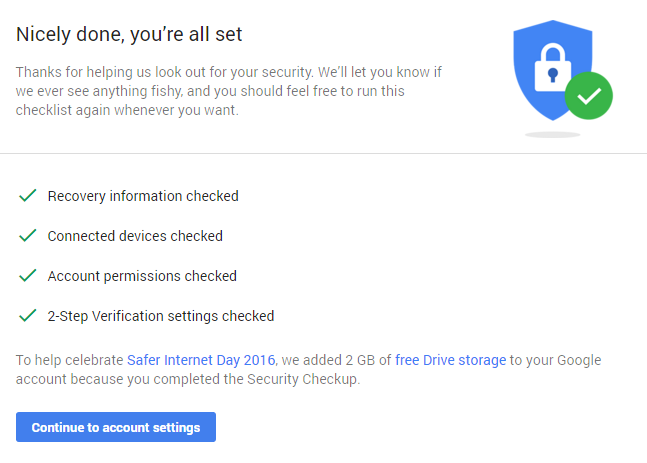
Google remembered Safer Internet Day, though. To celebrate, it has brought back the free data reward for completing a security audit of your account. A few minutes of your time gets you an extra 2GB of Drive storage for free.
The security checkup is painless and only takes a few minutes. You'll review your account recovery options, connected devices, services with permissions on your account, and 2-step verification settings. The 2GB of storage might not show up in your account immediately, but when it does, it will be there permanently.
Google did the same thing last year for Safer Internet Day, and it sure would be nice if they kept at it. We don't yet know when this offer will expire, but last year you had a week to complete the checkup. There might be a Google blog post at some point with details.
Disk to disk backup using dd command: dd is a powerful UNIX utility, which is used by the Linux kernel makefiles to make boot images. It can also be used to copy data. This article explains how to backup entire hard disk and create an image of a hard disk using dd command.
15 rsync command examples: Every sysadmin should master the usage of rsync. rsync utility is used to synchronize the files and directories from one location to another. First time, rsync replicates the whole content between the source and destination directories. Next time, rsync transfers only the changed blocks or bytes to the destination location, which makes the transfer really fast.
Three sysadmin rules: If you are a sysadmin, you can’t (and shouldn’t) break these three sysadmin rules.
User and group disk quota: This article explains how to setup user and group quote with soft limit, hard limit and grace period. For example, if you specify 2GB as hard limit, user will not be able to create new files after 2GB.
Troubleshoot using dmesg: Using dmesg you can view boot up messages that displays information about the hardware devices that the kernel detects during boot process. This can be helpful during troubleshooting process.
RPM package management examples: 15 examples provided in this article explains everything you need to know about managing RPM packages on redhat based system (including CentOS).
10 netstat examples: Netstat command displays various network related information such as network connections, routing tables, interface statistics, masquerade connections, multicast memberships etc.,
Manage packages using apt-* commands: These 13 practical examples explains how to manage packages using apt-get, apt-cache, apt-file and dpkg commands.
Modprobe command examples: modprobe utility is used to add loadable modules to the Linux kernel. You can also view and remove modules using modprobe command.
Ethtool examples: Ethtool utility is used to view and change the ethernet device parameters. These examples will explain how you can manipulate your ethernet NIC card using ethtool.
NFS mount using exportfs: This is a linux beginners guide to NFS mount using exportfs. This explains how to export a file system to a remote machine and mount it both temporarily and permanently.
Change timezone: Depending on your Linux distribution, use one of the methods explained in this article to change the timezone on your system.
Install phpMyAdmin: phpMyAdmin is a web-based tool written in PHP to manage the MySQL database. Apart from viewing the tables (and other db objects), you can perform lot of DBA functions through the web based interface. You can also execute any SQL query from the UI.
Setup squid to control internet access: Squid is a proxy caching server. You can use squid to control internet access at work. This guide will give a jump-start on how to setup squid on Linux to restrict internet access in an network.
Add new swap space: Use dd, mkswap and swapon commands to add swap space. You can either use a dedicated hard drive partition to add new swap space, or create a swap file on an existing filesystem and use it as swap space.
Install and configure snort: Snort is a free lightweight network intrusion detection system for both UNIX and Windows. This article explains how to install snort from source, write rules, and perform basic testing.
Register RHEL/OEL linux to support: If you have purchased support from Oracle for your Linux, you can register to oracle support network (ULN) using up2date as explained here.
tftpboot setup: You can install Linux from network using PXE by installing and configuring tftpboot server as explained here.
Delete all iptables rules: When you are starting to setup iptables, you might want to delete (flush) all the existing iptables as shown here.
Disable ping replies: Someone can flood the network with ping -f. If ping reply is disabled as explained here we can avoid this flooding.
Block ip address using fail2ban: Fail2ban is a intrusion preventon framework that scans log files for various services ( SSH, FTP, SMTP, Apache, etc., ) and bans the IP that makes too many password failures. It also updates iptles firewall rules to reject these ip addresses.
Alfresco content management system: Alfresco is the best open source content management system. Everything you need to know to install and configure Alfresco is explained here.
Bugzilla bug tracking system: Bugzilla is the best open source bug tracking system. Everything you need to know to install and configure Bugzilla is explained here.
Rpm, deb, dpot and msi packages: This article explains how to view and extract files from various package types used by different Linux / UNIX distributions.
Backup using rsnapshot: You can backup either a local host or remote host using rsnapshot rsync utility. rsnapshot uses the combination of rsync and hard links to maintain full-backup and incremental backups. Once you’ve setup and configured rsnapshot, there is absolutely no maintenance involved in it. rsnapshot will automatically take care of deleting and rotating the old backups.
Create Linux user: This article explains how to create users with default configuration, create users with custom configuration, create users interactively, and creating users in bulk.
Mount and view ISO file: ISO files are typically used to distribute the operating system. Most of the linux operating system that you download will be on ISO format. This explains how to view and mount any ISO file both as regular use and as root user.
Manage password expiration and aging: Linux chage command can be used to perform several practical password aging activities including how-to force users to change their password.
ifconfig examples: Interface configurator command ifconfig is used to initialize the network interface and to enable or disable the interfaces as shown in these 7 examples.
Oracle db startup an sthudown: Every sysadmin should know some basic DBA operations. This explains how to shutdown and start the oracle database.
PostgreSQL install and configure: Similar to mySQL, postgreSQL is very famous and feature packed free and open source database. This is a jumpstart guide to install and configure postgresql from source on Linux.
Magic SysRq key: Have you wondered what the SysRq key on your keyboard does. Here is one use for it. You can safely reboot Linux using the magic SysRq key as explained here.
Wakeonlan Tutorial: Using Wakeonlan WOL, you can turn on the remote servers where you don’t have physical access to press the power button.
View hardware spec using dmidecode: dmidecode command reads the system DMI table to display hardware and BIOS information of the server. Apart from getting current configuration of the system, you can also get information about maximum supported configuration of the system using dmidecode. For example, dmidecode gives both the current RAM on the system and the maximum RAM supported by the system.
Use the support effectively: Companies spend lot of cash on support mainly for two reasons: 1) To get help from vendors to fix critical production issues 2) To keep up-to-date with the latest version of the software and security patches released by the vendors. In this article, I’ve given 10 practical tips for DBAs, sysadmins and developers to use their hardware and software support effectively.
Install/Upgrade LAMP using Yum: Installing LAMP stack using yum is a good option for beginners who don’t feel comfortable installing from source. Also, Installing LAMP stack using yum is a good choice, if you want to keep things simple and just use the default configuration.
Template to track your hardware assests: If you are managing more than one equipment in your organization, it is very important to document and track ALL information about the servers effectively. In this article, I have listed 36 attributes that needs to be tracked for your equipments, with an explanation on why it needs to be tracked. I have also provided a spreadsheet template with these fields that will give you a jumpstart.
Disable SELinux: If you don’t understand how SELinux works and the fundamental details on how to configure it, keeping it enabled will cause lot of issues. Until you understand the implementation details of SELinux you may want to disable it to avoid some unnecessary issues as explained here.
Install PHP5 from source: This is a step-by-step guide to install PHP5 from source on UNIX environment.
Install MySQL from source: This is a step-by-step guide to install MySQL from source on UNIX environment.
Launch Linux clients on windows: If you are using SSH client to connect to Linux server from your Windows laptop, sometimes it may be necessary to launch UI application on the remote Linux server, but to display the UI on the windows laptop. Cygwin can be used to install software on Linux from Windows and launch Linux X client software on Windows.
IPCS: IPC allows the processes to communicate with each another. The process can also communicate by having a file accessible to both the processes. Processes can open, and read/write the file, which requires lot of I/O operation that consumes time. This explains different types of IPCS and provides 10 IPCS command examples.
Logical Volume Manager: Using LVM we can create logical partitions that can span across one or more physical hard drives.You can create and manage LVM using vgcreate, lvcreate, and lvextend lvm2 commands as shown here.
15 Tcpdump examples: tcpdump is a network packet analyzer. tcpdump allows us to save the packets that are captured, so that we can use it for future analysis. The saved file can be viewed by the same tcpdump command. We can also use open source software like wireshark to read the tcpdump pcap files.
Manage partition using fdisk: Using fdisk you can create a maximum of four primary partition, delete an existing partition, or change existing partition. Using fidsk you are allowed to create a maximum of four primary partition, and any number of logical partitions, based on the size of the disk.
VMWare fundamentals: At some point every sysadmin should deal with virtualization. VMWare is a very popular choise to virtualize your server environment. This article will provide the fundamental information for you to get a jumpstart on VMWare.
Rotate the logs automatically: Manging log files is an importat part of sysadmin life. logrotate make it easy by allowing you to setup automatica log rotation based on several configurations. Using logrotate you can also configure it to execute custom shell scripts immediately after log rotation.
Passwordless SSH login setup: Using ssh-keygen and ssh-copy-id you can setup passwordless login to remote Linux server. ssh-keygen creates the public and private keys. ssh-copy-id copies the local-host’s public key to the remote-host’s authorized_keys file.
Kazam is a GStreamer-based screen recording and screenshot tool for Linux. The application supports recording the entire screen (with multi-monitor support), a window or an area and features:
customizable framerate;
option to show/hide the mouse when recording;
record sound from speakers and/or microphone;
keyboard shortcuts;
configurable delay before capturing;
automatic file saving;
supports mp4 (H264), webm (VP8) and avi (RAW, HUFFYUV and lossless JPEG) video formats.
Kazam 1.5.3 was released recently and it includes some very useful new features:
support for webcams: it can record just the webcam or it can display the webcam in a window on top of the screencast;
support for broadcasting to YouTube Live;
added on-screen keyboard indicator and mouse click indicator;
new countdown timer.
Here are a few screenshots with some of these changes:
Kazam mouse click indicator
On-screen keyboard indicator (notice "Alt Tab" under the Nemo window)
Kazam webcam options
YouTube Live options
Kazam demo
Below you can watch a Kazam demo screencast recorded using the latest Kazam:
Kazam is available in the official Ubuntu repositories, but it's an old version so it doesn't have the new features mentioned in this article. To get the latest Kazam in Ubuntu or Linux Mint (and derivatives), you can use a PPA.
To add the PPA and install Kazam Screencaster, use the following commands:
 w2qw
w2qw 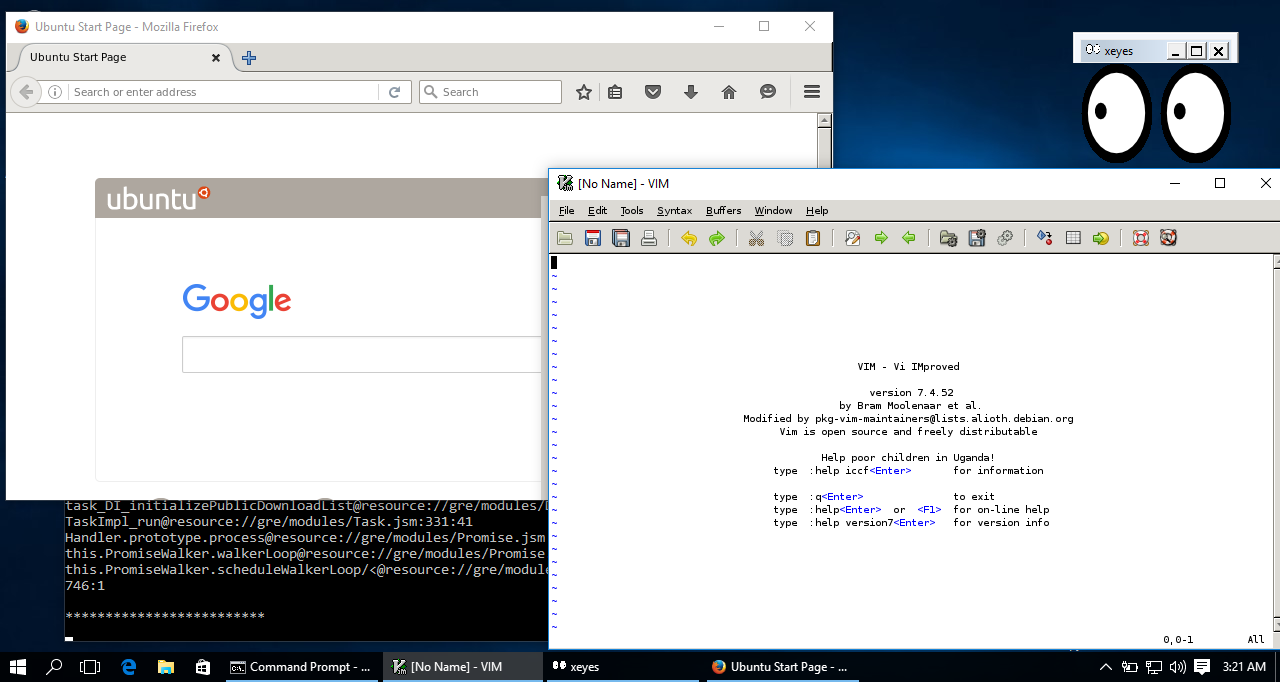 w2qw
w2qw