License:
Roundcube Webmail is released under the GNU General Public License (GPL).
Server Requirements:
* Apache or Lighttpd webserver
* PHP Version 5.2.1 or greater
* MySQL, PostgreSQL, SQLite or MSSQL database
* An IMAP server which supports IMAP4 rev1
* An SMTP server (recommended) or PHP configured for mail delivery
Installation Procedure:
Download the latest stable version of RoundCube web mail from http://www.roundcube.net and copy it to your web server using winscp or other preffered method
1)Roundcube Webmail installation:
Login to your apache server host through shell (putty)
Un tar roundcubemail-0.3.1.tar.gz in the web root directory
#tar -xvzf roundcubemail-0.3.1.tar.gz -C /var/www/html/
#cd /var/www/html
#mv roundcubemail-0.3.1/ roundcubemail
#cd roundcubemail/
RoundCube needs to save some temp files and it also writes logs. Therefore make sure that the following directories (temp,logs) are writable by the web server user
#chown -R apache.apache logs temp
Configuration:
2) Mysql configuration:
Login to your mysql server through shell (or webmin) and Create a database for your webmail (You can use the same server for both apache and mysql)
db name - roundcubedb, username - roundcubeuser , password - roundcubepwd (your choice)
#mysql -u root -p ( enter the mysql root password)
mysql> create database roundcubedb;
mysql> grant all privileges on roundcubedb.* to roundcubeuser@localhost identified by 'roundcubepwd';
mysql> FLUSH PRIVILEGES;
mysql> exit
Above commands will create a database roundcubedb with the required permissions.
If you are ruining apache and mysql in different servers, you have to grand privilege for roundcubeuser@apacheserverip
Now import the table layout
#mysql roundcubedb < SQL/mysql.initial.sql -u root -p
(enter the root password or mysql server)
Create the config file from samples
#cd config/
#cp db.inc.php.dist db.inc.php
#cp main.inc.php.dist main.inc.php
Database Configuration:
Edit the db.inc.php file and replace the below lines with your database access details
#vim db.inc.php
$rcmail_config['db_dsnw'] = 'mysql://roundcubeuser:roundcubepwd@localhost/roundcubedb';
3) Apache Server Configuration:
DNS Configuration:
Add dns engry for your support website ( webmail.example.com to 192.168.1.3 (replace with your ip) )
If you don't have dns server already running, you can use the ip directly
edit /etc/httpd/conf/httpd.conf and add the following configurations
< VirtualHost 192.168.1.3:* >
DocumentRoot /var/www/html/roundcubemail
ServerName webmail.example.com
RewriteEngine on
RewriteCond %{REQUEST_METHOD} ^(TRACE|TRACK)
RewriteRule .* - [F]
< Directory "/var/www/html/roundcubemail" >
DirectoryIndex index.php
< /Directory >
Options ExecCGI
< /VirtualHost >
If you dont have DNS server you can skip the above step
and add alias for this mail directory
#vim /etc/httpd/conf/httpd.conf
Alias /webmail "/var/www/html/roundcubemail"
Restart apache server
#service httpd restart
4) Installer config:
edit main.inc.php file and enable the installer and check all the required modules are present, php config, etc
#vim main.inc.php
$rcmail_config['enable_installer'] = true;
Now you can Point your browser to http://url-to-roundcube/installer/ (http://192.168.1.3/webmail/installer)
After checking this installer script you can disable the installer
#vim main.inc.php
$rcmail_config['enable_installer'] = false;
Now you start using your webmail through browse
your webmail url http://webmail.example.com or ip (from remote computer)
IF no dns server , use aliase http://192.168.1.3/webmail ( from local host http://localhost/webmail)
Here you can enter your username, password, mailserver details and start browsing your mails
You can start using the webmail with the above configuration itself. Below I have mentioned optional configurations.
5) Customizing the Configuration
IMAP server configuration:
By default the login screen provides a text box where you need to enter the IMAP host which you want to connect to. If you dont want your users to enter the mailserver details, you can hide this by setting one fixed IMAP host address
#vim main.inc.php
$rcmail_config['default_host'] = 'yourmailserverip';
$rcmail_config['smtp_server'] = 'yourmailserverip';
If you want to add multiple servers
$rcmail_config['default_host'] = array(
'mail.example.com' => 'Default Server',
'webmail.example.com' => 'Webmail Server',
'ssl://mail.example.com:993' => 'Secure Webmail Server'
Deleted messages:
Some mail clients just mark messages as deleted and finally remove them when leaving the application. RoundCube by default move messages to the Trash folder when hitting the delete button. However this behavior can be changed by unsetting the 'trash_mbox' property and enabling 'flag_for_deletion'. Your configuration could look like this:
$rcmail_config['trash_mbox'] = '';
$rcmail_config['flag_for_deletion'] = true;
$rcmail_config['skip_deleted'] = false;
Messages will now be marked as deleted which can be reverted again. To finally remove them, the user needs to click "Compact" below the folder list.
6) Other Configurations:
PostgreSQL:
To use RoundCube with PostgreSQL support you have to follow these
simple steps, which have to be done as the postgres system user (or
which ever is the database superuser):
$ createuser roundcube
$ createdb -O roundcube -E UNICODE roundcubemail
$ psql roundcubemail
roundcubemail =# ALTER USER roundcube WITH PASSWORD 'the_new_password';
roundcubemail =# \c - roundcube
roundcubemail => \i SQL/postgres.initial.sql
All this has been tested with PostgreSQL 8.x and 7.4.x. Older
versions don't have a -O option for the createdb, so if you are
using that version you'll have to change ownership of the DB later.
7) Common Problems:
500 Internal Server Error::
Using MySQL - Database Error | Failed Connection
This Blog is intended to collect information of my various Intrests,pen my opinion on the information gathered and not intended to educate any one of the information posted,but are most welcome to share there view on them
Thursday, July 7, 2011
Setup Zabbix with mysql support with in 5 minutes
Step 1
Install Apache and MSSQL server
#yum install mysql-server httpd
#service mysqld start
#service httpd start
Set Mysql root password
Default root password is null
Step 2
Install Zabbix server , web, agent packages through yum repository.
Edit the below mentioned files
Configure /etc/zabbix/zabbix_agent.conf
Configure /etc/zabbix/zabbix_agentd.conf
Configure /etc/zabbix/zabbix_server.conf
Step 3
Go to web interface and http://localhost/zabbix
And follow the instructions mentioned there
Zabbix front end is ready! Default user name is Admin, password zabbix.
Install Apache and MSSQL server
#yum install mysql-server httpd
#service mysqld start
#service httpd start
Set Mysql root password
Default root password is null
Step 2
Install Zabbix server , web, agent packages through yum repository.
#yum install zabbix-server-mysql zabbix-web-mysql.noarch zabbix-agent
#cd /usr/share/doc/zabbix-server-mysql-x.x.x/
#mysql -uroot -psqlpassword
mysql > create database zabbix character set utf8;
mysql > quit;
#cd create/schema
#cat mysql.sql | mysql -uroot -psqlpassword zabbix
#cd ../data
#cat data.sql | mysql -uroot -psqlpassword zabbix
#cat images_mysql.sql | mysql -uroot -psqlpassword zabbix Edit the below mentioned files
Configure /etc/zabbix/zabbix_agent.conf
Configure /etc/zabbix/zabbix_agentd.conf
Configure /etc/zabbix/zabbix_server.conf
#service zabbix-server start
#service zabbix-agent start
Step 3
Go to web interface and http://localhost/zabbix
And follow the instructions mentioned there
Zabbix front end is ready! Default user name is Admin, password zabbix.
Just For Fun
*Why do we sometimes write 'etc' at the end in the exam?*
bcoz it means...
E-End of
T-thinking
C-capacity.
*How to Create d Biggest Doubt in ur Wife's Mind 4 u?*
?
?
?
?
?
Just Suddenly send her SMS Saying..
"I Luv u too"
.
.
GAME OVER.!
*When do you knw ur in love?*
Ans. When you start searching for the cheapest mobile plan
*Wht is the Diff b/w Young Age & Old Age?
Simple..
In Young Age
Phone Is Full Of Darlings Numbers..
In Old Age
Its Full of Doctors Numbers..!-
*"Why is Facebook such a hit?"*
It works on the principle that-'People are more interested in others life than their own-!
*A Ques Asked In A Talent Test:*
*If You Are Married To 1 Of The Twin Sisters, How wud You Recognize Your WIFE?*
The Best Answer - Why d Hell Should I recognise?
*What is the diff.between"GHAZAL" &"LECTURE"?*
Every word spoken by the girlfriend is "GHAZAL" and Every word spoken by wife is "LECTURE"
*Wats d diff btwn Pongal n idly?*
think.think..think...U ll get a holiday for pongal but not for idly.
*What will be the girl's name born on 1st of APRIL?*
Guess Guess Guess Guess "FOOLAN DEVI..
*Why does d bride & groom xchange garlands at d time of wedding.....*
B'coz they say each affectionately that : "DARLING NOW U R DEAD"...........
*What is the height of confusion?*
Two earth worms Playing HIDE AND SEEK in a Plate full of noodles
*Wat is d Biggest Benefit of having a crush in d same college where u study ?*
.
.
.
.
100% Attendence... :-P
*QUES - Where can u see mangoes?*
On mango trees? NO.At fruit shop? WRONG AGAIN....Fir kaha?
ANS - Jaha jaha women go,piche piche Man(goes).
*Teacher: What Is The Difference between HIMAMI & SUNAMI ?*
Tintu: HIMAMI is Face Wash,SUNAMI is Total Wash.!
*Difference between Friend & Wife*
U can Tell ur Friend "U r my Best Friend" But
Do u have courage tell to ur Wife "U r my Best Wife?"
bcoz it means...
E-End of
T-thinking
C-capacity.
*How to Create d Biggest Doubt in ur Wife's Mind 4 u?*
?
?
?
?
?
Just Suddenly send her SMS Saying..
"I Luv u too"
.
.
GAME OVER.!
*When do you knw ur in love?*
Ans. When you start searching for the cheapest mobile plan
*Wht is the Diff b/w Young Age & Old Age?
Simple..
In Young Age
Phone Is Full Of Darlings Numbers..
In Old Age
Its Full of Doctors Numbers..!-
*"Why is Facebook such a hit?"*
It works on the principle that-'People are more interested in others life than their own-!
*A Ques Asked In A Talent Test:*
*If You Are Married To 1 Of The Twin Sisters, How wud You Recognize Your WIFE?*
The Best Answer - Why d Hell Should I recognise?
*What is the diff.between"GHAZAL" &"LECTURE"?*
Every word spoken by the girlfriend is "GHAZAL" and Every word spoken by wife is "LECTURE"
*Wats d diff btwn Pongal n idly?*
think.think..think...U ll get a holiday for pongal but not for idly.
*What will be the girl's name born on 1st of APRIL?*
Guess Guess Guess Guess "FOOLAN DEVI..
*Why does d bride & groom xchange garlands at d time of wedding.....*
B'coz they say each affectionately that : "DARLING NOW U R DEAD"...........
*What is the height of confusion?*
Two earth worms Playing HIDE AND SEEK in a Plate full of noodles
*Wat is d Biggest Benefit of having a crush in d same college where u study ?*
.
.
.
.
100% Attendence... :-P
*QUES - Where can u see mangoes?*
On mango trees? NO.At fruit shop? WRONG AGAIN....Fir kaha?
ANS - Jaha jaha women go,piche piche Man(goes).
*Teacher: What Is The Difference between HIMAMI & SUNAMI ?*
Tintu: HIMAMI is Face Wash,SUNAMI is Total Wash.!
*Difference between Friend & Wife*
U can Tell ur Friend "U r my Best Friend" But
Do u have courage tell to ur Wife "U r my Best Wife?"
Wednesday, July 6, 2011
Sunday, July 3, 2011
Run Mac OS X on PC, Free and Easy with VMware Player 3
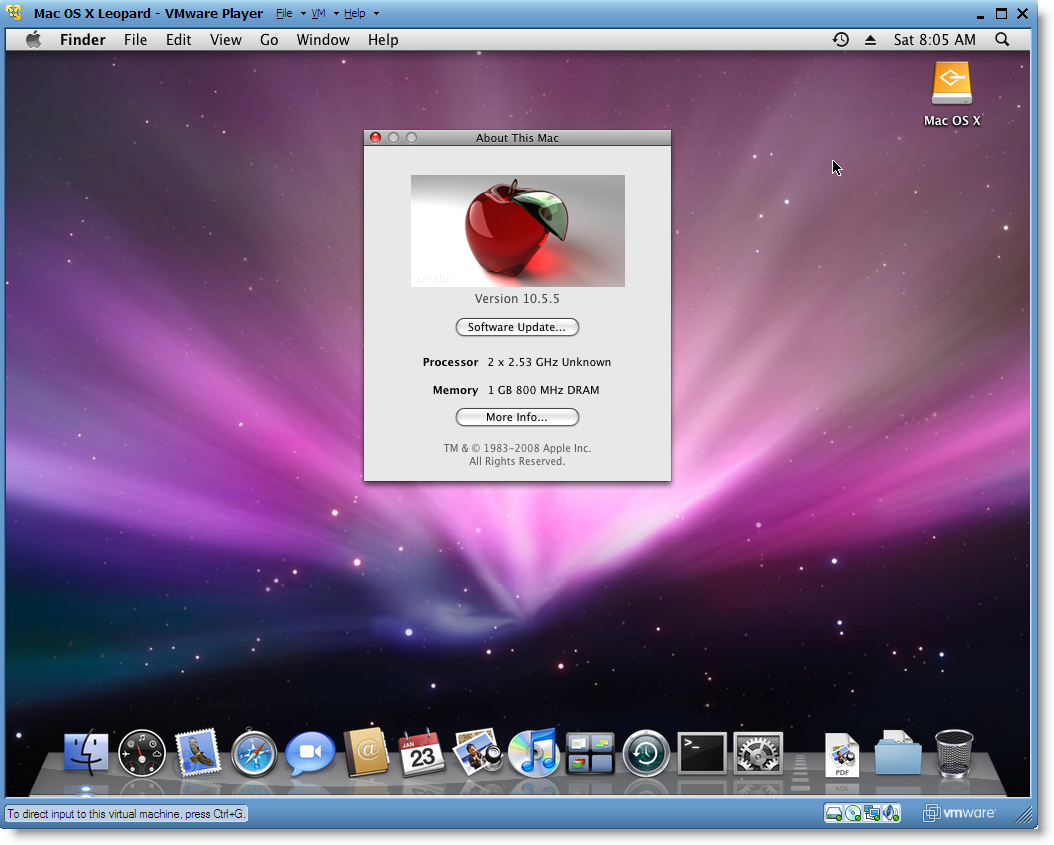
Everybody likes to see and use Mac OS X, but how many of them are ready to buy Apple hardware? It’s very rare. This free and easy steps show how you can run Mac OS X on PC without buying any special hardware or software. This is completely free for testing and experimental use only.
I already published similar steps to run Mac OS X on PC with VMware workstation, obviously VMware workstation is not a free product. This time, let’s install and run Mac OS X on your PC with free product VMware Player 3. You can run Mac OS X on any X86 Intel or AMD computers having enough of RAM to run Mac virtual machine by this method.
Installation is not much differing than earlier steps.
Follow the steps,
1) Download Mac OS X 10.5.5 X86 VMware image here. ( It’s a torrent download)
2) Download and install VMware player 3. It’s a free product.
3) Extract the downloaded image file. See here for more details. ( it will be creating Mac VMware VMX file and VMware disk files)
4) Start VMware player.
5) Click on Open a Virtual machine.
6) Browse for ‘ Mac OS X Leopard ‘ VMX file on the extracted location. Select and press open.
7) Once clicked open, you can see the following summary screen.
By default, it’s not required to change any settings here. But still you can change anything if you want, like increasing memory size.
8) You have to play around with processor virtualization option if virtualization is enabled on your PC BIOS. You can check whether virtualization is enabled or not on motherboard by running tools in Windows OS. Read more here about motherboard BIOS virtualization.
9) My working Mac virtual machine processor settings show as below. (Already I disabled virtualization in BIOS)
It worked fine even after selected two processors.
10) That’s it. Start Mac Virtual machine by pressing Start VM. I’m sure it will boot and work fine. If it hangs with Mac logo, you must check processor virtualization and disable it. Check my previous posts and some useful user comments about this.
In fact, it worked better than in VMware workstation as mentioned in previous post. This is just for testing and enjoying with Mac. This is the easiest method to run Mac OS X on PC based on X 86.
11) Mac OS X VMware image admin password
The Mac admin password is ‘ password’.
Password worked with administration tasks.
12) USB access in Mac OS X VMware image
My USB drive working fine in Mac VMware virtual machine. It can be accessed inside virtual machine without any difficulties.
13) Network in Mac OS X VMware image
Just for network test, I selected NAT as network adapter type in virtual machine option. Network is OK in this image. Mac virtual machine started communicating outside world through NAT.
14) That’s it. I showed all above steps on my Intel X 86 Core 2 Duo computer. Enjoy the Mac OS X on your PC. To get better performance, please buy Apple hardware with original latest Mac. 
How Install Mac OSX in VMware Windows
Install Mac OSX in VMware Windows PC
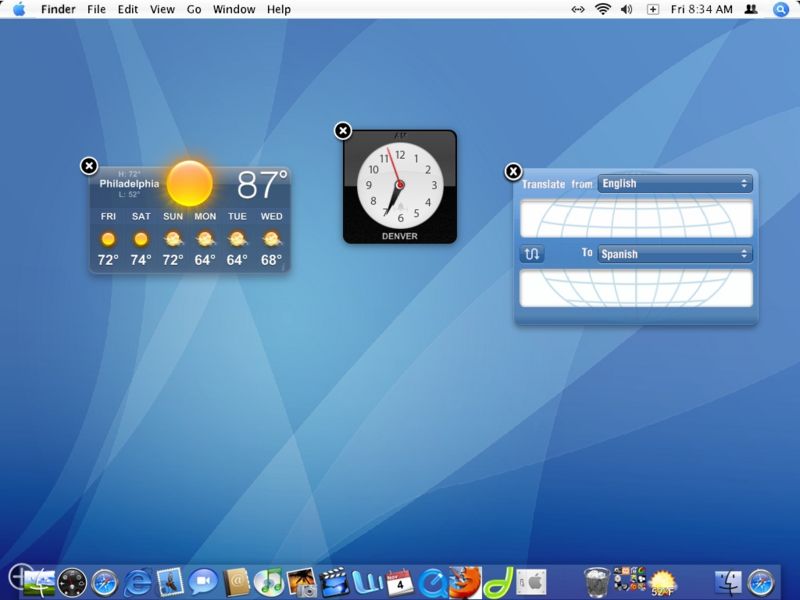
This article explains step by step method to install Mac OSX in VMware on your Windows PC. If you are interested to learn something on Mac OS X 10.5.5 Leopard or do some testing on Mac OS, then you can continue read this article. This article is only for testing purpose. Whoever doesn’t have chance to buy apple hardware with Mac OS, can use this method to install and run Mac on VMware home Windows PC.
Installation is not ‘Very’ Easy
Installation is not easy as inserting the CD and click ‘Next’ ‘Next’ or running some executable files. I wanted to install and learn Macintosh OSX on Windows in my PC, so I searched on internet for possibilities to have Macintosh on Windows computer. The results returned nothing very useful other than changing your XP, Vista themes to Mac OS themes. Based on the other tips in several sites and after I did it practically, now I’m writing this method to install mac on VMware in Windows PC.
But still I like to share what I found when I searched,
This video shows nicely how to change the XP theme to Mac OS theme. It looked as good video. But when I tried to install it…., guess what? Anti-virus popped up. I left it. You can try how to change the XP theme to Mac OS theme if you want.
Step by step to change the Windows theme to Mac
But I’m talking about real Mac. As I said earlier installation is not very easy since both OS hardware platform requirements are different, Mac can be installed on Virtual PC on your PC. To make the installation easy, in other word “to avoid the Mac installation”, we will just import the Mac OS pre-installed hard disk to your PC using VMware. Don’t be more confused, follow the below easy steps. Here are the requirements,
Software Requirements for Install Mac on VMware
Virtual PC software. Several virtual PC software available, but this method goes with VMware workstation since we will be using VMware hard disk image.
VMware workstation 6 or moreyou can download the VMware workstation at VMware site here . Either you can try 30-day free evaluation version or buy the full version, but don’t ask crack.
Mac OS X 10.5.5 Leopard VMware image download
(Note – This is a torrent download)
Hardware Requirements:Make sure after you installed VMware workstation, you have minimum below hardware resources to allocate for Mac OS.
RAM – 1GB
Hard Disk 15GB
Processor – Automatic allocation.
Install Mac on VMware Step by Steps
1) Install VMware Workstation.
2) Download Mac OSX 10.5.5 Leopard VMware Hard disk image. ( Approx Size – 1.9GB)
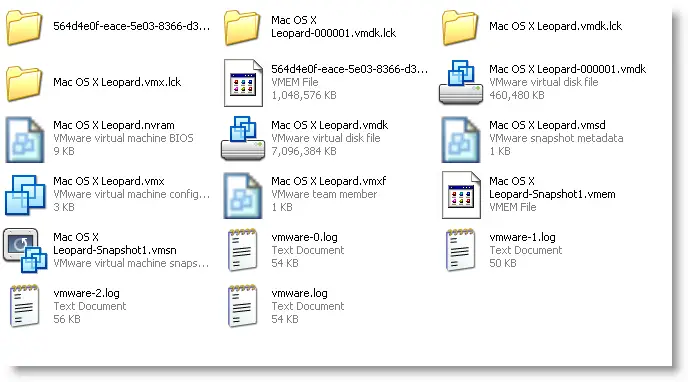
3) Extract the Image to a folder (You need WinRAR for extraction and extracted size is Approx 9.4GB). Make sure extraction is successful and you get all VMware files as below
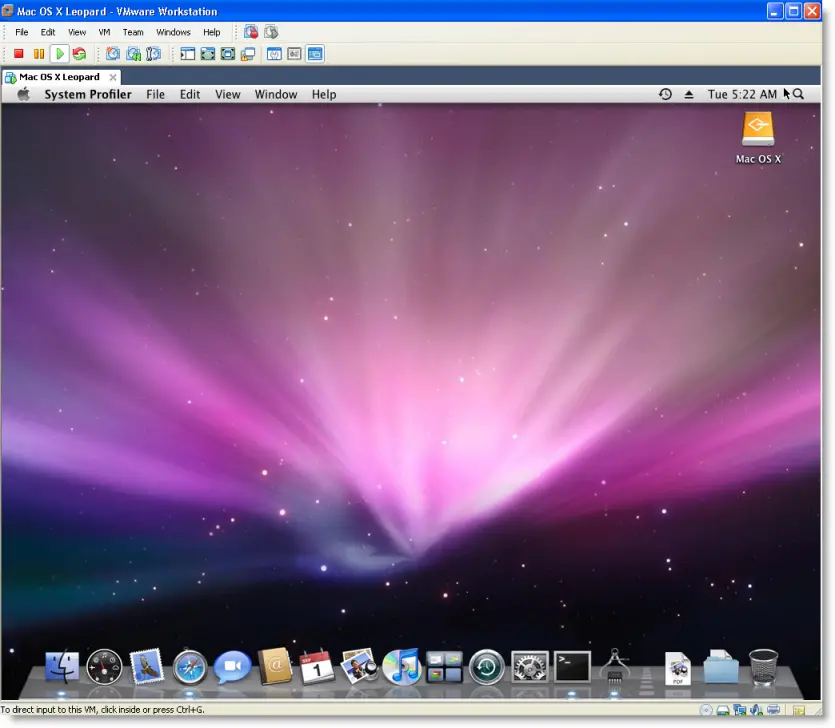
4) Start VMware workstation and open the Mac OS X Leopard.vmx. ( In VMware go to File – Open from extracted place)
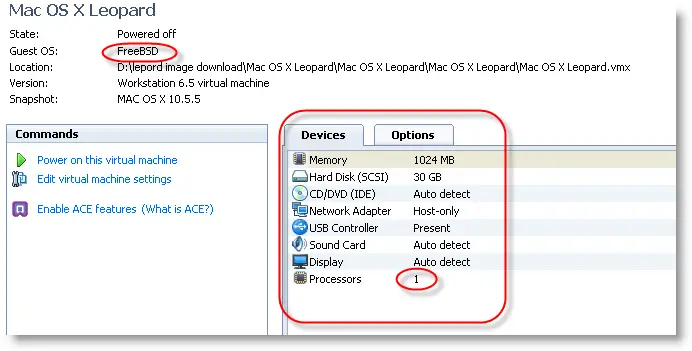
5) Once you open the correct vmx files, you can see the configurations which already done on the image. The below screen is the default one when you open it, before you power on the virtual PC. ( this is what I’m getting in my PC)
6) Make sure Guest OS should be ‘FreeBSD’. Even if you have Dual processor and have option to select two processors in VMware option, DO NOT change to two. Leave the Processors 1 only. Do not worry about Hard disk allocation 30GB. You can increase the memory size if you have memory resource in your computer.
7) That’s it click ‘Power on this virtual machine’. Now you should be able to see Mac OS.
You must disable ‘Intel Hardware Virtualization’ from your BIOS. Note that any time you enable or disable the Hardware virtualization setting in the BIOS; one has to completely power off (cold restart) the CPU for 10 seconds before booting.
Read More about how to Disable or Enable Hardware Virtualization in BIOS
Now start the Mac on VMware again, this time it will work fine.
Network
Somewhere I read that Network will not working in Mac with VMware, but it works fine with this image. I tested ‘Bridged’ and ‘NAT’ networks in VMware. It worked fine.
Mac Admin Password
This OS image has Mac Admin password, the password is ‘password ‘.
Mac VMX File
Here is the correct VMX file for your reference
.encoding = “windows-1252″
config.version = “8″
virtualHW.version = “7″
scsi0.present = “TRUE”
scsi0.virtualDev = “lsilogic”
memsize = “1024″
scsi0:0.present = “TRUE”
scsi0:0.fileName = “Mac OS X Leopard-000001.vmdk”
ide1:0.present = “TRUE”
ide1:0.autodetect = “TRUE”
ide1:0.deviceType = “cdrom-raw”
floppy0.present = “FALSE”
ethernet0.present = “TRUE”
ethernet0.startConnected = “TRUE”
ethernet0.virtualDev = “e1000″
ethernet0.wakeOnPcktRcv = “FALSE”
usb.present = “TRUE”
ehci.present = “TRUE”
sound.present = “TRUE”
sound.fileName = “-1″
sound.autodetect = “TRUE”
mks.enable3d = “TRUE”
pciBridge0.present = “TRUE”
pciBridge4.present = “TRUE”
pciBridge4.virtualDev = “pcieRootPort”
pciBridge4.functions = “8″
pciBridge5.present = “TRUE”
pciBridge5.virtualDev = “pcieRootPort”
pciBridge5.functions = “8″
pciBridge6.present = “TRUE”
pciBridge6.virtualDev = “pcieRootPort”
pciBridge6.functions = “8″
pciBridge7.present = “TRUE”
pciBridge7.virtualDev = “pcieRootPort”
pciBridge7.functions = “8″
vmci0.present = “TRUE”
monitor.virtual_mmu = “automatic”
monitor.virtual_exec = “automatic”
roamingVM.exitBehavior = “go”
displayName = “Mac OS X Leopard”
guestOS = “freebsd”
nvram = “Mac OS X Leopard.nvram”
virtualHW.productCompatibility = “hosted”
ft.secondary0.enabled = “TRUE”
tools.upgrade.policy = “useGlobal”
extendedConfigFile = “Mac OS X Leopard.vmxf”
ide1:0.fileName = “auto detect”
ide1:0.startConnected = “FALSE”
ethernet0.addressType = “generated”
tools.syncTime = “FALSE”
uuid.location = “56 4d 4e 0f ea ce 5e 03-83 66 d3 86 b7 b4 42 e4″
uuid.bios = “56 4d 4e 0f ea ce 5e 03-83 66 d3 86 b7 b4 42 e4″
scsi0:0.redo = “”
vmotion.checkpointFBSize = “134217728″
pciBridge0.pciSlotNumber = “17″
pciBridge4.pciSlotNumber = “21″
pciBridge5.pciSlotNumber = “22″
pciBridge6.pciSlotNumber = “23″
pciBridge7.pciSlotNumber = “24″
scsi0.pciSlotNumber = “16″
usb.pciSlotNumber = “32″
ethernet0.pciSlotNumber = “33″
sound.pciSlotNumber = “34″
ehci.pciSlotNumber = “35″
vmci0.pciSlotNumber = “36″
ethernet0.generatedAddress = “00:0c:29:b4:42:e4″
ethernet0.generatedAddressOffset = “0″
vmci0.id = “660874947″
tools.remindInstall = “TRUE”
checkpoint.vmState = “”
ethernet0.connectionType = “nat”
Subscribe to:
Posts (Atom)